
What's inside
- What Makes the Best External SSD for Laptop Storage
- Quick Comparison: External SSDs for Laptop Storage Compared
- The Six External SSDs Reviewed
- Buying Guide: Choosing Your External SSD, Step by Step
- How We Selected These External SSDs for Laptop Storage
- Frequently Asked Questions About External SSDs for Laptop Storage
As an Amazon Associate I earn from qualifying purchases. This post may contain affiliate links at no extra cost to you.
The best external SSD for laptop storage is the drive that makes the laptop’s internal disk stop being a negotiation. Every laptop owner knows the parish: the photo library that will not fit beside the work files, the video project exiled to a spinning drive from another decade, the operating system’s polite warnings growing less polite — while the laptop itself, sealed against upgrades as modern machines are, offers no second bay and no mercy. The external SSD answers with the modern terms: capacities to four terabytes and beyond in a package smaller than the phone in your pocket, speeds that open a project where it sits rather than copying it home first, and a price per terabyte that has fallen to the point where the question is no longer whether but which. This guide ranks the real, currently sold drives for laptop storage, teaches the one audit that decides everything — your laptop’s ports, whose speed ceilings no drive can exceed — and keeps the whole subject inside the discipline that storage deserves: an external drive is a home for files, not a backup of them, and the guide’s closing doctrine keeps those two ideas separated with the firmness they require, because the drive that holds the only copy of anything is not storage. It is a risk with a USB cable.
Begin with the port audit, since it is the purchase’s destiny. An external SSD speaks USB, and USB’s generations are a ladder of ceilings: the 10-gigabit class — sold as USB 3.2 Gen 2, and the port on the overwhelming majority of living laptops — carries the mainstream drives at their full and genuinely fast pace, in the region of a gigabyte per second in the real world. The 20-gigabit class, USB 3.2 Gen 2×2, doubles that ceiling but lives on a minority of laptops, mostly Windows desktops’ boards and a scattering of machines whose specifications must be checked model by model — and it is not carried by Thunderbolt or USB4 ports at all, those ports falling back to the 10-gigabit pace for USB drives, which is the parish’s most expensive misunderstanding and the reason the fastest drive in this table is graded with its condition attached. Thunderbolt and USB4 laptops have their own faster parish — dedicated Thunderbolt enclosures and drives — outside this guide’s mainstream table, at prices that reflect it. The audit itself is five minutes on your laptop maker’s specification page: the ports’ names, written down, beside the drives’ requirements. Every drive below performs beautifully at the 10-gigabit ceiling that most readers own; the worksheet simply ensures that nobody pays the 20-gigabit premium for a port they do not have, which is this category’s equivalent of buying petrol for a diesel.
Capacity is the second foundation, and it is chosen by the library’s growth rather than its present size. The discipline is to total what the drive will hold — the photo and video libraries, the project archives, the machine’s overflow — and then buy the next size above the total, because libraries grow in one direction and a drive filled past nine-tenths is a drive shopping for its own replacement with your money. The price arithmetic rewards the discipline: the cost per terabyte falls as capacities rise through the mainstream sizes, so the two-terabyte drive is commonly the value summit and the four-terabyte the considered purchase for the video parish, while the five-hundred-gigabyte entry now prices so close to the one-terabyte that it survives mainly as the gift and the glovebox drive. The table prices each model across its common capacities in ranges, and the buying guide’s worksheet performs the totalling in the open. Speed, finally, divides the parish by use: the archive that is written once and read occasionally asks little; the working drive — the video timeline’s media, the virtual machine, the game library’s annex — asks everything the port allows, sustained rather than bursted, which is the distinction the next section teaches and the reviews grade.
Our Top Picks
What Makes the Best External SSD for Laptop Storage
Sustained Speed vs Headline Speed
Every drive in this category advertises a number in the region of a thousand megabytes per second or beyond, and every one of them can produce it — for the first part of a long transfer, from a cool start, in the benchmark’s conditions. The storage parish’s honest figure is the sustained write: the speed at the twentieth gigabyte of a video library’s migration, when the drive’s cache is spent and its controller is managing heat, because that is the speed at which your actual life will be copied. The mainstream leaders in this table sustain impressively — the modern controllers and the larger capacities, whose caches run deeper, hold most of their pace through transfers that empty the lesser drives into a crawl — and the reviews grade the sustained parish rather than the headline wherever the distinction matters, with the working-drive buyer directed to the larger capacities for this reason among others: in SSD economics, capacity is also endurance, cache, and calm. The reader whose use is the archive’s write-once pattern may discount the whole section; the video editor may not discount a word of it, and knows it.
Build: The Pocket, the Desk, and the Drop
The external SSD lives two lives and the build serves both. In the pocket and the laptop bag it meets keys, drops to platforms, and the crush of the commute; on the desk it meets the coffee’s parish and the cable’s tug toward the floor. The rugged class in this table — rubber-armoured, drop-rated to published heights, sealed against dust and water to published ingress figures — serves the travelling life and is priced like the insurance it is. The sleek class serves the desk and the careful bag at a saving, with aluminium shells that shrug the ordinary knocks and conduct the drive’s heat away as a quiet second job. Either way, the audit includes the cable, the drive’s most underrated component: the short lead in the box is the bag’s friend, a longer quality cable is the desk’s, both rated for the drive’s full speed — a bargain cable can halve a fast drive without announcing itself — and the connector’s fit audited for the wobble that disconnects a drive mid-write, the one accident this category’s files genuinely fear. Buy the build for the life the drive will lead, keep the cable honest, and eject the drive like a professional, as the closing doctrine insists.
Security and the Second Life: Encryption and Backup Manners
A pocketable drive is a losable drive, and the laptop-storage parish carries the laptop’s overflow — which is to say, the owner’s life in files. The security audit is therefore part of the purchase: hardware encryption on the drive, as several models in this table offer with their makers’ software, or the operating system’s own encrypted volume — BitLocker To Go, FileVault on an APFS volume — established before the first personal file crosses, because encryption retrofitted to a full drive is a weekend nobody schedules. The password’s custody is the owner’s discipline and this guide’s only sermon on it: an encrypted drive whose password is forgotten is a paperweight containing your past, and the password lives in the password manager, not in the memory that will be tested at an airport. The backup doctrine rides alongside, stated here and repeated at the close: the external SSD is where files live and work; the backup is a second copy somewhere else — the home drive, the cloud, the NAS of this site’s other guides — and the laptop’s own backup should include the external drive’s contents where they are originals. Storage extends the laptop. Only copies protect it.
Quick Comparison: External SSDs for Laptop Storage Compared
| External SSD Model | Class / Best For | Key Specs | Typical Price Range | Rating |
|---|---|---|---|---|
| Samsung Portable SSD T7 Shield (2TB) | Rugged — best external SSD for laptop storage overall | USB 3.2 Gen 2 (10Gbps), up to ~1,050 MB/s class, IP65 and drop-rated armour as published | $170 – $230 | 4.7 / 5 |
| Samsung Portable SSD T9 (2TB) | Fastest USB — best with a 20Gbps port | USB 3.2 Gen 2×2 (20Gbps), up to ~2,000 MB/s class where the port allows as published | $200 – $270 | 4.6 / 5 |
| SanDisk Extreme Portable SSD V2 (2TB) | Rugged value — best all-round alternative | USB 3.2 Gen 2, up to ~1,050 MB/s class, IP55 class sealing and drop rating as published | $150 – $210 | 4.6 / 5 |
| Crucial X9 Pro (2TB) | Compact value — best price per terabyte | USB 3.2 Gen 2, up to ~1,050 MB/s class, small aluminium body as published | $130 – $180 | 4.5 / 5 |
| SanDisk Extreme Pro Portable V2 (2TB) | Fast rugged — best sustained Pro tier | USB 3.2 Gen 2×2, up to ~2,000 MB/s class, forged aluminium and silicone armour as published | $220 – $300 | 4.5 / 5 |
| WD My Passport SSD (2TB) | Sleek — best desk and style parish | USB 3.2 Gen 2, up to ~1,050 MB/s class, slim metal design, backup software parish as published | $140 – $190 | 4.4 / 5 |
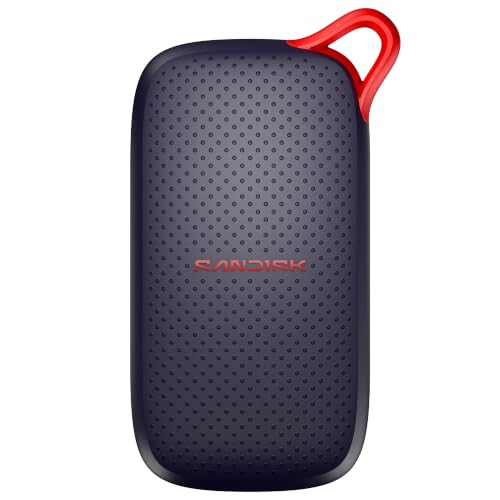
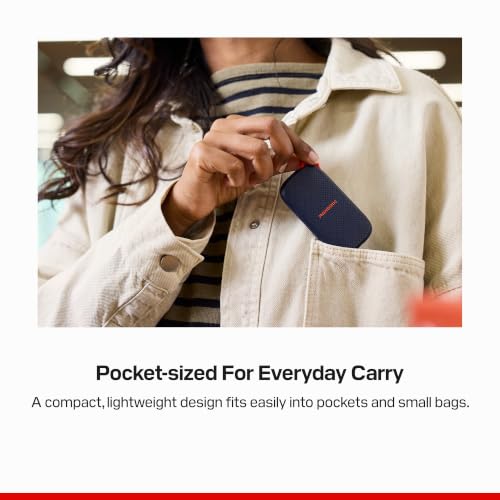
SANDISK 1TB Portable SSD, Up to 1000MB/s Read Speeds, Black (New Model) | External Solid State Drive, Compatible with Laptops & Tablets, Up to 2M Drop Protection, Up to 5x faster than HDD Pocket Size




As an Amazon Associate we earn from qualifying purchases. Product prices and availability are accurate as of the date/time indicated.

UnionSine 1TB Ultra Slim Portable External Hard Drive HDD-USB 3.0 | for PC, Mac, Laptop, PS4, Xbox one, Xbox 360-(Black)
As an Amazon Associate we earn from qualifying purchases. Product prices and availability are accurate as of the date/time indicated.

Kosbees 500 GB External Hard Drives,Portable Hard Drive for Windows,Ultra Slim External HDD Store Compatible with PC, MAC,Laptop,PS4, Xbox one, Xbox 360;Plug and Play Ready
As an Amazon Associate we earn from qualifying purchases. Product prices and availability are accurate as of the date/time indicated.
Ratings are editorial assessments for laptop storage, based on the makers’ published interface speeds, capacities, sealing and drop ratings, and encryption features, and value at typical prices. Prices are typical retail ranges at the popular 2TB capacity and vary by capacity and market. The 20Gbps models reach their headline speeds only on laptops with USB 3.2 Gen 2×2 ports, as the port audit in this guide explains; on the common 10Gbps port they perform at that ceiling.
The Six External SSDs Reviewed
1. Samsung T7 Shield – Best Overall
The T7 Shield is the laptop-storage parish’s complete sentence: the mainstream 10-gigabit speed that matches the ports most laptops actually own, delivered sustained with the calm the larger capacities bring, inside a rubber-armoured body rated against drops and sealed against the dust and water of a travelling life, with hardware encryption in the maker’s software for the security audit. It has been the category’s recommendation across so many tables because it fails no audit this guide performs — speed, build, security, price at the value capacities — and the Shield’s armour answers the pocket-and-platform life that the sleek original T7’s owners occasionally regretted. Buy it at two terabytes unless the worksheet says otherwise, and the laptop’s storage negotiation is over for years.
2. Samsung T9 – Best With the Fast Port
The T9 doubles the headline — the 20-gigabit class, two gigabytes a second in the conditions that allow it — and this review’s first duty is the condition, repeated from the introduction without apology: your laptop needs the Gen 2×2 port, which most do not have, and on every other port the T9 is a T7-class drive at a T9 price. Where the port exists — the creator’s desktop-replacement, the checked-and-confirmed specification — the T9 is the fastest USB storage in this table and its shielded, pocketable build carries the speed anywhere. It is graded as the conditional champion it is: the right drive for the audited few, the wrong premium for everyone else, and the worksheet decides which reader you are before the money does.
3. SanDisk Extreme Portable V2 – Best Rugged Alternative
SanDisk’s Extreme is the Shield’s great rival and, on many weeks, its price’s better: the same mainstream speed class, a sealed and drop-rated body with a carabiner loop that the bag’s outside wears happily, and a parish of capacities to the large end. Its sustained manners are the class’s standard and its encryption the audit’s pass. The choice between it and the Samsung is made on the week’s prices, the hand’s preference, and any existing loyalty of the cable drawer — a genuine coin-flip at the summit of the value rugged class, which is why both are in the table and neither review pretends otherwise.
4. Crucial X9 Pro – Best Price per Terabyte
The X9 Pro is the worksheet’s favourite: the mainstream speed class in a small, cool-running aluminium body, at the price per terabyte that commonly undercuts the rugged pair by a margin the budget feels — the saving being the armour and the sealing it does not claim. For the desk-and-bag life, carefully lived, it is the rational purchase, and its sustained performance at the larger capacities serves the working drive’s parish better than its price suggests. The traveller to building sites and boat decks buys the armour above it; the laptop owner whose drive commutes in a padded sleeve buys the X9 Pro and banks the difference toward the backup drive the doctrine demands.
5. SanDisk Extreme Pro V2 – Best Pro Tier
The Extreme Pro carries the 20-gigabit condition of the T9 — read that review’s first duty again before this one’s virtues — and adds the pro parish’s build: a forged aluminium chassis in silicone armour, sustained speeds at the head of the USB class where the port allows, and the working-drive credentials the video parish audits for. On the confirmed fast port, in the hands of the editor whose media lives on the drive, it is the USB mainstream’s summit. On the common port it is a handsome overpayment, and the guide’s grading holds both truths at once, as the port audit requires of every 20-gigabit claim in the category.
6. WD My Passport SSD – Best Desk Parish
The My Passport is the sleek incumbent: a slim metal drive at the mainstream speed, from the house whose backup software parish many laptop owners already live in, at prices that compete with the value class. Its build is the desk’s rather than the building site’s, its manners are quiet and cool, and its inclusion serves the reader whose drive will live a civilised life between the laptop bag’s padded pocket and the desk’s dock. It is graded last on the rugged audits it never entered and respectably on the ones it did — a reminder that the best drive is the one matched to a life, not the one with the longest specification.
Buying Guide: Choosing Your External SSD, Step by Step
Step One: The Worksheet — Ports, Library, Budget
Run the three audits in the guide’s order. Ports: your laptop maker’s specification page, the ports’ generations written down, the 20-gigabit question answered in ink — and if the answer is the common 10-gigabit ceiling, the table’s fastest pair are struck from the premium list and the mainstream leaders compete on build and price alone. Library: the folders the drive will hold, totalled in their file manager’s own figures, the next size up chosen, the four-terabyte question asked honestly by the video parish. Budget: the drive, the longer desk cable if your setup wants one, and — the doctrine’s line — the backup arrangement for whatever on the drive will be original, whether that is the cloud tier or the home drive bought in the same season. Three audits, one page, and the purchase is made by arithmetic rather than by the shelf’s lighting, which is the only way storage has ever been bought well.
Step Two: Set It Up Like Storage, Not Like a Toy
Commission the drive deliberately in its first hour. Format it for your world: the maker’s shipped format serves the mixed household; the Mac parish’s APFS and the Windows parish’s NTFS each serve their own with the operating system’s full manners, and the cross-platform exFAT serves the mixed life with its known compromises, chosen knowingly. Establish the encryption before the files, by the security section’s doctrine, and the password in the manager in the same sitting. Name the drive for its job — the library, the projects, the overflow — because a named drive is filed, backed up, and ejected like a professional, while “Untitled” is where files go to be forgotten. Set the laptop’s backup to include it where its contents are originals. Then move the libraries by their applications’ own relocation manners — the photo library moved as its app directs, the project folders with their links intact — rather than by hopeful dragging, and verify the first opening of everything from its new home before the internal copies are deleted.
Step Three: Live With It — Eject, Carry, and Copy
Keep the drive by the storage parish’s three disciplines. Eject before unplugging, always — the operating system’s write caches make the yanked cable a small act of vandalism against your own files, and the one time it matters will not announce itself in advance. Carry it as the losable, droppable object it is: the padded pocket, the cable coiled without a kink at the connector, the drive never the bag’s outer skin against the platform’s edge. And copy, on the doctrine this guide opened with: the external SSD is a residence, not a redundancy — the library that lives on it lives also in the backup, at home or in the cloud, checked on the same rhythm as the laptop’s own. Do those three, and the best external SSD for your laptop becomes what it promised at the shelf: the end of the storage negotiation, the projects opening where they sit, the internal disk breathing again — and the files, which were the point of every figure in this guide, safe in the plural.
How We Selected These External SSDs for Laptop Storage
We included only real, named, currently sold portable SSDs from established storage makers, spanning the rugged, fast, value, and sleek classes, graded on published interface and speed figures, sustained-performance reputation in the parish, sealing and drop ratings, and encryption support. Headline speeds are identified with the port generation they require throughout, and no drive is credited with speeds beyond the reader’s own port ceiling, as the port audit requires. Prices are ranges at the popular capacities and exclude any backup service, which the guide treats as a separate and necessary arrangement.
Frequently Asked Questions About External SSDs for Laptop Storage
What size external SSD should I buy for my laptop?
The size above your library’s total, by the capacity discipline: total the folders the drive will hold — photo and video libraries, project archives, the overflow — in their actual figures, then buy the next mainstream size up, because libraries grow in one direction only and a drive past nine-tenths full is a replacement being shopped for at the worst moment. For most laptop owners that arithmetic lands on two terabytes, which is also the price-per-terabyte summit in this table’s ranges; the light parish — documents, a modest photo library, the working overflow — is honestly served by one terabyte; and the video editor’s media parish should start the conversation at four. The five-hundred-gigabyte class survives as the spare and the gift, its price now close enough to the terabyte’s that the worksheet rarely chooses it for a main drive. Buy for the library of two years from now, not of this afternoon, and the drive will age like infrastructure instead of like a postponement.
Why is my fast external SSD only reaching half its advertised speed?
Almost always, the port — and the diagnosis begins with the audit this guide opened with. The drive’s headline figure belongs to its interface’s ceiling: the 20-gigabit drives advertise two gigabytes a second and reach it only on the Gen 2×2 port that a minority of laptops carry, falling to the 10-gigabit pace — roughly half — on the Thunderbolt, USB4, and ordinary USB-C ports the rest of the world owns, by the standards’ own design and not by any defect. The second suspect is the cable: a charge-only or bargain USB lead can cap a fast drive at a fraction of its pace without a word of confession, cured by the cable in the drive’s box or a rated replacement. The third is the transfer itself — thousands of small files move slower than one large one on every drive ever made. Check the port’s specification, swap the cable, test with one large file, in that order, and the mystery resolves in the overwhelming majority of cases — which is why the worksheet performs the port audit before the purchase rather than after the disappointment.
Can I run applications and games from an external SSD?
Yes — the modern drive at the mainstream ceiling is fast enough that most applications and the great majority of games run from it indistinguishably from the internal disk, which is precisely why the laptop-storage parish has adopted it as the internal drive’s annex. The manners are few: install through the platform’s own provisions — the game stores all offer the external library location, the application installers their destination choice — keep the drive’s letter or mount consistent so the shortcuts do not orphan, and accept the two honest limits. The first is the port’s: a game whose streaming appetite was built for the fastest internal drives may hitch at the USB ceiling in its most demanding scenes, a minority parish the worksheet knows by title rather than by surprise. The second is the connection’s: the drive that sleeps, disconnects, or is unplugged mid-session takes the application with it, so the working drive is cabled, awake, and ejected only when closed. Within those manners, the external SSD is the sealed laptop’s only upgrade — and it is a good one.
Is an external SSD a backup?
No — and the distinction is this guide’s most important sentence, worth its own answer. A backup is a second copy of files that live somewhere else, kept so that the failure, loss, theft, or corruption of the first copy is an inconvenience rather than a bereavement. An external SSD holding the only copy of your photo library is not a backup of that library; it is the library, in its most losable and droppable form, and the day it fails — every drive ever made is a device with a failure date, differing only in whether it is known — the library fails with it. The correct architecture is the one the buying guide builds: files live where they are used, on the laptop and its external annex, and copies live elsewhere — the home backup drive, the NAS, the reputable cloud — refreshed on a rhythm and verified occasionally, because an untested backup is a hope rather than a copy. Buy the external SSD for storage with this guide’s blessing, and fund the backup in the same season with the same seriousness. The two purchases together are the system; either alone is half of one.
Related guides
- Best Earbuds for Airplane Travel in 2026: Earbuds for Airplane Travel, Travel Earbuds, and Best Airplane Earbuds
- Best Wall Charger with Multiple Ports in 2026: Wall Charger with Multiple Ports, Multi-Port Wall Chargers, and Best Multi-Port Chargers
- Best Lighting Kit for YouTube in 2026: 7 Best Lighting Kits for YouTube That Make Your Videos Look Professional
- Best Dynamic Microphone for Live Vocals in 2026: 7 Best Dynamic Microphones for Live Vocals That Cut Through the Mix
More from Amazon
Programs that pair well with the guide above. Offers and eligibility are set by Amazon and may change.
Free shipping on eligible items, Prime Video and more. Eligible new members can start with a free trial.
Start a Prime free trialAd-free music streaming. Eligible new subscribers can start with a free trial.
Try Music Unlimited freeA Prime membership for ages 18-24 with a trial period. Eligibility is set by Amazon.
See Prime for Young AdultsAudiobooks and podcasts to listen to on the go. Eligible new members can start with a free trial.
Try Audible freeAs an Amazon Associate we earn from qualifying purchases.

Write Your Review
No reviews yet. Be the first to share your experience!