
What's inside
- How to Choose USB C Hub for Laptops: Read Your Laptop First
- Quick Comparison: How to Choose USB C Hub for Laptops by Model
- Detailed Reviews: How to Choose USB C Hub for Laptops Picks
- Buying Guide: How to Choose USB C Hub for Laptops Step by Step
- Frequently Asked Questions About How to Choose USB C Hub for Laptops
As an Amazon Associate I earn from qualifying purchases. This post may contain affiliate links at no extra cost to you.
A USB-C hub is the most mis-bought object in the laptop’s life, because its box promises a row of ports in a photograph while its compatibility is decided by three facts that appear in no photograph: what your laptop’s USB-C port actually is, a plain USB port wearing the new shape, a DisplayPort-capable port, or a Thunderbolt port with a whole second profession; how much power must pass through the hub to the laptop, and how much the hub itself will eat on the way; and how many screens your laptop’s graphics will drive, a limit set by the laptop, and on Apple’s base silicon famously set at one, which no hub in this guide or any other can repeal. Learning how to choose USB C hub for laptops is therefore an exercise in reading your own machine before reading any listing, and this guide is organised in that order on purpose: the laptop’s evidence first, the hubs’ table second, because a hub chosen from the listing’s ports alone will, in a large minority of households, arrive as a small, warm paperweight with excellent reviews from owners of different computers.
The vocabulary needs one honest paragraph, because the industry uses the same words for different things. USB-C is a connector, a shape, and it carries no promise about speed, video, or power, all of which are separate provisions a port may or may not implement in its maker’s design. A hub multiplies connections; a dock, in the trade’s loose usage, is a hub with ambitions, more power, more displays, a desk it intends to live on. DisplayPort alt mode is the provision that lets a USB-C port carry a screen’s signal, and a laptop without it cannot be given a screen by any hub, a sentence worth reading twice because it is the category’s most returned misunderstanding. Thunderbolt, which uses the same connector, guarantees video and high speeds in its stated provisions and unlocks the multi-display docks in this table’s upper rows, while plain USB-C hubs split one port’s bandwidth among everything plugged into them, which is why a hub’s ports are a shared budget and not a row of independent promises.
The products compared here are real, currently sold hubs and light docks from Anker, CalDigit, UGREEN, Belkin, Satechi, and Plugable. They are graded on port honesty, each port’s stated speed and the bandwidth they share; display provisions, the number, resolution, and refresh in the makers’ terms, read against the laptop limits the next section teaches; power delivery passthrough, the wattage the hub passes and the wattage it keeps; build and heat, because a hub under full load is a warm object and its shell is its heatsink; and the cable, its length and its captivity, since a hub on a ten-centimetre captive lead lives dangling from a laptop’s side, a posture with consequences for ports and tempers alike.
Our Top Picks
 Docking Station Dual Monitor 4K HDMI 13-in-1 USB13-in-1 Docking Station (USB C)13 x 0.5 x 5 inches0.3 poundsCheck on Amazon
How to Choose USB C Hub for Laptops: Read Your Laptop First
The Port Audit: What Your USB-C Socket Actually Does
Open your laptop maker’s specification for your exact model and answer three questions in writing. First, video: does the port carry DisplayPort alt mode or Thunderbolt, without which no hub will give you a monitor, whatever its HDMI socket implies. Second, count and kind: how many USB-C ports the machine has and whether a hub will consume the only one, which makes the hub’s power passthrough a necessity rather than a feature, since a hub without it turns charging and peripherals into a rota. Third, displays: how many external screens the machine drives natively in its maker’s stated provisions, the figure that on base Apple silicon models is one in their stated terms, with multi-screen docks achieving more only through DisplayLink technology in its makers’ implementations, a software-driven path with its own provisions and limits that must be chosen knowingly, for the machines that need it, and not discovered from a listing’s cheerful photograph of three monitors. A Windows Thunderbolt machine, by contrast, commonly drives two screens through a proper dock in its stated provisions, and a plain USB-C Windows machine commonly drives one, and the hub that serves each is a different purchase, which is the entire point of auditing before admiring.
Power is the audit’s second page. Your laptop’s charger has a wattage in its maker’s figures, and the hub stands between it and the machine, passing a stated maximum and consuming a share for itself and its peripherals in its design, commonly a noticeable one. The arithmetic that matters is the delivered figure: a hub rated to pass a high wattage in its terms, fed by your existing charger, delivers that charger minus the hub’s keep, and a laptop that charges slowly, or discharges under load, on its new desk is usually reporting this subtraction rather than a fault. A buyer whose laptop ships with a large charger should choose a hub whose passthrough rating in its maker’s stated terms matches or exceeds it, and should budget, where the hub will feed hungry peripherals, drives, phones, a tablet, for the possibility that the laptop’s own brick becomes the desk’s permanent supply and a second charger joins the travel bag, an unglamorous line item that separates a desk that works from a desk that negotiates.
Ports as a Shared Budget, and the Speeds That Matter
A hub’s USB ports share the bandwidth of the single connection to your laptop, and their stated speeds, in the makers’ terms, are per-port ceilings under a shared roof. In practice the sharing is painless for the desk’s ordinary citizens, keyboards, mice, receivers, headsets, printers, which sip, and consequential for its drinkers, SSDs, card readers ingesting a shoot, docks’ Ethernet in full flow, which should therefore be given the hub’s fastest stated ports and, where two drinkers must work together, a realism about their combined ceiling. Card readers deserve a spec of their own in the audit, their stated card standards deciding whether a photographer’s fast cards run at their speed or at a fraction, and Ethernet likewise, its stated gigabit or faster class in the maker’s terms being a line to read rather than assume, since a hub that saves a desk from a flaky wireless connection is only as good as its wired one’s honesty. HDMI’s figure needs the same literacy: a stated resolution is incomplete without its refresh, the common pattern in this class being the higher resolutions at the lower refresh in the makers’ terms, fine for documents and video, a compromise for a gaming screen, and a fact to match against your monitor’s own ambitions before the order.
Heat and form close the audit’s practicalities. A hub driving a screen, passing near its full power, and serving a drive is a small computer working hard in a metal shell that is its only radiator, and it will be warm in the hand in every honest design in this table; what separates the good from the poor is whether that warmth is stable and specified rather than escalating, and whether the shell’s material and size give it somewhere to go. The captive cable’s length decides the hub’s posture, dangling from a thin laptop’s port, where its weight levers on the socket all day, or resting on the desk in the longer-leaded and dock-form designs, and a hub that will live on a desk should be chosen in a form that can, with a cable that reaches the laptop’s port without tension, because a port strained for a year is a motherboard’s repair bill wearing a hub’s face. Extension of a Thunderbolt or USB-C hub’s captive lead with a random extension cable is, in the makers’ general guidance, a compatibility gamble, and the desk should be arranged around the lead that exists.
Quick Comparison: How to Choose USB C Hub for Laptops by Model
| Model | Ports, Displays and Key Specs | Best For |
|---|---|---|
| Anker 555 USB-C Hub (8-in-1 class) | USB-C hub in Anker’s line, HDMI provision in maker’s stated resolution and refresh terms, power delivery passthrough rating, card readers and Ethernet by version | Best all-round hub |
| CalDigit SOHO Dock | USB-C dock in CalDigit’s line, stated display and power provisions in maker’s terms, card reader class, detachable cable pattern | Best desk hub |
| UGREEN Revodok Pro Series | USB-C hub in UGREEN’s line, stated HDMI, Ethernet and passthrough provisions by version in maker’s range | Best value |
| Belkin Connect USB-C Hub Class | USB-C hub in Belkin’s line, stated display, Ethernet and power provisions in maker’s terms | Best supported mainstream |
| Satechi USB-C Multiport Class | USB-C hub in Satechi’s line, stated provisions by version, aluminium shell design pattern | Best travel design |
| Plugable USB-C Hub and Dock Class | USB-C hubs and docks in Plugable’s line, stated display provisions including DisplayLink patterns in maker’s range | Best for multi-screen Macs |

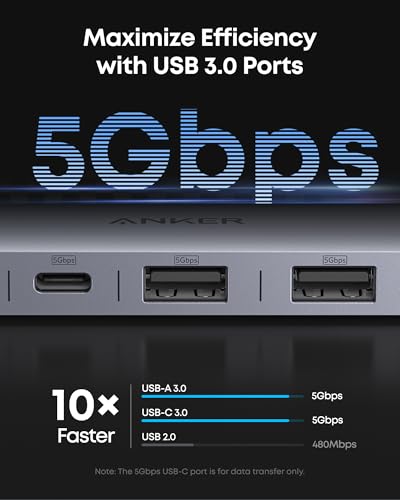
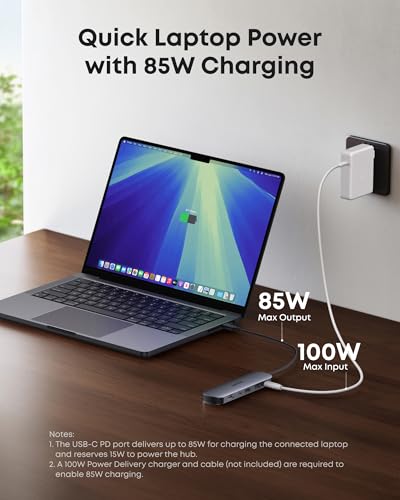
Anker USB C Hub, 7in1 Multi-Port USB Adapter, 4K@60Hz USBC to HDMI Splitter | 85W Max PD, 2 USB 3.0 & 1 USBC Data Ports, SD/TF Card Reader, for Laptops/Mac and Other Type C Devices (Charger Not Included)





As an Amazon Associate we earn from qualifying purchases. Product prices and availability are accurate as of the date/time indicated.

Denlane USB C Hub USB Hub 3.0 for Laptop, Upgrade 8 in 2 USB Splitter with USB-C/4 USB A Port Extender, TF/SD Card Slot, 3.5mm Audio Adapter, USBC USB Dongle for PC/Mac/MacBook/Laptop/iPad/Tablet
As an Amazon Associate we earn from qualifying purchases. Product prices and availability are accurate as of the date/time indicated.
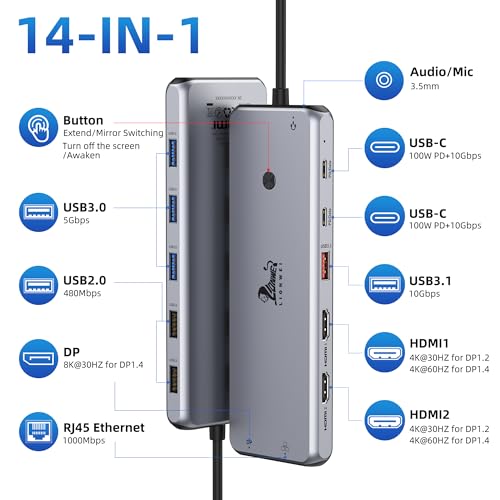
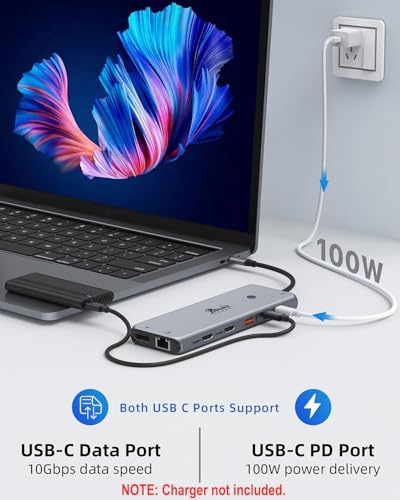
Docking Station Dual Monitor 4K HDMI 13-in-1 USB C Hub for Laptop MacBook | LIONWEI Triple 4K, Dual HDMI+DP, 10Gbps, 100W PD, Ethernet, 8 USB C/A Ports, Switching Mode Botton, Audio, for Dell,HP,Lenovo


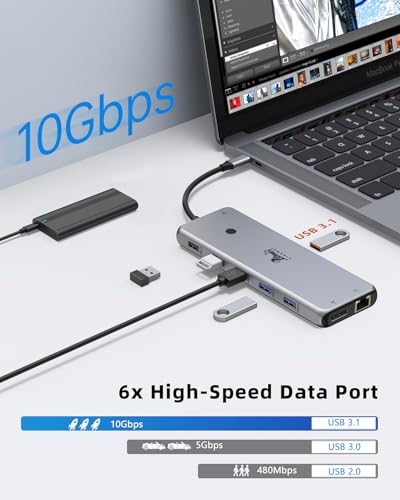

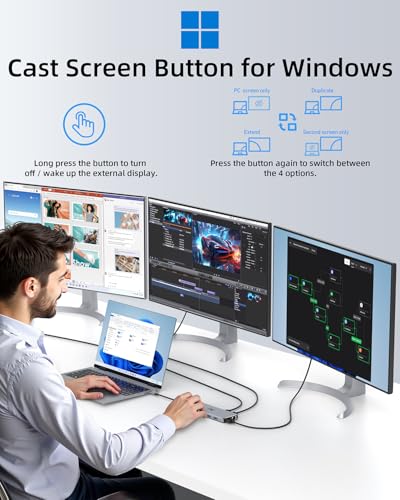

As an Amazon Associate we earn from qualifying purchases. Product prices and availability are accurate as of the date/time indicated.
Prices shown are approximate and for reference only. Prices change often, so please check the current price on Amazon before you buy.
Port counts and each port’s stated speed, display count, resolution and refresh provisions, power delivery passthrough rating, card standards, Ethernet class, and cable pattern are each maker’s stated details for the current version, and display counts assume a laptop whose own provisions support them. Ratings are editorial for laptop hub duty: port honesty under shared bandwidth, passthrough power against common chargers, display provisions read plainly, build and heat under load, and the maker’s support.
Detailed Reviews: How to Choose USB C Hub for Laptops Picks
1. Anker 555 – Best All-Round Hub
Anker’s 555 class takes the overall rating on the completeness of its ordinary virtues in its line: a port set that covers the desk’s census in its stated provisions, an HDMI figure stated with its refresh, a passthrough rating in its terms that respects a real charger, and a build whose warmth under load stays in the honest band. For the laptop owner who audited their port, found alt mode and one screen, and wants the question closed, it is the default answer.
Its captive lead is the class’s usual short one, arranged around as the guide directs. As the all-rounder, it stands.
2. CalDigit SOHO Dock – Best Desk Hub
CalDigit’s SOHO makes the desk’s case in its line: provisions stated with a professional’s plainness in its maker’s terms, a card reader class that respects a photographer’s cards, and a detachable cable in its pattern, the small feature that lets a desk be arranged like a desk and a failed lead be replaced without replacing the dock. In a home office that is also a studio, it is the considered hub.
Its price is the desk tier’s. Judged across a working life, it is honestly set.
3. UGREEN Revodok Pro – Best Value
UGREEN’s Revodok Pro line presses the honest hub down the price ladder in its range, with stated provisions by version that cover the common census, Ethernet and HDMI among them, at prices that let a student desk stop swapping cables by Friday. Read the exact version’s figures with this guide’s literacy, since the line spans several, and the value is real rather than rhetorical.
Its shell and support are its class’s. As value, it is the table’s argument.
4. Plugable Class – Best for Multi-Screen Macs
Plugable earns its row by addressing the audit’s hardest case in its range: the base Apple silicon laptop whose native provision is one external screen, for which its DisplayLink-pattern docks in its maker’s provisions provide the second display by the software path, with its stated terms and limits on the record. For that machine’s owner, it is not a hub among hubs but the only honest door, chosen knowingly, drivers and all.
DisplayLink is a technology with provisions, read in the maker’s terms before purchase. For its machine, nothing else in the table substitutes.
5. Belkin Connect Class – Best Supported Mainstream
Belkin’s hubs serve the buyer who values a household name’s support and retail presence in its line, with stated provisions covering the desk’s census and a build that behaves under load. In a family or a small office where the hub must simply be unremarkable for years, that unremarkableness is a specification.
Its prices sit a step above the value rows. As the supported mainstream, it earns its shelf.
6. Satechi Multiport Class – Best Travel Design
Satechi’s hubs close the table for the travelling laptop in its line: aluminium shells in its design pattern that pack kindly and shed heat honestly, port sets trimmed to the road’s census, in forms that suit the thin machines they were drawn beside. In a bag that already carries a life, their grams and their finish are daily virtues.
Their leads are travel-short by design. For the road, that is the correct compromise, made well.
Buying Guide: How to Choose USB C Hub for Laptops Step by Step
The Five-Line Audit, Then the Purchase
Write five lines before opening a listing, from your laptop maker’s specification for your exact model. One: the port’s kind, plain USB-C, alt mode, or Thunderbolt, which decides whether any screen is possible and which class of hub applies. Two: the native external display count, which decides whether you are buying for one screen, two, or for the DisplayLink path. Three: the charger’s wattage, which sets the passthrough rating the hub must meet or beat in its maker’s terms. Four: the desk’s census, every peripheral with its connector and its appetite, the drinkers marked, SSDs, readers, Ethernet, so the hub’s fastest stated ports can be assigned on paper. Five: the monitor’s own ambition, its resolution and refresh, against the hub’s HDMI figure stated with both numbers. Then buy the hub the five lines describe, from the table’s makers, in the version whose stated provisions match them exactly, because in this category the version is the product, and a line’s name spans provisions as different as the laptops they serve.
Refuse three purchases the audit commonly vetoes. The hub bought for a laptop with no video provision, which no hub can cure. The multi-screen hub bought for a one-screen laptop without DisplayLink, whose second HDMI socket will be a monument. And the bargain hub with unstated figures, no passthrough rating, no refresh beside its resolution, no maker’s name behind it, because a hub sits between a charger and a laptop’s motherboard, in the power path, for years, and the saving on an anonymous one is the worst-insured money in the desk’s whole budget.
Install the Desk Once, Properly
Arrange the hub on the desk where its lead reaches the laptop’s port without tension and its shell breathes, resting rather than dangling, with the charger plugged to the hub as the desk’s permanent supply where the audit prescribed it, the monitor on the hub’s HDMI, the drinkers on its fastest ports, and the whole tested in one sitting at full census: screen at its intended resolution and refresh, a large file moving to the drive, the laptop’s charge indicator reporting a rising battery under load, because that combined test, passed once, is the desk’s commissioning, and a failure found in it is a returns-window matter rather than a midwinter grievance. Note the hub’s warmth after an hour’s full work, warm being honest and escalating heat being a verdict, and dress the cables so none levers on the laptop’s socket, the port whose repair costs more than every hub in this table together.
Review the desk at the year’s turn as the census changes, a second screen’s ambition re-audited against the laptop’s provisions rather than against hope, the passthrough arithmetic redone when a hungrier peripheral arrives, and the travel kit separated from the desk kit so the desk is never dismantled for a trip, the small extravagance that keeps both kits honest. Do that, laptop read before listing, power subtracted on paper, displays counted from the maker’s own figures, and how to choose USB C hub for laptops stops being the lottery its returns statistics describe and becomes what it should be: a five-line audit, a matching box, and a desk where one cable, plugged in at the morning’s start, quietly becomes everything the laptop needs to be a workstation.
Frequently Asked Questions About How to Choose USB C Hub for Laptops
How do I know if my laptop works with a USB-C hub’s HDMI port?
By your laptop maker’s specification for your exact model, not by the hub’s listing. The hub’s HDMI socket is fed by your port’s video provision, so the port must carry DisplayPort alt mode or be a Thunderbolt port, in the maker’s stated terms. If your USB-C port is a plain USB port in the new shape, data and charging only, no hub at any price will give it a monitor, because the signal the hub would carry does not exist in the machine. Check also the second figure, how many external displays the laptop drives natively, one on base Apple silicon models in their stated provisions, commonly one or two on Windows machines by their class, because that count caps what any non-DisplayLink hub can show you. If your model needs more screens than it natively drives, the honest path is a DisplayLink dock of the Plugable pattern in this guide, chosen knowingly for its software provisions. Five minutes with the specification saves the category’s commonest return.
Why does my laptop charge slowly through a hub?
Because the hub stands in the power path and takes its share. A hub passes a stated maximum wattage in its maker’s terms and consumes power for itself and for the peripherals plugged into it, so the laptop receives your charger’s output minus that keep, and a machine whose charger was modest to begin with can end up charging slowly, or even losing charge under heavy load, on a desk that looks perfectly wired. The remedies are arithmetic: choose a hub whose passthrough rating meets or exceeds your charger’s wattage, feed the hub with the laptop’s own full-size charger rather than a smaller spare, move hungry peripherals, drives and charging phones, to their own supply where the desk allows, and, where the laptop has a second port, charge it directly and let the hub carry only data and video. Read the delivered figure, not the headline, when you buy: a hub that passes a high wattage from a high-wattage charger is a different object from the same hub on a small brick, and the laptop’s battery indicator under load is the audit that never lies.
What is the difference between a USB-C hub and a Thunderbolt dock?
Bandwidth, displays, and price, all flowing from the port they are built for. A USB-C hub splits one ordinary port’s bandwidth among its sockets, serves one external display in the common pattern, and suits the desk’s census of peripherals, screens, and a drive at prices in this guide’s lower rows. A Thunderbolt dock assumes a Thunderbolt port on the laptop, in its maker’s stated provisions, and spends that port’s far larger bandwidth on more: two displays on the machines that support them, faster ports that stay fast together, higher power delivery, in desk forms with their own supplies at prices in and above this table’s upper rows. The matching rule is strict in one direction: a Thunderbolt dock on a plain USB-C laptop falls back to a fraction of itself or refuses outright, in its maker’s stated compatibility, while a USB-C hub on a Thunderbolt laptop works as a hub and leaves the port’s profession unused. Audit your port first, in the guide’s five lines, and buy the class your machine can actually feed, because the dock’s premium buys nothing on a port that cannot pay it.
Can a USB-C hub damage my laptop?
A reputable hub, used within its stated provisions, should not, and the category’s genuine risks are specific enough to manage. Power is the serious path: a hub stands between your charger and the laptop for years, so buy a maker’s name with stated passthrough ratings, of the Anker, CalDigit, Belkin, and Plugable pattern in this guide, and refuse the anonymous hub whose figures are absent, because its saving is taken in the power path’s engineering. Heat is the second: a hub under full load runs warm in every honest design, and a hub that grows hotter across an hour, smells, or discolours should be retired, not endured. The third is mechanical and the commonest: a short captive lead leaving the hub dangling from a thin laptop’s socket levers on that socket all day, and a year’s strain is a motherboard repair, so rest the hub on the desk, give the lead slack, and dress cables so their weight hangs from the desk and not from the port. Observe those three and a hub is what it should be, the safest small object on the desk, quietly turning one socket into a workstation.
Related guides
- Best Battery Security Camera for Garages: 6 Best Battery Security Camera for Garages Picks in 2026
- Best Controller With Long Battery Life in 2026: 6 Best Controller With Long Battery Life Picks for Long Gaming, Easy Use, and Reliable Play
- Best Gigabit Switch for Home Offices in 2026: 6 Best Gigabit Switch for Home Offices Picks for Fast Wired Networking, Easy Setup, and Reliable Office Use
- Best Handheld Console Grip for Small Hands in 2026: Slimmer Wings, Shorter Reach, and Comfort That Scales Down, Not Up
More from Amazon
Programs that pair well with the guide above. Offers and eligibility are set by Amazon and may change.
Free shipping on eligible items, Prime Video and more. Eligible new members can start with a free trial.
Start a Prime free trialAd-free music streaming. Eligible new subscribers can start with a free trial.
Try Music Unlimited freeA Prime membership for ages 18-24 with a trial period. Eligibility is set by Amazon.
See Prime for Young AdultsAudiobooks and podcasts to listen to on the go. Eligible new members can start with a free trial.
Try Audible freeAs an Amazon Associate we earn from qualifying purchases.

Write Your Review
No reviews yet. Be the first to share your experience!