
What's inside
- Best Laptop Dock vs Monitor Hub for Home Offices: The Real Difference
- Quick Comparison: Best Laptop Dock vs Monitor Hub for Home Offices Models
- Detailed Reviews: Best Laptop Dock vs Monitor Hub Picks
- Buying Guide: Best Laptop Dock vs Monitor Hub for Home Offices
- Frequently Asked Questions About Best Laptop Dock vs Monitor Hub for Home Offices
As an Amazon Associate I earn from qualifying purchases. This post may contain affiliate links at no extra cost to you.
The best laptop dock vs monitor hub decision for a home office comes down to one cable and one question: do you want to sit down, plug in a single cable, and have your monitors, keyboard, network, and charging all connect at once? If yes, you need a dock. If you only need a few extra ports and your laptop’s own charger and screen outputs already do the rest, a monitor hub or USB-C hub is enough, and cheaper. This guide compares both kinds of device, with real, currently sold models, so you can buy the one your desk actually needs.
Our Top Picks
Best Laptop Dock vs Monitor Hub for Home Offices: The Real Difference
What a Dock Does That a Hub Does Not
A docking station is built around one-cable convenience. It delivers power to the laptop, typically 85 to 100 watts in the makers’ figures for the models below, drives two or more external monitors, and provides Ethernet, USB ports, and audio in one box that stays on your desk. Thunderbolt and USB4 docks do this over a single cable. A hub adds ports but usually passes through less power, drives fewer monitors, and is designed to travel rather than to anchor a desk.
What a Monitor Hub Is
A monitor hub can mean two things: a USB-C hub that adds an HDMI output and ports, or a monitor with a built-in USB-C hub, where the monitor itself provides power to the laptop and USB ports for a keyboard and mouse. A hub-monitor is an elegant middle path for a single-screen desk: one cable from laptop to monitor carries video and power, and your peripherals plug into the monitor. It will not usually drive a second external monitor or provide Ethernet, so multi-screen desks still need a dock.
Check Your Laptop Before Anything Else
Confirm that your laptop’s USB-C port supports video output and charging, in the laptop maker’s specifications for your exact model. Some budget laptops have USB-C ports that carry data only. Also check how many external monitors the laptop itself supports, because a dock cannot add monitors beyond the laptop’s own graphics limit. On Apple silicon MacBooks in particular, base models support fewer external displays than Pro and Max models, and the dock’s box cannot change that.
Quick Comparison: Best Laptop Dock vs Monitor Hub for Home Offices Models
| Model | Key Specs | Typical Price Range | Rating |
|---|---|---|---|
| CalDigit TS4 | Thunderbolt 4 dock, 18 ports in maker’s terms, up to 98W charging, dual monitor support by host | $350 – $450 | 4.7 / 5 |
| Plugable TBT4-UD5 | Thunderbolt 4 dock, up to 100W charging, dual 4K outputs in maker’s terms, Ethernet | $200 – $280 | 4.6 / 5 |
| Anker 675 USB-C Docking Station (monitor stand dock class) | Dock with built-in monitor stand, wireless charging pad, USB ports and monitor output | $150 – $220 | 4.5 / 5 |
| Dell UltraSharp 27 USB-C Hub Monitor (U2724DE class) | 27-inch monitor with USB-C hub, up to 90W power delivery, Ethernet on hub models, USB ports | $500 – $700 | 4.6 / 5 |
| Anker 555 USB-C Hub (8-in-1) | Portable hub, HDMI output, USB ports, card readers, pass-through charging up to 85W in maker’s terms | $50 – $80 | 4.5 / 5 |
| CalDigit SOHO Dock | Compact USB-C dock, monitor output, USB ports, pass-through charging, bus-powered option | $90 – $130 | 4.4 / 5 |

Anker Laptop Docking Station Dual Monitor, 8-in-1 USB C Hub with 4K HDMI | Dual HDMI USB C Dock, 1Gbps Ethernet, 85W Max PD, SD/TF Card Reader, for USB C Laptops, XPS and More (Charger Not Included)
As an Amazon Associate we earn from qualifying purchases. Product prices and availability are accurate as of the date/time indicated.
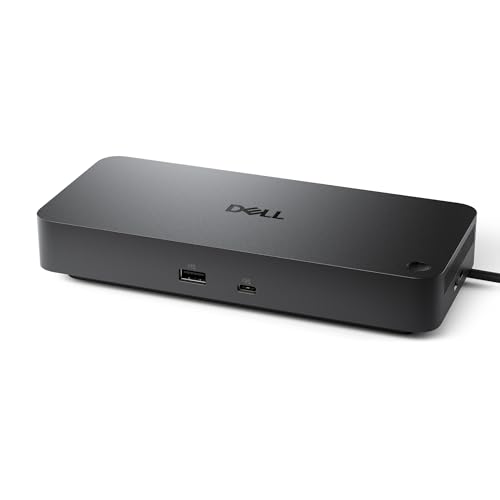
Dell Pro Laptop Docking Station WD25, USB-C, 100W, DisplayPort, HDMI | Universal Dock, Ethernet, USB-A Ports, USB-C Ports, Power Delivery Charging, Quad Display, Plug and Play, Office Ready, WD25
As an Amazon Associate we earn from qualifying purchases. Product prices and availability are accurate as of the date/time indicated.

UGREEN USB C Docking Station Dual Monitor, 10-in-1 Laptop Dock with 2 HDMI | Dual 4K@60Hz, 5Gbps USB C&A Ports, 100W PD, 1G Ethernet, SD/TF 3.0, Revodok Pro Aluminum USB-C Dock for Dell/HP/Lenovo
As an Amazon Associate we earn from qualifying purchases. Product prices and availability are accurate as of the date/time indicated.
Specifications, port counts, charging wattage, and monitor support are each maker’s stated figures for the current version and depend on the host laptop. Price ranges are typical retail ranges and vary by retailer and promotion. Ratings are editorial ratings for home office use: one-cable reliability, monitor support, charging, ports, and value.
Detailed Reviews: Best Laptop Dock vs Monitor Hub Picks
1. CalDigit TS4 – Best Laptop Dock for Home Offices Overall
The TS4 is the dock most home offices end up wishing they had bought first: a large port selection, strong charging, fast networking, and reliable dual-monitor behaviour on laptops that support it. It is expensive, and it is worth it for a permanent desk with two monitors, wired Ethernet, drives, and audio connected at once. Buy it when one-cable docking is the whole point of your setup.
2. Plugable TBT4-UD5 – Best Value Thunderbolt Dock
Plugable’s Thunderbolt 4 dock delivers the core docking promise, power, dual monitor outputs, Ethernet, and plenty of USB, at a noticeably lower price than the TS4. For most two-screen home offices it is the sensible buy, with clear documentation of what each host laptop supports, which matters more in this category than any headline port count.
3. Anker 675 Docking Station – Best Dock With a Monitor Stand
The Anker 675 combines a dock with a monitor stand and a wireless charging pad, tidying a desk while adding ports and a monitor connection. It suits a single-monitor desk that wants docking convenience without a separate stand. Check its monitor output and charging figures against your laptop in the listing, as this class prioritises desk tidiness over maximum displays.
4. Dell UltraSharp USB-C Hub Monitor – Best Monitor Hub for a One-Screen Desk
A hub monitor such as Dell’s UltraSharp USB-C class is the cleanest one-screen solution: the monitor powers the laptop, hosts the keyboard and mouse, and on hub models adds Ethernet, all over one cable to the laptop. Buy it when you are replacing a monitor anyway and your desk will stay at one screen. It is not a substitute for a dock on a two-screen desk.
5. Anker 555 USB-C Hub – Best Portable Hub
The Anker 555 is a travel and spare-desk hub: one HDMI output, USB ports, card readers, and pass-through charging in a pocketable body. It is the right purchase when you need ports and a single monitor occasionally, at home or away, and your laptop charger does the heavy lifting. It is not a permanent multi-monitor dock, and it does not pretend to be.
6. CalDigit SOHO Dock – Best Compact Dock for a Small Desk
The SOHO Dock sits between a hub and a full dock: a compact box with a monitor output, useful ports, and pass-through charging that can stay on a small desk. It suits a one-monitor home office that wants a fixed, tidy connection point without the size or price of a flagship Thunderbolt dock.
Buying Guide: Best Laptop Dock vs Monitor Hub for Home Offices
Choose a Dock When…
Choose a dock when you have two external monitors, want wired Ethernet, connect and disconnect daily, or want one cable to handle charging, displays, and peripherals together. Budget for the dock as permanent desk furniture, and confirm dual-monitor support for your exact laptop model in the dock maker’s compatibility notes before buying.
Choose a Hub or Hub Monitor When…
Choose a hub when you use one monitor, need only a few extra ports, or work in more than one place. Choose a hub monitor when you are buying a monitor anyway and want the tidiest possible single-screen desk. In both cases, confirm that pass-through charging wattage meets your laptop’s needs, or plan to keep using the laptop’s own charger.
Cables and Compatibility Checks
Use the cable the dock maker supplies or a certified cable rated for your dock’s standard, because a cheap long cable is the most common cause of flickering monitors and dropped connections. Keep the dock’s firmware and your laptop’s drivers updated as their makers direct, and test the full setup, both monitors, Ethernet, charging, and sleep and wake behaviour, within the return window.
Frequently Asked Questions About Best Laptop Dock vs Monitor Hub for Home Offices
What is the difference between a laptop dock and a monitor hub?
A dock is a desk unit that powers the laptop and drives multiple monitors plus Ethernet and peripherals over one cable. A hub adds ports and usually one monitor output, with less charging power. A hub monitor builds that hub into a monitor, which powers the laptop and hosts peripherals but normally supports only its own screen.
Can a USB-C hub replace a docking station?
For a single monitor and a few USB devices, yes, provided the hub’s pass-through charging is enough for your laptop. For two monitors, wired Ethernet, and daily one-cable connection, a proper dock is more reliable and usually cheaper than stacking hubs and adapters.
Why does my dock not show two monitors on my MacBook?
Because the laptop, not the dock, sets the limit. Base Apple silicon models support fewer external displays than Pro and Max models in Apple’s specifications. Check your exact MacBook’s external display support, and the dock maker’s notes for Mac, before assuming the dock is faulty.
How much charging power does a home office dock need?
Match the dock’s stated power delivery to your laptop maker’s charger specification. Most home office laptops need 60 to 100 watts. A dock delivering less than the laptop expects may charge slowly or lose charge under heavy use, so check both figures in the makers’ listings before buying.
Related guides
- Best USB C Cable for Gaming in 2026: 7 Best USB C Cables for Gaming That Charge Fast and Stay Connected
- Best Earbuds for Airplane Travel in 2026: Earbuds for Airplane Travel, Travel Earbuds, and Best Airplane Earbuds
- Best Wall Charger with Multiple Ports in 2026: Wall Charger with Multiple Ports, Multi-Port Wall Chargers, and Best Multi-Port Chargers
- Best Lighting Kit for YouTube in 2026: 7 Best Lighting Kits for YouTube That Make Your Videos Look Professional
More from Amazon
Programs that pair well with the guide above. Offers and eligibility are set by Amazon and may change.
Free shipping on eligible items, Prime Video and more. Eligible new members can start with a free trial.
Start a Prime free trialAd-free music streaming. Eligible new subscribers can start with a free trial.
Try Music Unlimited freeA Prime membership for ages 18-24 with a trial period. Eligibility is set by Amazon.
See Prime for Young AdultsAudiobooks and podcasts to listen to on the go. Eligible new members can start with a free trial.
Try Audible freeAs an Amazon Associate we earn from qualifying purchases.

Write Your Review
No reviews yet. Be the first to share your experience!