
What's inside
- Best Laptop Dock for Dual Monitors: Native vs DisplayLink, Charging, and Compatibility
- Best Laptop Dock for Dual Monitors: Quick Comparison
- The Six Dual-Monitor Docks Reviewed
- Buying Guide: How to Choose and Set Up the Best Laptop Dock for Dual Monitors
- Frequently Asked Questions About Laptop Docks for Dual Monitors
As an Amazon Associate I earn from qualifying purchases. This post may contain affiliate links at no extra cost to you.
The best laptop dock for dual monitors is the dock that makes the desk honest: one cable from the laptop, and the whole station wakes, two external displays at their full resolution and refresh, the keyboard, the mouse, the Ethernet, the drives, and the laptop charging at a wattage that keeps it full through a working day rather than merely slowing its decline. The category divides by a technology the buyer must understand before any brand is chosen, because it decides what two monitors can even mean: native docks, Thunderbolt and full-featured USB-C, which carry the displays as the laptop’s own graphics outputs, sharp, fast, and game-capable; and DisplayLink docks, which compress the displays through a software-driven technology, adding monitors beyond the laptop’s native limit at the cost of a compression that video editors, gamers, and the motion-sensitive will notice. This guide grades six real, currently sold docks for the dual-monitor brief across both families, on display support stated in the only honest form, resolution and refresh together, charging power, port selection, and the driver and operating system realities that decide whether the second monitor lights at all, including the Mac’s famous limitation that has filled more return boxes than any defect in the category’s history.
Learn the Mac sentence before the table, because it is the category’s most expensive misunderstanding: base Apple silicon laptops, the M1 and M2 and their standard M3 configurations in the popular machines, support a limited number of external displays natively, commonly one on the base models, regardless of how many ports a dock offers, the dock’s second display output having nothing behind it unless the dock uses DisplayLink, whose software route is precisely how those machines reach two external screens. Windows laptops with Thunderbolt or full USB-C display support generally drive two 4K monitors natively through a proper dock, subject to their own port specifications, which the steps will teach you to verify from your exact model’s documentation rather than from its marketing. The second sentence is charging: a dock’s wattage, 65 to 100 watts in this class, must meet the laptop’s appetite under load, the big workstation that sips 65 watts at a desk of documents will drain on the same dock under a rendering load, and the honest check is the wattage of the charger that came in the laptop’s box. Grade the table with those two sentences open beside it, and the category becomes a specification rather than a lottery.
Our Top Picks
Best Laptop Dock for Dual Monitors: Native vs DisplayLink, Charging, and Compatibility
Native Thunderbolt and USB-C Docks: The Displays as the Laptop Sees Them
A native dock passes the laptop’s display signals through, which buys everything that matters to the eye: the full resolution and refresh the monitors and the laptop’s graphics agree on, dual 4K at 60Hz being the Thunderbolt 4 class’s standard promise and dual higher-refresh or 5K and 6K singles living in the Thunderbolt 5 and flagship tiers; uncompressed motion, so video, scrolling, and games render as they do on the laptop’s own screen; and no driver, the dock being a citizen of the operating system rather than a guest application. Its limit is the laptop’s own display count, the Mac sentence above, and its requirement is the port’s completeness: the laptop’s USB-C must carry DisplayPort Alt Mode and, for the single-cable life, USB Power Delivery charging, features the steps’ verification exists to confirm, since a USB-C port shaped like the future and wired like the past is the category’s other great return-generator. For the Windows professional and the Mac owner within their native count, this is the dock family to buy, and the table’s leaders live here.
DisplayLink Docks: More Monitors, Honestly Priced in Compression
DisplayLink earns its existence by breaking the native limit: its software renders the displays and sends them as data, so a base-model Mac or a modest Windows laptop can drive two and three external monitors through one dock, a miracle for the spreadsheet-and-documents professional whose second screen is a grid of cells and a mail client, where compression is invisible. Its costs are equally specific: motion carries a compression’s softness and occasional artifact, video can tax the CPU that renders it, protected content and some applications object to the arrangement, and gaming beyond the casual is outside its parish. The honest grading is therefore occupational: for the office desk whose monitors show the office’s work, DisplayLink is not a compromise but the correct technology, the only one that answers the brief; for the desk whose monitors show motion for a living, it is a return waiting for its box. The table marks its DisplayLink rows plainly, in this guide’s manner, and grades them at the top of their parish rather than apologizing for them in the natives’.
Ports, Power, and the Desk’s Whole Census
Beyond the displays, the dock is the desk’s harbor master, and its manifest should be audited against the station’s whole census: the charging wattage already sentenced; the USB ports in their kinds, the fast USB-C for the drives and the phone, the USB-A for the keyboard receiver, the headset, and the decade of peripherals whose cables predate the new world; Ethernet, whose wired reliability the dock restores to laptops that abandoned the port, graded by its speed class where the network argues; the audio jack, the SD reader for the photographic desk, and the security slot for the office’s realities. Cable discipline completes the audit: the dock’s host cable is short by design, the desk’s layout must bring the laptop to it rather than the reverse, and the monitors’ own cables, DisplayPort preferred for the native route’s full specification, HDMI accepted with its version’s limits read, are part of the purchase’s true price, since a dual-4K promise connected by an antique cable is a promise the cable vetoes silently, at 30Hz, in a way that has launched a thousand one-star reviews of innocent docks.
Best Laptop Dock for Dual Monitors: Quick Comparison
| Laptop Dock Model | Key Specs | Best For | Typical Price Range | Rating |
|---|---|---|---|---|
| CalDigit TS4 | Thunderbolt 4, dual 4K60 class via TB/DP in line, 98W charging positioning, 18 ports in class | Best laptop dock for dual monitors overall | $380 – $450 | 4.8 / 5 |
| Plugable UD-768PDH class | DisplayLink in class, dual/triple display positioning in line, 100W class charging | Best for base Mac and multi-monitor office | $230 – $300 | 4.5 / 5 |
| Dell WD22TB4 / Pro Thunderbolt class | Thunderbolt 4, dual 4K60 class in line, 130W Dell / 90W class charging positioning | Best for Dell and business fleets | $300 – $400 | 4.5 / 5 |
| Lenovo ThinkPad Universal Thunderbolt 4 Dock class | Thunderbolt 4, dual 4K60 class in line, 100W class charging positioning | Best for ThinkPad and mixed fleets | $280 – $360 | 4.4 / 5 |
| Anker 777 / Apex Thunderbolt class | Thunderbolt 4, dual 4K60 class in line, 90W class charging positioning | Best value flagship features | $280 – $350 | 4.4 / 5 |
| Kensington SD5700T / SD5780T class | Thunderbolt 4, dual 4K60 class in line, driverless native positioning | Best driverless native alternative | $280 – $380 by model | 4.3 / 5 |

Anker Laptop Docking Station Dual Monitor, 8-in-1 USB C Hub with 4K HDMI | Dual HDMI USB C Dock, 1Gbps Ethernet, 85W Max PD, SD/TF Card Reader, for USB C Laptops, XPS and More (Charger Not Included)
As an Amazon Associate we earn from qualifying purchases. Product prices and availability are accurate as of the date/time indicated.

USB C Laptop Docking Station Dual Monitor HDMI USB C Hub Multiport Adapter | USB C Dongle Dock 14 in 1 USB C to 2 HDMI 4K+DisplayPort+Ethernet+4USB+2USB C+100W PD Charger+SD/TF for Dell/Lenovo/HP Laptop
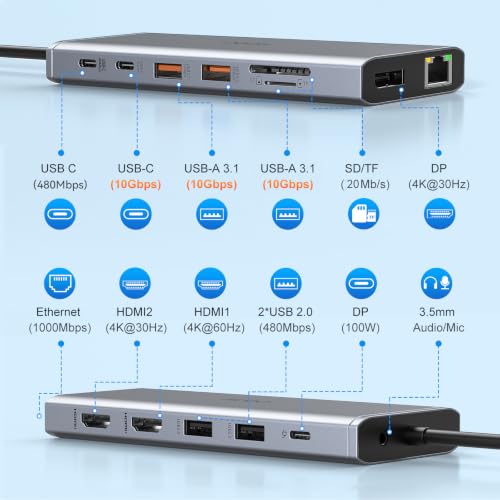


As an Amazon Associate we earn from qualifying purchases. Product prices and availability are accurate as of the date/time indicated.

Acer USB-C Docking Station Dual Monitor, 9-in-1 Laptop Dock with 2 HDMI | Laptop Docking Station with 4K@60Hz HDMI, USB A&C 3.0, SD/Micro SD, 100W PD Compatible with Acer/Dell XPS/HP/Mac (0.65FT)
As an Amazon Associate we earn from qualifying purchases. Product prices and availability are accurate as of the date/time indicated.
Prices shown are approximate and for reference only. Prices change often, so please check the current price on Amazon before you buy.
Display support depends on the host laptop’s capabilities as the text explains; verify your exact model’s external display limits. Ratings are editorial, weighing dual-display reliability, charging honesty, port census, build, and value.
The Six Dual-Monitor Docks Reviewed
1. CalDigit TS4: Best Overall
The TS4 leads because it is the category’s reference specification made metal: eighteen ports in its census, charging in the high nineties of watts, dual 4K60 through its Thunderbolt and DisplayPort provisions with the higher singles beyond, Ethernet at a speed above the class’s habit, and a build that treats the dock as the desk’s permanent furniture rather than as an accessory. Its price is the flagship’s and its constituency, the professional whose desk is a production environment, pays it as infrastructure. For the dual-monitor brief on a capable laptop, it is the recommendation this guide defends first, the dock against which the others’ omissions are most conveniently listed, since its own are so difficult to find.
2. Plugable UD-768PDH Class: Best for Base Macs and the Office Wall
Plugable’s DisplayLink docks lead their parish on the strength of the company’s doctrine: display counts the native route forbids, the base Mac’s two and three external screens delivered as a product rather than as a hack, with charging in the full class and a support operation whose documentation of the Mac sentence has educated half the category’s buyers. Its compression is its technology’s, graded in its parish as the natives are in theirs, and for the office desk, the trading desk’s cousin, and the MacBook Air owner’s dual-monitor ambition, it is not the alternative but the answer, a distinction its rating states without embarrassment.
3. Dell Thunderbolt Dock Class: Best Business Fleet
Dell’s docks serve the fleet reality: one dock across a company’s Dell generations, firmware managed at the IT department’s scale, charging that feeds the workstations at their Dell-specific appetite, and dual 4K as the office’s standard issue. On non-Dell laptops they behave as honest Thunderbolt citizens at reduced charging charm, a nuance their row states. For the professional whose laptop is the company’s and whose desk is the company’s second site, it is the institutional row, and its rating reflects the fleet virtues, consistency, manageability, and a support contract’s peace, that the home buyer undervalues and the office cannot live without.
4. Lenovo ThinkPad Universal Thunderbolt 4 Dock: Best Mixed-Fleet Alternative
Lenovo’s universal dock competes on the same fleet ground from the other great house: Thunderbolt 4, dual 4K60 in its class, charging in the hundred-watt neighborhood, and a universality its name asserts and its behavior on rival laptops largely honors. Its design is the ThinkPad aesthetic’s, black, squared, and unembarrassed, and its pricing undercuts the flagship’s while its specification does not. For the ThinkPad desk and the mixed household alike, it is the considered alternative, graded a step behind the TS4 on the port census and a step ahead of it on the invoice, a trade its constituency makes with open eyes.
5. Anker Thunderbolt Dock Class: Best Value Flagship Features
Anker brings its charging empire’s discipline to the dock: dual 4K60 in its class, charging in the ninety-watt class, a port census trimmed of the TS4’s exotics and priced accordingly, in a build whose consumer polish is the brand’s signature. Its support and firmware cadence are a consumer house’s rather than a fleet’s, the honest boundary of its value. For the home professional who wants the flagship’s desk without the flagship’s invoice, it is the value row with the fewest asterisks in this table, and its rating reflects how completely the category’s center has risen to meet its leaders.
6. Kensington Thunderbolt Dock Class: Best Driverless Native Alternative
Kensington’s Thunderbolt docks close the table with the native route’s quiet competence: dual 4K60 without a driver, a port census aimed at the office’s real census, and the security house’s own understanding of the desk as a workplace, cable locks and all. Their prices wander by model and channel enough to reward the shopper’s patience, and their design language is the boardroom’s. For the buyer who wants the native dock from the category’s other old house, it is the respectable row, and its presence completes the honest map: one flagship, one DisplayLink answer, two fleet docks, one value flagship, and one native alternative, among which every dual-monitor brief in this guide’s readership is somebody’s first row.
Buying Guide: How to Choose and Set Up the Best Laptop Dock for Dual Monitors
Step One: Verify the Laptop Before the Dock
Perform the verification the category’s returns are made of, in writing, for your exact laptop: its external display limit from the manufacturer’s own specification page, one, two, or more, with the Mac’s base-silicon limit read twice; its port’s completeness, Thunderbolt by name or USB-C with DisplayPort Alt Mode and charging, from the same page rather than from the port’s shape; its charging appetite from the wattage printed on its own charger’s brick; and its operating system’s dock requirements, the DisplayLink driver being a download and an admin right the work laptop may or may not grant. Only with those four facts does the dock family choose itself, native for the capable, DisplayLink for the limited and the many-monitored, and the specific dock by the desk’s census of the guide’s section. This step is first because it is free, and because every other step in this guide is more expensive than it.
Step Two: Wire the Desk With the Right Cables in the Right Order
Assemble the station as a system: the monitors connected by DisplayPort where the native route allows, or by the cables the dock’s own box and documentation bless, each rated for the resolution and refresh the desk is promised, since the cable is the silent specification in every dual-4K setup; the dock’s power supply its own, never a substitute brick of similar shape; the host cable from the dock to the laptop’s correct port, which on many laptops is a specific one of several identical-looking sockets, the manual’s diagram being the authority. Power the order as the makers advise, dock powered, monitors on, laptop connected last, and configure the operating system’s display arrangement in the calm of the setup afternoon, positions, scaling, and the main display’s identity set once, rather than in the first meeting’s panic, since a dock setup rehearsed is a desk that wakes in one motion, and a dock setup improvised is a daily negotiation the laptop always wins by making you late.
Step Three: Live With the One-Cable Desk and Keep It Current
Run the dock as infrastructure: its firmware updated on the maker’s cadence, since docks are small computers whose updates carry real fixes for the sleep, wake, and display amnesia that haunt the category’s forums; the laptop’s own updates taken with the dock connected, so the system’s whole marriage is tested by each change in the calm after rather than in the morning’s first call; and the desk’s cable discipline maintained, the host cable unstressed, the dock ventilated, the spare host cable in the drawer against the day the original’s connector tires, since the one-cable life has a single point of failure and it is, by design, a cable. Keep the laptop’s own charger in the travel bag where it now belongs, the dock having retired it from the desk, and let the station’s ritual settle into its final form: arrive, one cable, two screens light, the day begins, the small daily miracle that this entire category exists to perform and that, chosen by these steps, it performs for years without asking to be thought about again.
Frequently Asked Questions About Laptop Docks for Dual Monitors
Why won’t my dock show two monitors on my Mac?
Because the limit is in the laptop, not the dock, in the great majority of cases: the base Apple silicon machines support a small native external display count, commonly one on the base models, and a native dock cannot manufacture a second display signal the chip does not produce, however many ports it offers. The routes to two external monitors on those machines are the ones this guide grades: a DisplayLink dock, whose software route the Plugable row represents, entirely satisfactory for the office’s work and limited for motion’s; or the laptop’s own upgrade path, the Pro and Max class chips raising the native count, a fact to weigh at the laptop’s purchase rather than at the dock’s. Verify your exact model’s limit on the manufacturer’s specification page before any dock is ordered or returned, since the dock boxes in the returns stream are overwhelmingly innocent, and the sentence that would have saved them is printed, in the fine type, on the page this FAQ now sends you to for the second time, with love.
Can one dock charge my laptop and run two 4K monitors?
Yes, that conjunction is precisely the Thunderbolt 4 class’s standard product: one host cable carrying two 4K60 display signals, the desk’s USB and Ethernet, and charging in the 90-to-100-watt class that keeps most laptops full under load. The conditions are the guide’s two sentences: the laptop must support the displays natively or accept the DisplayLink route, and the dock’s wattage must meet the laptop’s appetite, the gaming and workstation machines with chargers in the 130-to-230-watt class being the honest exception, where the dock will commonly run the desk and slow the drain rather than charge under full load, a compromise their owners should choose knowingly. For the mainstream professional laptop, the one-cable desk is not a marketing sketch but a shipping product several times over in this table, and the buyer’s work is the verification of Step One, after which the miracle becomes a routine.
DisplayLink or Thunderbolt dock: which should I buy?
By your laptop’s limit and your monitors’ content, in that order: if your laptop natively supports your two displays, buy the native Thunderbolt dock, since its uncompressed, driverless route is superior at everything and inferior at nothing except the display count it cannot exceed. If your laptop’s native limit is below your ambition, the base Mac being the famous case, DisplayLink is not the consolation but the only route, and for the office’s content, documents, cells, mail, dashboards, its compression is a tax levied on work that cannot see it. If your monitors show motion for a living, video editing, design review, gaming, let that content veto DisplayLink and solve the count problem at the laptop instead. The mixed household, one limited laptop and one capable, should buy for the limited one’s route or accept the capable one’s dock serving the other at a single screen, a domestic negotiation this guide declines to arbitrate beyond noting that the dock, like the thermostat, is a marriage technology and should be purchased as one.
Do I need special cables for dual 4K at 60Hz?
You need cables honestly rated for the signal, which in practice means DisplayPort cables of a current standard for the DP connections, or Thunderbolt cables for the TB display routes, and HDMI cables whose version supports 4K60 where HDMI is the path, the premium-high-speed class being the shelf to buy from, since the drawer of legacy cables every household owns is populated by generations that top out at 4K30 and will silently enforce that ceiling on a desk built for twice it. Length is the second specification, the passive cables’ reliable reach shrinking as the signal’s ambition grows, so the long run across a room belongs to the active and optical classes priced accordingly. The diagnostic this guide leaves you is the cheapest in the category: when a dual-4K desk misbehaves at 30Hz, a washed palette, or a single dark screen, suspect the cable before the dock and the laptop before either, swapping in a known, short, rated cable as the experiment that acquits or convicts in one motion, an order of suspicion that has saved more desks than any firmware ever written.
Related guides
- Best Cheap Memory Card Reader Under 30 in 2026: 6 Fast, Reliable Readers for SD and microSD
- Gaming Monitor vs Office Monitor for Work in 2026: 3 Gaming Monitors and 3 Office Monitors Compared for Work, With Refresh Rate, Resolution, and a Price Range
- Best Flatbed Scanner vs Document Scanner for Offices in 2026: Which Scanner Is Best for Your Office?
- Best Cheap Laptop Stand for Students in 2026: Best Cheap Laptop Stand for Students for Good Posture, Easy Study, and Simple Desk Use
More from Amazon
Programs that pair well with the guide above. Offers and eligibility are set by Amazon and may change.
Free shipping on eligible items, Prime Video and more. Eligible new members can start with a free trial.
Start a Prime free trialAd-free music streaming. Eligible new subscribers can start with a free trial.
Try Music Unlimited freeA Prime membership for ages 18-24 with a trial period. Eligibility is set by Amazon.
See Prime for Young AdultsAudiobooks and podcasts to listen to on the go. Eligible new members can start with a free trial.
Try Audible freeAs an Amazon Associate we earn from qualifying purchases.

Write Your Review
No reviews yet. Be the first to share your experience!