
What's inside
- How to Choose Laptop Dock for Dual Monitors: Start With Your Laptop Ports
- How to Choose Laptop Dock for Dual Monitors: Resolution, Refresh Rate and Power
- How to Choose Laptop Dock for Dual Monitors Comparison Table
- Top Laptop Docks for Dual Monitors Reviewed
- Buying Guide: How to Choose Laptop Dock for Dual Monitors
- How to Set Up a Laptop Dock for Dual Monitors
- Docks That Drive Two Monitors Cleanly
- Frequently Asked Questions
As an Amazon Associate I earn from qualifying purchases. This post may contain affiliate links at no extra cost to you.
Learning how to choose laptop dock for dual monitors is about choosing a dock that lets you connect two monitors, a keyboard, a mouse, and a charger to your laptop with one cable, so you can have a clean, fast, dual-screen setup for work, without a tangle of cables on your desk. A laptop dock for dual monitors is essential for remote workers, students, and creators who use a laptop at a desk, with two external monitors, and who want to plug in once and start working, with a design that is simple, reliable, and fast.
This guide explains how to choose laptop dock for dual monitors, how to compare USB-C, Thunderbolt 3, and Thunderbolt 4 docks, and which models work well in 2026. We focus on practical use for MacBook, Windows laptop, and Chromebook owners who use dual 1080p or 1440p monitors, with a dock that supports 4K, power delivery, and fast data transfer. Whether you work from home, in an office, or in a dorm, the same principles apply: choose a dock that matches your laptop’s ports, your monitors’ resolution, and your power needs, so your dual-monitor setup just works.
Our Top Picks

How to Choose Laptop Dock for Dual Monitors: Start With Your Laptop Ports
The first step in how to choose laptop dock for dual monitors is to check your laptop’s ports, because a dock must match your laptop’s USB-C, Thunderbolt 3, or Thunderbolt 4 port, or it will not work at full speed, or it will not support dual monitors at all. A MacBook Pro with Thunderbolt 4, a Windows laptop with USB-C, and a Chromebook with USB-C all have different capabilities, and you need a dock that matches your laptop. A Thunderbolt 4 dock, such as the CalDigit TS4, works with a Thunderbolt 4 laptop, with a speed of 40Gbps, and it can support two 4K monitors at 60Hz, while a USB-C dock, such as the Anker 575, works with a USB-C laptop, with a speed of 10Gbps, and it can support two 1080p monitors at 60Hz, or one 4K monitor at 60Hz, depending on your laptop.
Check if your laptop supports DisplayPort Alt Mode, which is a feature that lets your USB-C port output video, and check if it supports dual monitors via one USB-C port, or if it needs two ports. A MacBook with an M1 chip supports only one external monitor natively, with a DisplayLink dock needed for dual monitors, while a MacBook with an M1 Pro, M2 Pro, or M3 Pro supports two external monitors natively. A Windows laptop with Intel or AMD usually supports dual monitors via one USB-C port, although some budget laptops only support one. Always check your laptop’s specifications for dual monitor support before you buy a dock.
How to Choose Laptop Dock for Dual Monitors: Resolution, Refresh Rate and Power
Resolution and refresh rate are important for a laptop dock for dual monitors, because a dock that only supports 1080p at 60Hz will not give you a sharp image on a 4K monitor, and a dock that only supports 30Hz will feel laggy when you scroll or move your mouse. Look for a dock that supports two monitors at 1440p at 60Hz, or two monitors at 4K at 60Hz, if you have high-resolution monitors, with a design that uses DisplayPort 1.4 or HDMI 2.0, which are faster than older DisplayPort 1.2 or HDMI 1.4. A dock with Thunderbolt 4, such as the CalDigit TS4, supports two 4K monitors at 60Hz, while a dock with USB-C, such as the Anker 563, supports two 1080p monitors at 60Hz, or one 4K monitor at 30Hz.
Power delivery is also important, because a dock should charge your laptop while you work, with a power delivery of at least 60W for a MacBook Air, 85W for a MacBook Pro 14, and 100W for a MacBook Pro 16 or a Windows gaming laptop. A dock with 90W power delivery, such as the Anker 575, is enough for most laptops, while a dock with 98W, such as the CalDigit TS4, is better for a larger laptop. A dock with only 60W power delivery may not charge your laptop fast enough if you use it for heavy work, and your battery may drain slowly even when plugged in. Check your laptop’s charger wattage, and choose a dock with equal or higher power delivery.
How to Choose Laptop Dock for Dual Monitors Comparison Table
| Model | Connection | Video Outputs | Max Resolution Dual | Power Delivery | Typical Price Range | Rating |
|---|---|---|---|---|---|---|
| Anker 575 USB-C Docking Station | USB-C, 10Gbps | 2x HDMI, 1x DisplayPort | Dual 1080p 60Hz, single 4K 60Hz | 85W | $200-$250 | 4.7/5 |
| CalDigit TS4 Thunderbolt 4 Dock | Thunderbolt 4, 40Gbps | 2x DisplayPort, 1x HDMI | Dual 4K 60Hz | 98W | $350-$400 | 4.8/5 |
| Plugable TBT3-UDZ Thunderbolt Dock | Thunderbolt 3, 40Gbps | 2x DisplayPort, 1x HDMI | Dual 4K 60Hz | 100W | $250-$300 | 4.7/5 |
| Dell WD22TB4 Thunderbolt Dock | Thunderbolt 4, 40Gbps | 2x DisplayPort, 1x HDMI | Dual 4K 60Hz | 130W | $300-$350 | 4.7/5 |
| Anker 563 USB-C Docking Station | USB-C, 10Gbps | 2x HDMI, 1x DisplayPort | Dual 1080p 60Hz | 100W | $150-$200 | 4.6/5 |
| HP USB-C Dock G5 | USB-C, 5Gbps | 2x DisplayPort, 1x HDMI | Dual 1080p 60Hz, single 4K 30Hz | 100W | $150-$200 | 4.6/5 |

Anker Laptop Docking Station Dual Monitor, 8-in-1 USB C Hub with 4K HDMI | Dual HDMI USB C Dock, 1Gbps Ethernet, 85W Max PD, SD/TF Card Reader, for USB C Laptops, XPS and More (Charger Not Included)
As an Amazon Associate we earn from qualifying purchases. Product prices and availability are accurate as of the date/time indicated.

Acer USB-C Docking Station Dual Monitor, 9-in-1 Laptop Dock with 2 HDMI | Laptop Docking Station with 4K@60Hz HDMI, USB A&C 3.0, SD/Micro SD, 100W PD Compatible with Acer/Dell XPS/HP/Mac (0.65FT)
As an Amazon Associate we earn from qualifying purchases. Product prices and availability are accurate as of the date/time indicated.

USB C Laptop Docking Station Dual Monitor HDMI USB C Hub Multiport Adapter | USB C Dongle Dock 14 in 1 USB C to 2 HDMI 4K+DisplayPort+Ethernet+4USB+2USB C+100W PD Charger+SD/TF for Dell/Lenovo/HP Laptop
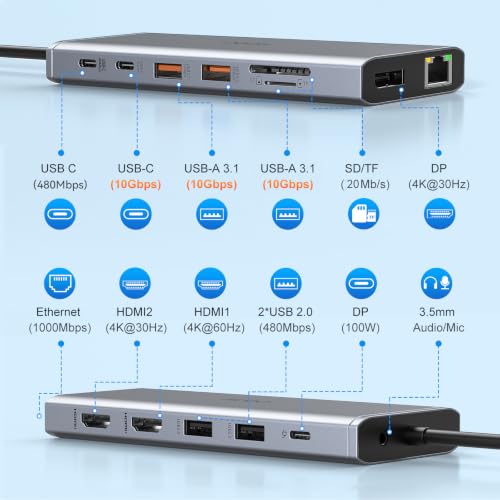


As an Amazon Associate we earn from qualifying purchases. Product prices and availability are accurate as of the date/time indicated.
Top Laptop Docks for Dual Monitors Reviewed
Anker 575 USB-C Docking Station
The Anker 575 USB-C Docking Station is a 13-in-1 dock with USB-C, 10Gbps, two HDMI ports, one DisplayPort, and 85W power delivery. It has a price of $200 to $250, with a design that supports dual 1080p monitors at 60Hz, or a single 4K monitor at 60Hz, and it is a good choice if you want a versatile, affordable dock for dual monitors, with a design that is easy to use with a MacBook or Windows laptop. It is popular with remote workers who want a dock that just works, with a clean desk setup.
CalDigit TS4 Thunderbolt 4 Dock
The CalDigit TS4 Thunderbolt 4 Dock is an 18-in-1 dock with Thunderbolt 4, 40Gbps, two DisplayPort ports, one HDMI port, and 98W power delivery. It has a price of $350 to $400, with a design that supports dual 4K monitors at 60Hz, and it is a good choice if you want the best dock for dual monitors, with a design that is fast, reliable, and future-proof. It is a practical option for MacBook Pro owners who want a premium dock with many ports.
Plugable TBT3-UDZ Thunderbolt Dock
The Plugable TBT3-UDZ Thunderbolt Dock is a dock with Thunderbolt 3, 40Gbps, two DisplayPort ports, one HDMI port, and 100W power delivery. It has a price of $250 to $300, with a design that supports dual 4K monitors at 60Hz, and it is a good choice if you want a Thunderbolt dock for dual monitors at a lower price than the CalDigit TS4, with a design that is reliable and easy to use. It is a practical option for Windows and Mac users who want a Thunderbolt dock without paying $350 or more.
Dell WD22TB4 Thunderbolt Dock
The Dell WD22TB4 Thunderbolt Dock is a dock with Thunderbolt 4, 40Gbps, two DisplayPort ports, one HDMI port, and 130W power delivery. It has a price of $300 to $350, with a design that supports dual 4K monitors at 60Hz, and it is a good choice if you have a Dell laptop, with a design that is optimised for Dell, although it also works with other laptops. It is a practical option for office workers who want a dock with high power delivery for a large laptop.
Anker 563 USB-C Docking Station
The Anker 563 USB-C Docking Station is a 10-in-1 dock with USB-C, 10Gbps, two HDMI ports, one DisplayPort, and 100W power delivery. It has a price of $150 to $200, with a design that supports dual 1080p monitors at 60Hz, and it is a good choice if you want an affordable dock for dual monitors, with a design that is simple and easy to use. It is a practical option for students and budget workers who want dual monitors without paying $250 or more.
HP USB-C Dock G5
The HP USB-C Dock G5 is a dock with USB-C, 5Gbps, two DisplayPort ports, one HDMI port, and 100W power delivery. It has a price of $150 to $200, with a design that supports dual 1080p monitors at 60Hz, or a single 4K monitor at 30Hz, and it is a good choice if you want a reliable dock for dual monitors, with a design that is known for compatibility with HP and other laptops. It is a practical option for office workers who want a dock that is easy to set up.
Buying Guide: How to Choose Laptop Dock for Dual Monitors
Start with your laptop, ports, and dual monitor support. Check your laptop’s model, its USB-C or Thunderbolt port, and its specifications for dual monitor support, by looking in your laptop manual or on the manufacturer’s website. A MacBook with an M1 chip needs a DisplayLink dock for dual monitors, such as the Plugable UD-6950PDH, while a MacBook with an M1 Pro or later supports dual monitors natively with a Thunderbolt dock, such as the CalDigit TS4. A Windows laptop with a USB-C port that supports DisplayPort Alt Mode can use a USB-C dock, such as the Anker 575, for dual 1080p monitors, while a Windows laptop with Thunderbolt 4 can use a Thunderbolt dock for dual 4K monitors. Do not buy a dock based only on price, because a dock that does not match your laptop will not support dual monitors, even if it has two video ports.
Next, check video outputs, resolution, and refresh rate. Look for a dock with at least two video outputs, such as two HDMI ports, two DisplayPort ports, or one HDMI and one DisplayPort, with a design that matches your monitors’ inputs. A dock with HDMI 2.0 and DisplayPort 1.4 supports 4K at 60Hz, while a dock with HDMI 1.4 supports only 4K at 30Hz, which feels laggy. A dock that supports dual 1440p at 60Hz is a good choice for most workers, with a sharp image and a smooth scroll, while a dock that supports dual 4K at 60Hz is better if you have 4K monitors and you do photo or video editing. Check your monitors’ resolution and refresh rate, and choose a dock that supports them at 60Hz, not 30Hz.
Check power delivery, ports, and cable. Look for a dock with power delivery that matches your laptop’s charger, with at least 85W for a MacBook Pro 14, and 100W for a larger laptop, so your laptop charges while you work. A dock with many USB-A ports, for your keyboard, mouse, and external drive, with a USB-C port for fast data transfer, and with an Ethernet port for a stable wired connection, is useful for a clean desk setup. A dock that comes with a Thunderbolt cable, or a USB-C cable, is a good choice, because a cheap cable may not support dual monitors at full resolution. A dock with a built-in power supply, rather than a separate power brick, is easier to set up, although it is larger.
Consider your desk, monitors, and future needs. If you have two 1080p monitors, a USB-C dock for $150 to $250, such as the Anker 563 or Anker 575, is enough, with a design that is affordable and easy to use. If you have two 4K monitors, a Thunderbolt dock for $250 to $400, such as the Plugable TBT3-UDZ or CalDigit TS4, is better, with a design that supports dual 4K at 60Hz. If you plan to upgrade to 4K monitors in the future, buy a Thunderbolt dock now, so you do not need to replace it later. A dock that is too cheap, with only one video output, will not support dual monitors, while a dock that is too expensive may have features you do not need, such as 2.5Gb Ethernet or SD card readers.
Finally, set a realistic budget. Laptop docks for dual monitors typically cost $150 to $400, depending on connection and features. A USB-C dock from $150 to $250, such as the Anker 563 or Anker 575, offers excellent value for most workers, with dual 1080p support and 85W to 100W power delivery. A Thunderbolt dock from $250 to $400, such as the Plugable TBT3-UDZ, Dell WD22TB4, or CalDigit TS4, offers better performance, with dual 4K support and faster data transfer, and it is worth it if you have high-resolution monitors or a MacBook Pro. Do not buy a dock based only on price. Choose one that matches your laptop, supports your monitors at 60Hz, and charges your laptop, so your dual-monitor setup is clean, fast, and reliable.
How to Set Up a Laptop Dock for Dual Monitors
To set up a laptop dock for dual monitors, place your dock on your desk, connect its power adapter to a wall outlet, and connect your two monitors to your dock’s video outputs, with HDMI or DisplayPort cables, making sure they click into place. Connect your keyboard, mouse, and other USB devices to your dock’s USB ports, and connect an Ethernet cable to your dock if you want a wired connection. Connect your dock to your laptop with a single USB-C or Thunderbolt cable, and your laptop should recognise your monitors automatically, with a display that extends across both monitors. Go to your laptop’s display settings, arrange your monitors left to right, set your primary monitor, and adjust resolution to 1080p or 1440p at 60Hz. A dock that is set up correctly will let you plug in one cable and start working, with dual monitors, charging, and peripherals all connected.
Docks That Drive Two Monitors Cleanly
A single cable from the laptop to a dock keeps a dual-screen desk tidy. These docks vary in connection type and port count, so match them to your laptop’s USB-C or Thunderbolt port.
Anker 8-in-1 Dual Monitor USB-C Dock
Dual HDMI outputs, gigabit Ethernet, an SD and microSD reader, and up to 85W of power delivery. The charger is not included. A neat, affordable pick for a two-screen desk.
As an Amazon Associate we earn from qualifying purchases at no extra cost to you.

UGREEN Revodok Max 8-in-1 Thunderbolt 4 Dock
Supports dual 4K displays at 60Hz or one 8K screen, with three Thunderbolt 4 ports. It delivers 85W of laptop charging. A well-rounded dock for recent Mac and Windows laptops.

Anker Prime 14-in-1 Docking Station
A larger dock with dual 4K HDMI and up to 160W of output. It leaves room for several peripherals and an Ethernet cable. Suited to a desk that runs a lot of gear.

Plugable 16-in-1 Thunderbolt 4 Dock
Offers two HDMI and two DisplayPort outputs plus 2.5G Ethernet and 100W charging. Driverless setup keeps it simple. A flexible choice when your monitors use different inputs.

UGREEN Revodok Pro 7-in-1 Dual Monitor Dock
An aluminum dock with two HDMI ports for dual 4K at 60Hz and four 10Gbps data ports. It carries 100W of pass-through power. A compact way to add screens and drives.

Look up your laptop’s display output limits first. Some laptops mirror, rather than extend, a second screen through one USB-C port.
Frequently Asked Questions
Can any laptop dock support dual monitors?
No, not any laptop dock can support dual monitors, because a dock must have at least two video outputs, and your laptop must support dual monitors via one USB-C or Thunderbolt port. A dock with only one HDMI port can only support one external monitor, while a dock with two HDMI ports, or one HDMI and one DisplayPort, can support two monitors, if your laptop supports it. A MacBook with an M1 chip supports only one external monitor natively, and it needs a DisplayLink dock for dual monitors, while a MacBook with an M1 Pro or later supports two monitors natively. Always check your laptop’s specifications for dual monitor support, and choose a dock with two video outputs that matches your monitors.
Do I need a Thunderbolt dock for dual 4K monitors?
Yes, you need a Thunderbolt dock for dual 4K monitors at 60Hz, because a USB-C dock with 10Gbps does not have enough bandwidth to support two 4K monitors at 60Hz, and it will only support dual 1080p at 60Hz, or a single 4K at 60Hz. A Thunderbolt 3 or Thunderbolt 4 dock, with 40Gbps, has enough bandwidth for dual 4K at 60Hz, with a design that uses DisplayPort 1.4. A Thunderbolt dock, such as the CalDigit TS4 or Plugable TBT3-UDZ, costs $250 to $400, while a USB-C dock costs $150 to $250, but it is worth it if you have 4K monitors and you want a sharp, smooth image. If you have two 1080p monitors, a USB-C dock is enough, and you do not need Thunderbolt.
Will a laptop dock charge my laptop?
Yes, most laptop docks will charge your laptop, with power delivery via USB-C, as long as your dock’s power delivery is equal to or higher than your laptop’s charger wattage. A dock with 85W power delivery, such as the Anker 575, will charge a MacBook Air, which needs 35W, and a MacBook Pro 14, which needs 67W, but it may charge a MacBook Pro 16 slowly, which needs 96W, and a dock with 100W, such as the Anker 563, is better for a larger laptop. Check your laptop’s charger wattage, which is printed on your charger, and choose a dock with equal or higher power delivery, otherwise your laptop may drain slowly even when plugged in, especially if you use it for heavy work.
Can I use a laptop dock with a MacBook M1 for dual monitors?
You can use a laptop dock with a MacBook M1 for dual monitors, but you need a DisplayLink dock, not a standard Thunderbolt dock, because a MacBook M1 supports only one external monitor natively, via its Thunderbolt port. A DisplayLink dock, such as the Plugable UD-6950PDH, uses software to support a second monitor, with a driver that you install on your MacBook, and it lets you use dual monitors, although it may have slightly higher latency than a native Thunderbolt dock. A MacBook with an M1 Pro, M2 Pro, M3 Pro, or later, supports dual monitors natively, with a Thunderbolt dock, such as the CalDigit TS4, without DisplayLink. Check your MacBook chip before you buy a dock, and choose a DisplayLink dock if you have an M1, or a Thunderbolt dock if you have an M1 Pro or later.
Related guides
- Best Cheap Racing Wheel Under 100 in 2026: 7 Racing Wheels That Offer Strong Force Feedback, Comfortable Grip, and Reliable Use for Gamers
- Best Bone Conduction Headphones for Cycling in 2026: 7 Best Bone Conduction Headphones for Cycling That Keep You Aware, Comfortable, and Safe on the Road
- Best Rugged Phone Case for Hiking in 2026: 6 Top Rugged Phone Cases for Hiking, Rugged Cases, and Easy Use
- Best Desk for Writing at Home in 2026: 7 Best Desks for Writing at Home That Give You Space, Comfort, and a Surface That Lasts
More from Amazon
Programs that pair well with the guide above. Offers and eligibility are set by Amazon and may change.
Free shipping on eligible items, Prime Video and more. Eligible new members can start with a free trial.
Start a Prime free trialAd-free music streaming. Eligible new subscribers can start with a free trial.
Try Music Unlimited freeA Prime membership for ages 18-24 with a trial period. Eligibility is set by Amazon.
See Prime for Young AdultsAudiobooks and podcasts to listen to on the go. Eligible new members can start with a free trial.
Try Audible freeAs an Amazon Associate we earn from qualifying purchases.

Write Your Review
No reviews yet. Be the first to share your experience!