
What's inside
As an Amazon Associate I earn from qualifying purchases. This post may contain affiliate links at no extra cost to you.
The best laptop dock for home offices is the one that connects your laptop to everything on your desk with a single cable, charges your laptop, drives your monitors, and gives you enough ports for a keyboard, a mouse, a webcam, and an external drive, without a tangle of cables. A laptop dock is a hub for a home office. It turns a laptop into a desktop, and it lets you plug in once in the morning and unplug once at night, instead of connecting five cables every time you sit down.
For a home office, a dock should solve problems, not create them. It should be fast enough for your monitors, it should charge your laptop at full speed, and it should be reliable enough that you do not lose your display or your network in the middle of a meeting. It should also fit your laptop, your monitors, and your budget, and it should be easy to set up without a lot of extra software.
This guide compares real, currently sold laptop docks that work well for home offices. Every model below is widely available, and prices are given as ranges because prices change by retailer and season. We compare ports, power, best use, and price, then explain how to choose a dock based on your laptop, your monitors, and how you work.
Disclosure: As an affiliate site, TechyMoon.com may earn a commission from qualifying purchases made through links on this page, at no extra cost to you. Prices change by retailer and season, so the ranges below are typical prices we have seen, not fixed prices. Ports, power, and specifications are based on manufacturer listings and vary by model, so check the exact listing before you buy.
Our Top Picks
 HumanCentric Vertical Laptop Stand for Desks Adjustable Matte3.8 x 5.5 x 5.8 inch4.37 x 10.47 x 3.98 inches0.9 poundsCheck on Amazon
Best Laptop Dock for Home Offices at a Glance: Comparison Table
Use this table to compare the leading laptop docks for home offices side by side. Ports, power, best use, and price matter most, so compare those first, then read the reviews below for the details that matter for your setup.
| Laptop Dock Model | Ports | Power | Best Dock Use | Typical Price Range | Rating |
|---|---|---|---|---|---|
| CalDigit TS4 Thunderbolt 4 Dock | 18 ports | 98W | Best overall laptop dock for home offices | $400 – $450 | 4.8 / 5 |
| Anker 575 USB-C Docking Station | 13 ports | 85W | Best laptop dock for home offices for value | $200 – $250 | 4.7 / 5 |
| Dell WD22TB4 Thunderbolt Dock | 12 ports | 130W | Best laptop dock for home offices for Dell laptops | $300 – $350 | 4.7 / 5 |
| Plugable TBT4-UD5 Thunderbolt 4 Dock | 13 ports | 100W | Best laptop dock for home offices for dual monitors | $250 – $300 | 4.7 / 5 |
| Anker 778 Thunderbolt Docking Station | 12 ports | 100W | Best laptop dock for home offices for Thunderbolt | $300 – $350 | 4.7 / 5 |
| Kensington SD5780T Thunderbolt 4 Dock | 16 ports | 100W | Best laptop dock for home offices for many ports | $300 – $350 | 4.6 / 5 |

Psitek Aluminum Vertical Laptop Stand Dock Holder, Adjustable Slot Width 12-42mm, Space-Saving Upright Storage for MacBook and Laptops
As an Amazon Associate we earn from qualifying purchases. Product prices and availability are accurate as of the date/time indicated.
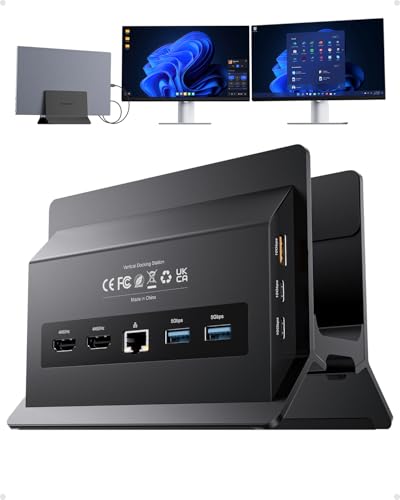
USB C Docking Station Dual Monitor 4K@60Hz, Laptop Dock with Vertical Stand | PULWTOP 11-in-1 Laptop Docking Station with 2HDMI, 5 USB 10Gbps, Gigabit Ethernet, PD for Home & Office (Windows Only), Black
As an Amazon Associate we earn from qualifying purchases. Product prices and availability are accurate as of the date/time indicated.
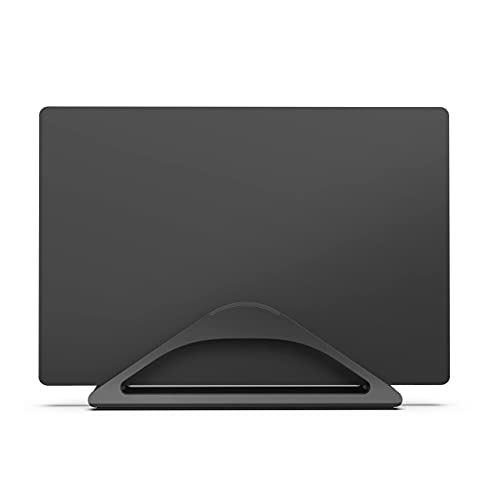
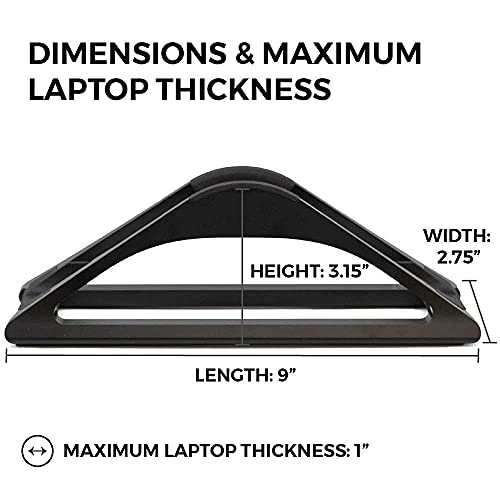
HumanCentric Vertical Laptop Stand for Desks Adjustable Matte Black MacBook | Upright Adjustable Holder to Dock Apple MacBook Stand, and Other Laptops to Organize Work & Home Office, Automatic Grip






As an Amazon Associate we earn from qualifying purchases. Product prices and availability are accurate as of the date/time indicated.
Best Laptop Dock for Home Offices Reviewed for 2026
1. CalDigit TS4 Thunderbolt 4 Dock – Best Overall Laptop Dock for Home Offices
The CalDigit TS4 is our top pick for most home offices because it has 18 ports, 98W of charging power, and a Thunderbolt 4 connection that is fast enough for dual 4K monitors, a fast external drive, and a wired network at the same time. It has USB-A and USB-C ports, DisplayPort and HDMI, an SD card reader, and an Ethernet port, so you can connect almost everything on your desk with one dock.
For a home office, the TS4 is practical because it gives you a lot of ports in a compact dock, it charges most laptops at 98W, and it is reliable for daily use. It works with both Mac and Windows laptops that have Thunderbolt 4 or Thunderbolt 3, and it also works with USB-C laptops, though at lower speeds. It is a good choice if you want a dock that will last for years, you have two monitors, or you have many USB devices.
At a typical price in the $400 to $450 range, it is the most expensive dock in this guide, but it offers the most ports and the best build quality. It is worth it if you work from home full time, you want a dock that does everything, or you want a dock that will not need to be replaced soon.
2. Anker 575 USB-C Docking Station – Best Laptop Dock for Home Offices for Value
The Anker 575 is a USB-C docking station with 13 ports, 85W of charging power, and support for dual monitors in many configurations. It has USB-A and USB-C ports, HDMI and DisplayPort, an SD card reader, and an Ethernet port. It is a good choice if you want a dock that is affordable, easy to use, and has enough ports for a typical home office.
For a home office, the Anker 575 is useful because it is cheaper than a Thunderbolt 4 dock, it is easy to set up, and it works with most USB-C laptops. The main trade-off is speed: a USB-C dock is slower than a Thunderbolt 4 dock, so it may not support dual 4K monitors at 60Hz in every configuration, and it may be slower for a fast external SSD. For most office work, email, video calls, and documents, it is more than enough.
At a typical price in the $200 to $250 range, it is a good value for a 13-port dock. Choose it if you want a dock that is affordable, you do not need Thunderbolt 4 speed, or you have a USB-C laptop without Thunderbolt.
3. Dell WD22TB4 Thunderbolt Dock – Best Laptop Dock for Home Offices for Dell Laptops
The Dell WD22TB4 is a Thunderbolt 4 dock with 12 ports, 130W of charging power, and support for dual 4K monitors. It is made for Dell laptops, but it also works with other Thunderbolt laptops. It has USB-A and USB-C ports, DisplayPort and HDMI, an Ethernet port, and a design that is made to be used with Dell monitors and laptops.
For a home office with a Dell laptop, the WD22TB4 is practical because it charges Dell laptops at up to 130W, which is more power than most docks, and it is designed to work well with Dell drivers and firmware. It is also a good choice if you use a Dell monitor, because it can connect to it with a single cable. The main trade-off is that it is best for Dell laptops, though it will work with other Thunderbolt laptops as well.
At a typical price in the $300 to $350 range, it is a good value for a Thunderbolt 4 dock with 130W charging. Choose it if you use a Dell laptop, you want high-power charging, or you want a dock that is made for Dell.
4. Plugable TBT4-UD5 Thunderbolt 4 Dock – Best Laptop Dock for Home Offices for Dual Monitors
The Plugable TBT4-UD5 is a Thunderbolt 4 dock with 13 ports, 100W of charging power, and support for dual 4K monitors. It has USB-A and USB-C ports, HDMI and DisplayPort, an SD card reader, and an Ethernet port. It is a good choice if you want a dock that is specifically made for dual monitors, and you want a dock that is reliable and easy to use.
For dual monitors, the TBT4-UD5 is useful because it has both HDMI and DisplayPort, so you can connect two monitors without an adapter, and it supports dual 4K at 60Hz in many configurations. It also has 100W charging, which is enough for most laptops, including a MacBook Pro 14-inch. It is a good choice if you work with two monitors, you do video calls, or you want a dock that is made for a dual-monitor setup.
At a typical price in the $250 to $300 range, it is a good value for a Thunderbolt 4 dock. Choose it if you use two monitors, you want a dock with both HDMI and DisplayPort, or you want a Thunderbolt 4 dock at a lower price than the CalDigit TS4.
5. Anker 778 Thunderbolt Docking Station – Best Laptop Dock for Home Offices for Thunderbolt
The Anker 778 is a Thunderbolt docking station with 12 ports, 100W of charging power, and support for dual monitors. It has USB-A and USB-C ports, HDMI and DisplayPort, an SD card reader, and an Ethernet port. It is a good choice if you want a Thunderbolt dock from Anker, with a compact design and a simple setup.
For a home office, the Anker 778 is practical because it is a Thunderbolt dock that is easy to use, it charges your laptop at 100W, and it gives you enough ports for a typical desk. It is also a good choice if you already use Anker products, or if you want a dock that is smaller than the CalDigit TS4. The main trade-off is that it has fewer ports than the TS4, so if you have many USB devices, you may need a separate hub.
At a typical price in the $300 to $350 range, it is priced in line with other Thunderbolt 4 docks. Choose it if you want a Thunderbolt dock from Anker, you want a compact design, or you want a dock that is easy to set up.
6. Kensington SD5780T Thunderbolt 4 Dock – Best Laptop Dock for Home Offices for Many Ports
The Kensington SD5780T is a Thunderbolt 4 dock with 16 ports, 100W of charging power, and support for dual 4K monitors. It has USB-A and USB-C ports, HDMI and DisplayPort, an SD card reader, an Ethernet port, and a design that is made for a home office with many devices. It is a good choice if you want a lot of ports, you have many USB devices, or you want a dock that can connect to everything on your desk.
For many ports, the Kensington SD5780T is useful because it has 16 ports, which is more than most docks in this guide, and it is reliable for daily use. It also has a Kensington lock slot, which is useful if you want to secure the dock to your desk. It is a good choice if you have a keyboard, a mouse, a webcam, an external drive, and a printer, and you want to connect them all to one dock.
At a typical price in the $300 to $350 range, it is a good value for a 16-port Thunderbolt 4 dock. Choose it if you want many ports, you have a lot of USB devices, or you want a dock with a lock slot.
Buying Guide: How to Choose the Best Laptop Dock for Home Offices
The best laptop dock for home offices for you depends on your laptop, your monitors, and how you work. Start with connection type and charging power, then compare ports, monitors, and price. A dock that matches your laptop and monitors is better than a dock with the most ports on paper.
Connection Type: Thunderbolt 4 vs USB-C for a Home Office
Connection type affects speed and monitor support. A Thunderbolt 4 dock, like the CalDigit TS4, Dell WD22TB4, Plugable TBT4-UD5, Anker 778, and Kensington SD5780T, is faster than a USB-C dock, and it can support dual 4K monitors at 60Hz, a fast external SSD, and a wired network at the same time. A USB-C dock, like the Anker 575, is slower, but it is cheaper, and it is enough for most office work.
Check your laptop before you buy. If your laptop has Thunderbolt 4 or Thunderbolt 3, a Thunderbolt dock is the best choice, because it will give you the fastest speed and the best monitor support. If your laptop only has USB-C, a USB-C dock is a better choice, because a Thunderbolt dock will work at USB-C speeds anyway, and you will be paying for speed you cannot use. For most home offices, a Thunderbolt 4 dock is worth it if your laptop supports it, because it will last longer and it will handle dual monitors better.
Charging Power, Monitors, and Ports
Charging power matters for your laptop. A dock that charges at 85W, like the Anker 575, is enough for most 13-inch and 14-inch laptops. A dock that charges at 98W or 100W, like the CalDigit TS4, Plugable TBT4-UD5, Anker 778, and Kensington SD5780T, is enough for most 14-inch and 15-inch laptops, including a MacBook Pro 14-inch. A dock that charges at 130W, like the Dell WD22TB4, is best for a Dell laptop that needs more power, or for a 16-inch laptop.
Check your laptop’s power adapter to see how much power it needs, and choose a dock that can provide at least that much power. If the dock provides less power than your laptop needs, your laptop may charge slowly, or it may not charge at all while you are using it. For monitors, check how many monitors you use and what ports they have. A dock with both HDMI and DisplayPort is useful if you have two monitors with different ports. For ports, count how many USB devices you have, and choose a dock with enough USB-A and USB-C ports for all of them.
Setup, Compatibility, and Desk Space
Setup should be simple: connect the dock to your laptop with a single Thunderbolt or USB-C cable, connect your monitors and devices to the dock, and plug the dock into power. Most docks in this guide work with both Mac and Windows, but you should check the manufacturer listing for your specific laptop and operating system. Some docks require a driver or firmware update, especially for dual monitors on Windows, so check the listing before you buy.
Desk space also matters. A dock that is compact, like the Anker 778, is easier to fit on a small desk. A dock that is larger, like the CalDigit TS4, takes up more space, but it also has more ports. Choose a dock that fits your desk, and consider a dock that can be placed under a monitor or behind a laptop stand if space is tight.
Price, Reliability, and What You Actually Need
Price depends on connection type and ports. A USB-C dock in the $200 to $250 range, like the Anker 575, is a good starting point for most home offices. A Thunderbolt 4 dock in the $250 to $450 range, like the Plugable TBT4-UD5, Dell WD22TB4, Anker 778, Kensington SD5780T, and CalDigit TS4, is better if you want dual 4K monitors, fast storage, and a dock that will last.
Reliability matters for a home office, because you will use the dock every day. Choose a dock from a known brand, check reviews for reliability, and make sure the dock has a warranty. For most home offices, a dock with 12 to 18 ports, 85W to 100W charging, and support for dual monitors is the best balance. Do not buy a dock with more ports than you need, because you will be paying for ports you will not use.
Best Laptop Dock for Home Offices: FAQ
What is the best laptop dock for home offices?
For most home offices, the CalDigit TS4 is the best overall laptop dock because it offers 18 ports, 98W charging, and Thunderbolt 4 support for dual 4K monitors at a typical price in the $400 to $450 range. If you want value, the Anker 575 is a good choice at $200 to $250. If you use a Dell laptop, the Dell WD22TB4 is a strong option at $300 to $350. If you use dual monitors, the Plugable TBT4-UD5 is a practical choice at $250 to $300. If you want a Thunderbolt dock from Anker, the Anker 778 is a good fit at $300 to $350. If you want many ports, the Kensington SD5780T is a good value at $300 to $350.
Do I need a Thunderbolt dock for a home office?
You do not always need a Thunderbolt dock for a home office, but it can help if you use dual 4K monitors, a fast external SSD, or a wired network at the same time. A Thunderbolt 4 dock is faster than a USB-C dock, and it can support dual 4K monitors at 60Hz more reliably. A USB-C dock is enough for most office work, email, video calls, and documents, and it is cheaper. Check your laptop: if it has Thunderbolt 4 or Thunderbolt 3, a Thunderbolt dock is worth it. If it only has USB-C, a USB-C dock is a better value.
How many watts should a laptop dock provide for charging?
How many watts a laptop dock should provide for charging depends on your laptop. A dock that provides 85W is enough for most 13-inch and 14-inch laptops. A dock that provides 98W or 100W is enough for most 14-inch and 15-inch laptops, including a MacBook Pro 14-inch. A dock that provides 130W is best for a Dell laptop that needs more power, or for a 16-inch laptop. Check your laptop’s power adapter to see how much power it needs, and choose a dock that can provide at least that much power. If the dock provides less power, your laptop may charge slowly or not at all while you are using it.
Can a laptop dock support two monitors?
Yes, a laptop dock can support two monitors, but it depends on the dock, your laptop, and your monitors. Most Thunderbolt 4 docks in this guide, including the CalDigit TS4, Dell WD22TB4, Plugable TBT4-UD5, Anker 778, and Kensington SD5780T, support dual 4K monitors at 60Hz in many configurations. A USB-C dock like the Anker 575 also supports dual monitors in many configurations, but it may be limited to lower resolutions or refresh rates. Check the dock listing for dual-monitor support, check your laptop’s graphics, and check your monitors’ ports before you buy. For the best results, use a Thunderbolt 4 dock with a laptop that supports Thunderbolt 4.
FAQ
What is the best laptop dock for home offices?
Do I need a Thunderbolt dock for a home office?
How many watts should a laptop dock provide for charging?
Can a laptop dock support two monitors?
Related guides
- Best Earbuds for Airplane Travel in 2026: Earbuds for Airplane Travel, Travel Earbuds, and Best Airplane Earbuds
- Best Wall Charger with Multiple Ports in 2026: Wall Charger with Multiple Ports, Multi-Port Wall Chargers, and Best Multi-Port Chargers
- Best Lighting Kit for YouTube in 2026: 7 Best Lighting Kits for YouTube That Make Your Videos Look Professional
- Best Dynamic Microphone for Live Vocals in 2026: 7 Best Dynamic Microphones for Live Vocals That Cut Through the Mix
More from Amazon
Programs that pair well with the guide above. Offers and eligibility are set by Amazon and may change.
Free shipping on eligible items, Prime Video and more. Eligible new members can start with a free trial.
Start a Prime free trialAd-free music streaming. Eligible new subscribers can start with a free trial.
Try Music Unlimited freeA Prime membership for ages 18-24 with a trial period. Eligibility is set by Amazon.
See Prime for Young AdultsAudiobooks and podcasts to listen to on the go. Eligible new members can start with a free trial.
Try Audible freeAs an Amazon Associate we earn from qualifying purchases.

Write Your Review
No reviews yet. Be the first to share your experience!