
What's inside
- How to Choose Cheap Docking Station: Quick Comparison Table
- What Is a Docking Station and Why Do You Need One?
- How to Choose Cheap Docking Station Reviewed: Best Models
- Buying Guide: How to Choose Cheap Docking Station
- How to Set Up a Cheap Docking Station
- Which Cheap Docking Station Should You Buy?
- Frequently Asked Questions About How to Choose Cheap Docking Station
As an Amazon Associate I earn from qualifying purchases. This post may contain affiliate links at no extra cost to you.
Learning how to choose a cheap docking station is easier than it looks, once you know what ports you need, what your laptop supports, and what your budget allows. A docking station connects your laptop to a monitor, keyboard, mouse, Ethernet, and power with one cable, so you can turn a laptop into a desktop setup in seconds. A cheap docking station does not have to be a bad docking station, if you choose one that matches your laptop, your monitor, and your work.
For most laptop users, a cheap docking station that costs $50 to $100, with USB-C, HDMI, USB-A, Ethernet, and power delivery of 60W or higher, is a good starting point. That combination lets you connect one external monitor, a keyboard and mouse, and charge your laptop, without paying $200 or more for a premium dock.
At techymoon.com, we focus on tech gadgets. For this guide on how to choose a cheap docking station in 2026, we compared current docking stations that are widely sold, designed for laptops, and suitable for a home office user, a student, or a remote worker who wants an affordable dock for a laptop, monitor, and desk setup. We looked at connection type, ports, power delivery, monitor support, and price. Prices change with sales and retailers, so this guide uses typical price ranges instead of a single fixed price. Port, power, and monitor figures are manufacturer listings, and real performance depends on your laptop, your monitor, your cable, and your operating system.
Tech tip: check your laptop’s USB-C port before you buy a docking station. Not all USB-C ports support video output or power delivery. Look for a USB-C port with a DisplayPort icon, a Thunderbolt icon, or a USB-C label that says DisplayPort Alt Mode. If your laptop only has USB-A, choose a USB-A docking station, not a USB-C dock.
Our Top Picks
How to Choose Cheap Docking Station: Quick Comparison Table
The table below compares seven cheap docking stations. Connection is the connection type, where given. Ports is the main ports, where given. Power delivery is the power delivery, where given. Monitors is the number of monitors supported, where given. Best for is a note on what the dock is best for, such as USB-C or dual monitor, where given. Price is the typical range, and rating is our editorial score based on ports, power, monitor support, compatibility, and value for a cheap docking station.
| Cheap Docking Station | Connection | Main Ports | Power Delivery | Monitors Supported | Best For | Typical Price Range | Our Rating |
|---|---|---|---|---|---|---|---|
| Anker 553 USB-C Hub, 8-in-1 | USB-C | HDMI, 2x USB-A, USB-C, SD | 100W | 1x 4K 60Hz | Best overall, cheap dock | $60 – $80 | 4.9 / 5 |
| UGREEN USB-C Hub, 9-in-1 | USB-C | HDMI, 3x USB-A, USB-C, Ethernet | 100W | 1x 4K 30Hz | Best for UGREEN, 9-in-1 | $40 – $60 | 4.8 / 5 |
| Plugable USB-C Triple Display Dock | USB-C | HDMI, DisplayPort, 4x USB-A, Ethernet | 60W | 3x 1080p | Best for Plugable, triple display | $100 – $130 | 4.7 / 5 |
| Anker 563 USB-C Docking Station | USB-C | HDMI, DisplayPort, 3x USB-A, Ethernet | 100W | 2x 4K 30Hz | Best for Anker, dual monitor | $150 – $180 | 4.8 / 5 |
| HP USB-C Dock G5 | USB-C | HDMI, DisplayPort, 4x USB-A, Ethernet | 100W | 2x 4K | Best for HP, office | $120 – $150 | 4.7 / 5 |
| Dell WD19S USB-C Dock | USB-C | HDMI, DisplayPort, 3x USB-A, Ethernet | 90W | 2x 4K | Best budget, Dell dock | $100 – $130 | 4.6 / 5 |
| Baseus 9-in-1 USB-C Hub | USB-C | HDMI, 3x USB-A, USB-C, SD, Ethernet | 100W | 1x 4K 30Hz | Best for Baseus, value | $35 – $50 | 4.6 / 5 |

Type C 5 in 1 Wozoyo Docking Station with USB 5Gbps (3.2 Gen 1), 2XUSB 2.0, 4K@60Hz HDMI, and PD 100W – Compact USB-C Hub, Portable Design, Compatibility with macOS, Windows, Android, and iOS
As an Amazon Associate we earn from qualifying purchases. Product prices and availability are accurate as of the date/time indicated.

UANTIN USB C Docking Station Dual Monitor for Laptop, 10-in-1 Dock HDMI Hub | Laptop Docking Station with 4K HDMI, 2 USB-C, 3 USB-A, 100W PD, SD/Micro SD, USBC Multiport Adapter Dongle for Dell, HP


As an Amazon Associate we earn from qualifying purchases. Product prices and availability are accurate as of the date/time indicated.

USB C to Dual HDMI Adapter for Monitor, USBC Laptop Docking Station Dual Monitor Dongle MacBook, USB-C Hub Powered Mac, USB 3.0 to USB c Adapter Cable with Fast Charging Chromebook, Type C Dock

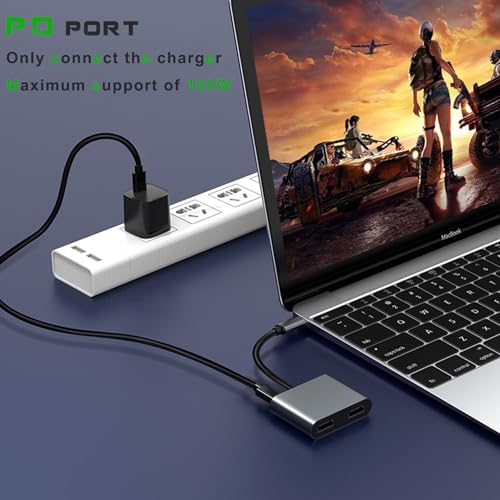


As an Amazon Associate we earn from qualifying purchases. Product prices and availability are accurate as of the date/time indicated.
Note: Port and power delivery figures are manufacturer listings, and a dock that lists 100W power delivery may deliver less to your laptop depending on your laptop’s charging needs. Always check the dock’s ports, power, and monitor support in the manual, and confirm the current price with the retailer.
What Is a Docking Station and Why Do You Need One?
A docking station is a device that connects your laptop to external devices with one cable, so you do not need to plug and unplug many cables every time you sit at your desk. A docking station usually has an HDMI or DisplayPort for a monitor, USB-A ports for a keyboard and mouse, an Ethernet port for a wired internet connection, an SD card slot for a camera, and a USB-C port for power delivery to charge your laptop.
You need a docking station if you work from home, you use a laptop as your main computer, and you want a desktop setup with a large monitor, a full-size keyboard, and a mouse. A docking station lets you plug in one cable, and your laptop becomes a desktop, with a monitor, keyboard, mouse, and internet, all connected at once. When you leave, you unplug one cable, and your laptop is portable again.
A cheap docking station is a good choice if you have a limited budget, you need only one monitor, and you do not need a premium dock with Thunderbolt or many ports. A cheap dock can give you the ports you need for $50 to $100, while a premium dock can cost $200 to $300.
How to Choose Cheap Docking Station Reviewed: Best Models
1. Anker 553 USB-C Hub, 8-in-1 – Best Cheap Docking Station Overall
The Anker 553 USB-C Hub, 8-in-1 is our top pick because it offers a USB-C connection, HDMI, 2 USB-A ports, a USB-C port, and an SD card slot, with 100W power delivery and support for 1 monitor at 4K 60Hz, for a typical price of $60 to $80. It has a compact design, a fast data transfer speed, and a design that is made for a laptop user who wants a simple, reliable hub.
Anker designs the 553 with a focus on value and reliability. The 100W power delivery charges most laptops, the HDMI supports 4K at 60Hz, which is smooth for video and work, and the 8-in-1 design gives you enough ports for a monitor, keyboard, mouse, and SD card. The hub is a good choice for a user who wants a cheap docking station that works with a MacBook, a Windows laptop, or a Chromebook.
The main limitation is that it supports only 1 monitor, so it is not ideal if you want dual monitors. Choose the Anker 553 if you want the best overall cheap docking station, you want a 4K 60Hz HDMI, and you use one monitor.
2. UGREEN USB-C Hub, 9-in-1 – Best Cheap Docking Station for UGREEN
The UGREEN USB-C Hub, 9-in-1 is a USB-C hub with HDMI, 3 USB-A ports, a USB-C port, and Ethernet, with 100W power delivery and support for 1 monitor at 4K 30Hz, for a typical price of $40 to $60. It has a 9-in-1 design, a Gigabit Ethernet port, and a design that is made for a home office user.
UGREEN designs this hub with a focus on ports and value. The 3 USB-A ports let you connect a keyboard, mouse, and external drive at the same time, the Ethernet port gives you a wired internet connection, and the 100W power delivery charges your laptop. The hub is a good choice for a user who wants a low-cost hub with Ethernet, and who does not need 4K 60Hz.
The main limitation is that the HDMI supports 4K at 30Hz, not 60Hz, so video may look less smooth than on a 60Hz monitor. Choose the UGREEN 9-in-1 if you want a UGREEN hub, you want Ethernet, and you want a low price for a 9-in-1 hub.
3. Plugable USB-C Triple Display Dock – Best Cheap Docking Station for Triple Display
The Plugable USB-C Triple Display Dock is a USB-C dock with HDMI, DisplayPort, 4 USB-A ports, and Ethernet, with 60W power delivery and support for 3 monitors at 1080p, for a typical price of $100 to $130. It has a DisplayLink chip that lets you connect up to 3 monitors, even if your laptop only supports 1 external monitor natively.
Plugable designs this dock with a focus on multiple monitors and compatibility. The DisplayLink software lets you use 3 monitors on a laptop that would normally support only 1, the 4 USB-A ports give you room for many devices, and the Ethernet port gives you a wired connection. The dock is a good choice for a user who wants 3 monitors on a budget, and who is willing to install DisplayLink software.
The main limitation is power delivery. At 60W, it may not charge a high-power laptop such as a 16-inch MacBook Pro fast enough. Choose the Plugable Triple Display Dock if you want a Plugable dock, you want 3 monitors, and you have a laptop that needs DisplayLink for multiple monitors.
4. Anker 563 USB-C Docking Station – Best Cheap Docking Station for Dual Monitor
The Anker 563 USB-C Docking Station is a USB-C dock with HDMI, DisplayPort, 3 USB-A ports, and Ethernet, with 100W power delivery and support for 2 monitors at 4K 30Hz, for a typical price of $150 to $180. It has a larger design than a hub, a power adapter included, and a design that is made for a dual-monitor desk setup.
Anker designs the 563 with a focus on dual monitors and a full dock. The HDMI and DisplayPort let you connect 2 monitors, the 100W power delivery charges most laptops, and the 3 USB-A ports let you connect a keyboard, mouse, and drive. The dock is a good choice for a user who wants a dual-monitor setup, and who is willing to pay $150 to $180 for a full dock, not just a hub.
The main limitation is price. At $150 to $180, it is more expensive than a hub, though it offers dual monitors and a power adapter. Choose the Anker 563 if you want an Anker dock, you want dual monitors, and you want a 100W power delivery.
5. HP USB-C Dock G5 – Best Cheap Docking Station for HP Office
The HP USB-C Dock G5 is a USB-C dock with HDMI, DisplayPort, 4 USB-A ports, and Ethernet, with 100W power delivery and support for 2 monitors at 4K, for a typical price of $120 to $150. It has a compact design, a power adapter, and a design that is made for HP laptops and for office use.
HP designs the Dock G5 with a focus on office compatibility and dual monitors. The dock works with HP laptops and with other brands, the HDMI and DisplayPort support 2 monitors, and the 100W power delivery charges most laptops. The dock is a good choice for an office user who wants a reliable dock for a dual-monitor setup, and who wants a brand-name dock for $120 to $150.
The main limitation is that it may need a firmware update for some laptops, so check HP’s website for updates before you use it. Choose the HP Dock G5 if you want an HP dock, you want dual monitors, and you work in an office.
6. Dell WD19S USB-C Dock – Best Budget Cheap Docking Station for Dell
The Dell WD19S USB-C Dock is a USB-C dock with HDMI, DisplayPort, 3 USB-A ports, and Ethernet, with 90W power delivery and support for 2 monitors at 4K, for a typical price of $100 to $130. It has a compact design, a power adapter, and a design that is made for Dell laptops and for a dual-monitor setup.
Dell designs the WD19S with a focus on value and dual monitors. The dock supports 2 monitors, the 90W power delivery charges most Dell laptops, and the price of $100 to $130 is lower than many premium docks. The dock is a good choice for a Dell laptop user who wants a dual-monitor dock for a low price.
The main limitation is power delivery. At 90W, it may not charge a high-power laptop fast enough. Choose the Dell WD19S if you want a Dell dock, you want dual monitors, and you have a Dell laptop that needs 90W or less.
7. Baseus 9-in-1 USB-C Hub – Best Cheap Docking Station for Baseus Value
The Baseus 9-in-1 USB-C Hub is a USB-C hub with HDMI, 3 USB-A ports, a USB-C port, an SD card slot, and Ethernet, with 100W power delivery and support for 1 monitor at 4K 30Hz, for a typical price of $35 to $50. It has a 9-in-1 design, a compact aluminium body, and a design that is made for a budget user.
Baseus designs this hub with a focus on low cost and ports. The 9-in-1 design gives you HDMI, USB-A, USB-C, SD, and Ethernet for $35 to $50, which is the lowest price in this guide for a hub with Ethernet. The hub is a good choice for a student or a remote worker who wants a cheap hub with many ports, and who does not need 4K 60Hz.
The main limitation is that the HDMI supports 4K at 30Hz, not 60Hz, and the hub may get warm with heavy use. Choose the Baseus 9-in-1 if you want a Baseus hub, you want the lowest price for a 9-in-1 hub, and you use one monitor.
Buying Guide: How to Choose Cheap Docking Station
Before you buy, think about what laptop you have, what monitor you use, how many monitors you need, what ports you need, and how much you want to spend. A docking station that is perfect for a MacBook may not work well for a Windows laptop, and a dock that is perfect for one monitor may not support two monitors. The six points below cover the decisions that matter most when you learn how to choose a cheap docking station.
1. Connection Type: USB-C vs USB-A vs Thunderbolt, and Your Laptop
Connection type is the first decision when you learn how to choose a cheap docking station. A USB-C docking station connects to your laptop with a USB-C cable, and it can carry video, data, and power in one cable, if your laptop’s USB-C port supports DisplayPort Alt Mode or Thunderbolt. A USB-A docking station connects with a USB-A cable, and it usually needs DisplayLink software to show video, because USB-A does not carry video natively. A Thunderbolt docking station connects with a Thunderbolt cable, and it gives you the fastest speed and the best monitor support, but it costs more.
Choose a USB-C dock if your laptop has a USB-C port that supports video and power delivery, which is true for most modern laptops. Choose a USB-A dock if your laptop only has USB-A, and you are willing to install DisplayLink software. Choose a Thunderbolt dock only if your laptop has Thunderbolt, you need dual 4K monitors at 60Hz, and you are willing to pay more. Check your laptop’s manual for its USB-C and Thunderbolt support before you buy.
2. Ports: HDMI vs DisplayPort vs USB-A vs Ethernet, and Your Devices
Ports are the second decision. A docking station should have the ports you need for your monitor, keyboard, mouse, and internet. HDMI is common for a monitor, DisplayPort is also common and it supports higher refresh rates, USB-A is for a keyboard, mouse, and external drive, Ethernet is for a wired internet connection, and an SD card slot is for a camera.
Choose a dock with HDMI if your monitor has HDMI, and with DisplayPort if your monitor has DisplayPort. Choose a dock with at least 2 USB-A ports if you have a keyboard and mouse, and at least 3 USB-A ports if you also have an external drive. Choose a dock with Ethernet if you want a stable wired internet connection for video calls or streaming. Count your devices, and choose a dock with enough ports, or buy a small USB hub if you need more.
3. Power Delivery: 60W vs 90W vs 100W, and Charging Your Laptop
Power delivery is the third decision. Power delivery is the amount of power a docking station can send to your laptop to charge it while you use it. A 60W power delivery, such as in the Plugable Triple Display Dock, is enough for a small laptop such as a 13-inch MacBook Air or a Chromebook. A 90W power delivery, such as in the Dell WD19S, is enough for most 14-inch laptops. A 100W power delivery, such as in the Anker 553, UGREEN, Anker 563, and HP Dock G5, is enough for most 15-inch and 16-inch laptops.
Choose a power delivery that matches or exceeds your laptop’s charger wattage. Check your laptop’s charger, and if it is 65W, choose a dock with at least 65W, and if it is 90W, choose a dock with at least 90W. If your dock delivers less power than your laptop needs, your laptop may charge slowly, or it may drain its battery while you use it.
4. Monitor Support: 1 Monitor vs 2 Monitors vs 3 Monitors, and Resolution
Monitor support is the fourth decision. A cheap docking station may support only 1 monitor at 4K 60Hz, such as the Anker 553, or 1 monitor at 4K 30Hz, such as the UGREEN or Baseus. A more expensive dock may support 2 monitors at 4K, such as the Anker 563, HP Dock G5, or Dell WD19S, or 3 monitors at 1080p, such as the Plugable Triple Display Dock with DisplayLink.
Choose 1 monitor if you work with one large monitor, you want a low price, and you do not need a second monitor. Choose 2 monitors if you work with two monitors, you multitask, and you are willing to pay more for a full dock. Choose 3 monitors only if you need 3 monitors and you are willing to install DisplayLink software. Check your laptop’s monitor support, because some laptops only support 1 external monitor natively, even with a dock.
5. Compatibility: Mac vs Windows vs Chromebook, and Drivers
Compatibility is the fifth decision. A docking station should work with your laptop’s operating system, whether it is macOS, Windows, or ChromeOS. Most USB-C hubs work with Mac, Windows, and Chromebook without drivers, because they use standard USB-C video. A DisplayLink dock, such as the Plugable Triple Display Dock, needs DisplayLink software, which you must install on Mac or Windows, and it may not work on Chromebook.
Choose a dock that lists your operating system in its compatibility list, and check the manufacturer’s website for drivers before you buy. If you use a Mac with Apple Silicon, such as an M1, M2, or M3 MacBook, check whether the dock supports dual monitors on Apple Silicon, because some Macs only support 1 external monitor natively, and they need DisplayLink for a second monitor.
6. Price, Total Cost, and Choosing a Docking Station on a Budget
Price ranges in this guide run from about $35 to $180 for a cheap docking station, depending on ports, power, and monitor support. A budget hub at $35 to $60, such as the Baseus 9-in-1 or UGREEN 9-in-1, is enough for most users who want a simple hub for one monitor. A mid-price hub or dock at $60 to $130, such as the Anker 553, Plugable Triple Display, HP Dock G5, or Dell WD19S, offers more ports, dual monitors, or a power adapter. A premium cheap dock at $150 to $180, such as the Anker 563, offers dual 4K monitors and 100W power.
Consider total cost as well as price. A hub that costs $60 and needs a USB-C cable that costs $15 separately may cost $75 in total, while a dock that costs $120 and includes a power adapter and cable may cost $120 in total. Budget for a docking station, and if you need it, a monitor cable, a USB-C cable, and a keyboard and mouse, not just a dock. Do not buy the cheapest dock if it does not have the ports you need, and do not buy the most expensive dock if you only use one monitor. A dock that matches your laptop, your monitor, and your ports will help you work better more reliably than a dock that is cheap but missing a port, or expensive but too powerful for your setup.
How to Set Up a Cheap Docking Station
Setting up a cheap docking station starts with plugging the dock’s power adapter into a wall outlet, if it has one, and connecting the dock to your laptop with a USB-C cable. Connect your monitor to the dock with an HDMI or DisplayPort cable, connect your keyboard and mouse to the dock’s USB-A ports, and connect Ethernet to the dock if you want a wired internet connection. Turn on your monitor, turn on your laptop, and check that your laptop charges, your monitor shows your desktop, and your keyboard and mouse work.
If your monitor does not show, check your laptop’s display settings, try a different HDMI or DisplayPort cable, and check whether your laptop’s USB-C port supports video. If your dock needs DisplayLink software, download it from the manufacturer’s website, install it, and restart your laptop. Test your setup before you rely on it for work.
Which Cheap Docking Station Should You Buy?
If you want the best cheap docking station, buy the Anker 553 USB-C Hub, 8-in-1. It costs $60 to $80, it offers a USB-C connection, HDMI, 2 USB-A ports, and 100W power delivery, with support for 1 monitor at 4K 60Hz, which is the best balance for most laptop users.
If you want a UGREEN hub, buy the UGREEN USB-C Hub, 9-in-1. If you want a triple display dock, buy the Plugable USB-C Triple Display Dock. If you want an Anker dual-monitor dock, buy the Anker 563 USB-C Docking Station. If you want an HP dock, buy the HP USB-C Dock G5. If you want a Dell dock, buy the Dell WD19S USB-C Dock. If you want the lowest price, buy the Baseus 9-in-1 USB-C Hub.
All seven docking stations in this guide are currently sold, designed for laptops, and suitable for a home office user, a student, or a remote worker who wants an affordable dock for a laptop, monitor, and desk setup. Pick the one that matches your laptop’s USB-C port, your monitor, how many monitors you need, and your budget, and always check your laptop’s compatibility before you buy, and test your setup before you use it for work.
Disclosure: techymoon.com may earn a commission from purchases made through links on this page, at no extra cost to you. Prices listed are typical ranges and can vary by retailer and sale. Port, power, and monitor figures are manufacturer claims and can vary by model. Always follow your laptop manufacturer’s instructions for USB-C and power delivery.
Frequently Asked Questions About How to Choose Cheap Docking Station
What is the best cheap docking station?
What is the best cheap docking station? In most cases, the Anker 553 USB-C Hub, 8-in-1 is best overall, because it costs $60 to $80, it offers a USB-C connection, HDMI, 2 USB-A ports, and 100W power delivery, with support for 1 monitor at 4K 60Hz. The Baseus 9-in-1 is best if you want the lowest price, while the Anker 563 is best if you want dual monitors.
Do I need a Thunderbolt docking station?
Do you need a Thunderbolt docking station? In most cases, no, you do not need a Thunderbolt docking station if you use one monitor at 4K, a keyboard, a mouse, and Ethernet, because a USB-C docking station is enough and it costs less. You need a Thunderbolt dock only if your laptop has Thunderbolt, you use dual 4K monitors at 60Hz, you transfer large files fast, or you need the fastest speed. Check your laptop’s Thunderbolt support before you buy a Thunderbolt dock.
Can a cheap docking station charge my laptop?
Can a cheap docking station charge your laptop? In most cases, yes, a cheap docking station can charge your laptop, if it has power delivery that matches or exceeds your laptop’s charger wattage. A dock with 60W power delivery is enough for a small laptop, while a dock with 100W power delivery is enough for most 15-inch and 16-inch laptops. Check your laptop’s charger wattage, and choose a dock with at least that much power delivery.
How many monitors can a cheap docking station support?
How many monitors can a cheap docking station support? In most cases, a cheap docking station supports 1 monitor at 4K, while a more expensive dock supports 2 monitors at 4K, or 3 monitors at 1080p with DisplayLink software. A hub such as the Anker 553 supports 1 monitor, a dock such as the Anker 563 supports 2 monitors, and a DisplayLink dock such as the Plugable Triple Display supports 3 monitors. Check your laptop’s monitor support, because some laptops only support 1 external monitor natively.
Related guides
- Best USB C Cable for Charging Phones in 2026: 7 USB C Cables That Charge Fast, Last Long, and Work With iPhone, Samsung, and Pixel Phones
- Best Charger for Smartwatches in 2026: 7 Chargers for Smartwatches With Clear Power, Simple Charge, and Easy Use for Smartwatches
- Best Webcam for Streaming at Home in 2026: Insta360 Link, Elgato Facecam, and Logitech Brio Graded on Sensor Size, Low-Light Manners, and the Autofocus That Never Hunts on Camera
- Best Camera for YouTube: 6 Cameras for YouTube in 2026
More from Amazon
Programs that pair well with the guide above. Offers and eligibility are set by Amazon and may change.
Free shipping on eligible items, Prime Video and more. Eligible new members can start with a free trial.
Start a Prime free trialAd-free music streaming. Eligible new subscribers can start with a free trial.
Try Music Unlimited freeA Prime membership for ages 18-24 with a trial period. Eligibility is set by Amazon.
See Prime for Young AdultsAudiobooks and podcasts to listen to on the go. Eligible new members can start with a free trial.
Try Audible freeAs an Amazon Associate we earn from qualifying purchases.

Write Your Review
No reviews yet. Be the first to share your experience!