
What's inside
- Best Budget Wired Mouse Under 30: Quick Comparison Table
- Why a Wired Mouse Under $30 Can Be a Good Choice
- Best Budget Wired Mouse Under 30 Reviewed
- Buying Guide: How to Choose the Best Budget Wired Mouse Under 30
- How to Set Up a Budget Wired Mouse Under 30
- Which Best Budget Wired Mouse Under 30 Should You Buy?
- Frequently Asked Questions About the Best Budget Wired Mouse Under 30
As an Amazon Associate I earn from qualifying purchases. This post may contain affiliate links at no extra cost to you.
The best budget wired mouse under 30 is the one that feels comfortable in your hand for hours, tracks smoothly on a desk or a mouse pad, and has buttons that click cleanly without double-clicking after a few months. A wired mouse under $30 does not need to be a cheap mouse that feels hollow, lags in a game, or breaks after a semester. Many current wired mice under $30 use the same sensor, switch, and shape ideas as more expensive mice, with a lower price because they skip wireless, RGB lighting, or extra software.
For most users, a wired mouse under $30 with a 1,000 to 8,000 DPI sensor, a comfortable shape for your grip, at least five buttons, and a braided or flexible cable is a good starting point. That combination can handle office work, school, web browsing, photo editing, and casual gaming, without the lag of a wireless mouse or the cost of a premium gaming mouse.
At techymoon.com, we focus on tech gadgets. For this guide to the best budget wired mouse under 30 in 2026, we compared current wired mice that are widely sold, designed for office, school, and gaming use, and suitable for a user who wants a reliable wired mouse for a desktop, a laptop, or a dorm setup. We looked at sensor, DPI, buttons, weight, cable, and price. Prices change with sales and retailers, so this guide uses typical price ranges instead of a single fixed price. Sensor, DPI, and weight figures are manufacturer listings, and real performance depends on your hand size, your grip, your mouse pad, and how you use the mouse.
Mouse tip: check your hand size and grip before you buy. A large mouse can cause hand pain if you have small hands, while a small mouse can cause cramping if you have large hands. A palm grip user needs a larger, taller mouse, a claw grip user needs a medium mouse with a high back, and a fingertip grip user needs a light, low mouse. Measure your hand from wrist to middle fingertip, and compare it to the mouse length in the manual.
Our Top Picks
Best Budget Wired Mouse Under 30: Quick Comparison Table
The table below compares seven budget wired mice under $30. Sensor is the sensor type, where given. DPI is the maximum DPI, where given. Buttons is the number of buttons, where given. Weight is the weight, where given. Cable is the cable type, where given. Best for is a note on what the mouse is best for, such as gaming or office use, where given. Price is the typical range, and rating is our editorial score based on sensor, comfort, buttons, cable, durability, and value for a budget wired mouse.
| Budget Wired Mouse Under 30 | Sensor | Max DPI | Buttons | Weight | Cable | Best For | Typical Price Range | Our Rating |
|---|---|---|---|---|---|---|---|---|
| Logitech G203 Lightsync | Optical | 8,000 DPI | 6 | About 85 g | Rubber, 6.5 ft | Best overall, budget wired mouse | $20 – $30 | 4.9 / 5 |
| Razer DeathAdder Essential | Optical | 6,400 DPI | 5 | About 96 g | Rubber, 6 ft | Best for Razer, gaming | $20 – $30 | 4.8 / 5 |
| Logitech G502 Hero | Optical | 25,600 DPI | 11 | About 121 g | Braided, 6.5 ft | Best for Logitech, many buttons | $25 – $35 | 4.8 / 5 |
| SteelSeries Rival 3 | Optical, TrueMove Core | 8,500 DPI | 6 | About 77 g | Rubber, 6 ft | Best for SteelSeries, light | $20 – $30 | 4.7 / 5 |
| HyperX Pulsefire Core | Optical, Pixart 3327 | 6,200 DPI | 7 | About 87 g | Braided, 5.9 ft | Best for HyperX, office and gaming | $15 – $25 | 4.7 / 5 |
| Redragon M711 Cobra | Optical | 10,000 DPI | 7 | About 115 g | Braided, 6 ft | Best budget, RGB gaming | $15 – $25 | 4.6 / 5 |
| Logitech M500s | Optical, laser | 4,000 DPI | 7 | About 102 g | Rubber, 6 ft | Best for Logitech, office | $20 – $30 | 4.6 / 5 |
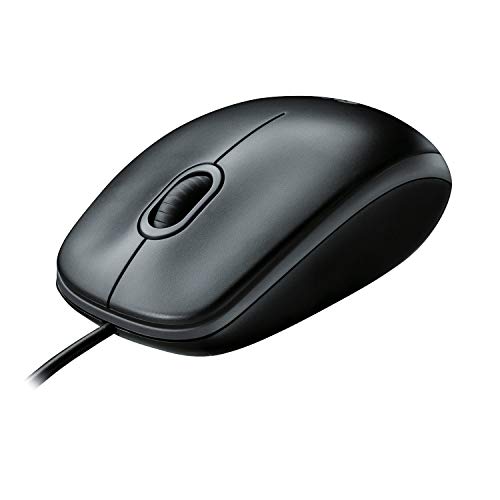
Logitech B100 Ambidextrous Wired Mouse - Black | USB corded, right or left hand use, for computer and laptop
As an Amazon Associate we earn from qualifying purchases. Product prices and availability are accurate as of the date/time indicated.

Retail Digitals 3-Button USB Wired Mouse | High-Precision Optical Tracking | Durable for Desktop & Laptop | Black


As an Amazon Associate we earn from qualifying purchases. Product prices and availability are accurate as of the date/time indicated.

Bonuci 30 Pack Computer USB Wired Mouse Bulk 3 Button 800/1200 DPI Black | Ergonomic Noiseless Corded Computer Mice for Laptop, PC Desktop, Computers, Office, School, Classroom Supplies
As an Amazon Associate we earn from qualifying purchases. Product prices and availability are accurate as of the date/time indicated.
Note: DPI figures are manufacturer listings for the maximum DPI, and a mouse that lists 25,600 DPI will not be more accurate at that setting than at 800 or 1,600 DPI for most users. Always check the mouse’s sensor, weight, and cable type in the manual, and confirm the current price with the retailer. The Logitech G502 Hero is often sold above $30, so check the current sale price before you buy if you want a mouse under $30.
Why a Wired Mouse Under $30 Can Be a Good Choice
A wired mouse under $30 can be a good choice for three reasons: no lag, no battery, and low cost. No lag matters because a wired mouse connects directly to your desktop or laptop through USB, with no wireless delay, which is useful for gaming, photo editing, and fast office work. A wireless mouse can have a small delay, especially a cheap wireless mouse, while a wired mouse has a direct connection.
No battery matters because a wired mouse does not need a battery, a charging cable, or a USB receiver that can be lost. You plug it in, it works, and you do not need to charge it at night. That makes it a good choice for a school, a dorm, or an office where you want a mouse that always works.
Low cost matters because a wired mouse under $30 can offer a good sensor, a comfortable shape, and durable buttons for less than a wireless gaming mouse that costs $70 to $100. For many users, the extra cost of wireless is not worth it, especially if you use a desktop and your mouse stays on your desk.
Best Budget Wired Mouse Under 30 Reviewed
1. Logitech G203 Lightsync – Best Budget Wired Mouse Under 30 Overall
The Logitech G203 Lightsync is our top pick because it offers an optical sensor, a maximum DPI of 8,000, six buttons, a weight of about 85 grams, and a rubber cable of about 6.5 feet, for a typical price of $20 to $30. It has a classic Logitech shape that works for palm, claw, and fingertip grips, and it has RGB lighting that can be turned off in Logitech G Hub software.
Logitech designs the G203 with a focus on comfort and sensor accuracy. The sensor tracks smoothly on a desk or a mouse pad, the buttons click cleanly, and the mouse has a simple design that is easy to use for gaming and office work. The 8,000 DPI is more than most users need, and you can set the DPI to 800, 1,600, or 3,200 for everyday use.
The main limitation is that the G203 is a small to medium mouse, so it may feel small if you have very large hands. Choose the G203 if you want the best overall budget wired mouse under $30, you want a Logitech shape, and you want a light mouse for gaming and office work.
2. Razer DeathAdder Essential – Best Budget Wired Mouse Under 30 for Razer
The Razer DeathAdder Essential is a wired gaming mouse with an optical sensor, a maximum DPI of 6,400, five buttons, a weight of about 96 grams, and a rubber cable of about 6 feet, for a typical price of $20 to $30. It has a large, ergonomic shape that is designed for right-handed palm and claw grips, and it has Razer Synapse software for DPI and button settings.
Razer designs the DeathAdder Essential with a focus on shape and durability. The DeathAdder shape has been used for many years, and it is one of the most comfortable shapes for a large hand. The sensor tracks well, the buttons have a clear click, and the mouse has a simple design without extra RGB lighting that can be distracting.
The main limitation is that it has only five buttons, so it has fewer side buttons than the Logitech G502 Hero. Choose the DeathAdder Essential if you want a Razer mouse, you have a large hand, and you want a comfortable ergonomic shape for gaming.
3. Logitech G502 Hero – Best Budget Wired Mouse Under 30 for Many Buttons
The Logitech G502 Hero is a wired gaming mouse with an optical sensor, a maximum DPI of 25,600, eleven buttons, a weight of about 121 grams, and a braided cable of about 6.5 feet, for a typical price of $25 to $35 on sale. It has a large shape, a thumb rest, adjustable weights, and a hyper-fast scroll wheel that can switch between a notched scroll and a free spin.
Logitech designs the G502 Hero with a focus on buttons and control. The eleven buttons let you set shortcuts for games, photo editing, and office work, the adjustable weights let you make the mouse heavier or lighter, and the sensor is one of the most accurate in this guide. The G502 Hero is a good choice for a user who wants many buttons and a large mouse.
The main limitation is price and weight. At $25 to $35, it is often sold above $30, so you need to check for a sale to get it under $30, and at about 121 grams, it is heavier than the G203 or Rival 3. Choose the G502 Hero if you want a Logitech mouse with many buttons, you have a large hand, and you want a sensor that can handle fast gaming.
4. SteelSeries Rival 3 – Best Budget Wired Mouse Under 30 for Light Use
The SteelSeries Rival 3 is a wired gaming mouse with an optical TrueMove Core sensor, a maximum DPI of 8,500, six buttons, a weight of about 77 grams, and a rubber cable of about 6 feet, for a typical price of $20 to $30. It has a light, balanced shape, a durable design, and SteelSeries Engine software for DPI and button settings.
SteelSeries designs the Rival 3 with a focus on light weight and durability. At about 77 grams, it is the lightest mouse in this guide, which makes it easy to move fast in a game, and the TrueMove Core sensor tracks accurately without acceleration or angle snapping. The mouse has a simple design that works for palm, claw, and fingertip grips.
The main limitation is that the Rival 3 is a medium mouse, so it may feel small for a very large hand. Choose the Rival 3 if you want a SteelSeries mouse, you want the lightest mouse in this guide, and you want a simple, durable design for gaming.
5. HyperX Pulsefire Core – Best Budget Wired Mouse Under 30 for Office and Gaming
The HyperX Pulsefire Core is a wired gaming mouse with an optical Pixart 3327 sensor, a maximum DPI of 6,200, seven buttons, a weight of about 87 grams, and a braided cable of about 5.9 feet, for a typical price of $15 to $25. It has a symmetrical shape that works for right and left hands, a braided cable that resists tangling, and HyperX Ngenuity software for DPI settings.
HyperX designs the Pulsefire Core with a focus on value and versatility. The sensor tracks well for gaming and office work, the seven buttons give you side buttons for browsing and gaming, and the braided cable is more durable than a rubber cable. The mouse is a good choice for a user who wants a budget mouse that can handle both office and gaming.
The main limitation is DPI. At 6,200 DPI, it is lower than the Logitech G203 or SteelSeries Rival 3, though it is still more than most users need. Choose the Pulsefire Core if you want a HyperX mouse, you want a low price, and you want a braided cable for durability.
6. Redragon M711 Cobra – Best Budget Wired Mouse Under 30 for RGB Gaming
The Redragon M711 Cobra is a wired gaming mouse with an optical sensor, a maximum DPI of 10,000, seven buttons, a weight of about 115 grams, and a braided cable of about 6 feet, for a typical price of $15 to $25. It has RGB lighting, adjustable DPI buttons, and a design that is made for gaming on a budget.
Redragon designs the M711 Cobra with a focus on RGB and value. The 10,000 DPI is higher than many budget mice, the seven buttons give you side buttons and DPI controls, and the RGB lighting can be set to different colours in Redragon software. The mouse has a comfortable shape for palm and claw grips, and a braided cable that is durable.
The main limitation is weight and software. At about 115 grams, it is heavier than the G203 or Rival 3, and Redragon software is simpler than Logitech or Razer software. Choose the M711 Cobra if you want a Redragon mouse, you want RGB lighting, and you want a low price for a 10,000 DPI mouse.
7. Logitech M500s – Best Budget Wired Mouse Under 30 for Office
The Logitech M500s is a wired office mouse with an optical laser sensor, a maximum DPI of 4,000, seven buttons, a weight of about 102 grams, and a rubber cable of about 6 feet, for a typical price of $20 to $30. It has a large, ergonomic shape, a hyper-fast scroll wheel, and a design that is made for office work, not gaming.
Logitech designs the M500s with a focus on office comfort. The mouse has a large shape that supports your palm, a scroll wheel that can switch between a notched scroll and a free spin for long documents, and side buttons for forward and back in a browser. The laser sensor tracks well on many surfaces, including a desk without a mouse pad.
The main limitation is DPI and gaming use. At 4,000 DPI, it is lower than gaming mice in this guide, and it is not designed for fast gaming. Choose the M500s if you want a Logitech office mouse, you work in an office or at school, and you want a comfortable mouse for long documents and web browsing.
Buying Guide: How to Choose the Best Budget Wired Mouse Under 30
Before you buy, think about how you will use the mouse, what size your hand is, what grip you use, what DPI you need, how many buttons you want, and how much you want to spend. A mouse that is perfect for gaming may not be the best choice for office work, and a mouse that is perfect for a large hand may be too big for a small hand. The six points below cover the decisions that matter most for a budget wired mouse under $30.
1. Grip and Hand Size: Palm vs Claw vs Fingertip, and Your Hand
Grip and hand size are the first decision. A palm grip user rests their whole palm on the mouse, so they need a larger, taller mouse such as the Razer DeathAdder Essential or Logitech G502 Hero. A claw grip user arches their fingers, so they need a medium mouse with a high back such as the Logitech G203 or SteelSeries Rival 3. A fingertip grip user only touches the mouse with their fingertips, so they need a light, low mouse such as the SteelSeries Rival 3.
Choose a mouse that matches your hand size and grip. Measure your hand from wrist to middle fingertip, and compare it to the mouse length in the manual. A mouse that is too large can cause hand pain, while a mouse that is too small can cause cramping. If you can, try the mouse in a store before you buy, or check the return policy so you can return it if it does not fit.
2. Sensor and DPI: 4,000 DPI vs 8,000 DPI vs 25,600 DPI, and Your Use
Sensor and DPI are the second decision. DPI is the dots per inch, and it tells you how far the cursor moves when you move the mouse. A higher DPI means the cursor moves farther with a small mouse movement, while a lower DPI means the cursor moves less. Most users use 800 to 1,600 DPI for office work, and 800 to 3,200 DPI for gaming.
Choose a mouse with a DPI of at least 4,000 if you want a mouse that can handle office and gaming, and at least 8,000 if you want a mouse that can handle fast gaming. Do not buy a mouse just for a high DPI number, because a 25,600 DPI mouse is not more accurate than an 8,000 DPI mouse at 1,600 DPI. Check the sensor type in the manual, and choose an optical sensor for gaming, because it tracks more accurately than a laser sensor on a mouse pad.
3. Buttons: 5 Buttons vs 7 Buttons vs 11 Buttons, and Shortcuts
Buttons are the third decision. A mouse with five buttons has a left click, a right click, a scroll wheel click, and two side buttons for forward and back. A mouse with seven buttons adds DPI buttons or extra side buttons, while a mouse with eleven buttons, such as the Logitech G502 Hero, adds many shortcuts for games, photo editing, and office work.
Choose a mouse with five buttons if you only need forward and back, you want a simple mouse, and you do not need extra shortcuts. Choose a mouse with seven buttons if you want DPI controls and side buttons for browsing and gaming. Choose a mouse with eleven buttons only if you play games that need many shortcuts, you edit photos or videos, and you want to set custom buttons in software. Do not buy a mouse with many buttons if you will not use them, because extra buttons can get in the way.
4. Weight: 77 g vs 96 g vs 121 g, and Your Wrist
Weight is the fourth decision. Weight is measured in grams, and it tells you how heavy the mouse is. A light mouse, such as the SteelSeries Rival 3 at about 77 grams, is easy to move fast in a game, while a heavy mouse, such as the Logitech G502 Hero at about 121 grams, is more stable for office work and can feel more solid in your hand.
Choose a light mouse if you play fast games, you have a small hand, or you want a mouse that is easy to move. Choose a heavier mouse if you work in an office, you want a stable mouse, or you have a large hand. Check the weight in the manual, and if you can, try the mouse before you buy. A mouse that is too heavy can cause wrist pain, while a mouse that is too light can feel cheap.
5. Cable: Rubber vs Braided, and Length
Cable is the fifth decision. A rubber cable is flexible, light, and easy to move, but it can tangle and it can wear out faster. A braided cable is more durable, it resists tangling, and it looks better, but it can be stiffer and heavier. Cable length matters because a 6-foot cable is enough for a desktop, while a shorter cable may not reach a desktop under a desk.
Choose a rubber cable if you want a light, flexible cable, you use a mouse bungee, or you do not mind a cable that can tangle. Choose a braided cable if you want a durable cable, you move your mouse a lot, and you want a cable that will last longer. Check the cable length in the manual, and choose a cable that is at least 6 feet long for a desktop, so it can reach a USB port on the back of your desktop.
6. Price, Total Cost, and Choosing a Mouse on a Budget
Price ranges in this guide run from about $15 to $35 for a budget wired mouse under $30, depending on sensor, buttons, and brand. A budget mouse at $15 to $25, such as the HyperX Pulsefire Core or Redragon M711 Cobra, is enough for most users who want a reliable mouse for office and gaming. A mid-price mouse at $20 to $30, such as the Logitech G203, Razer DeathAdder Essential, or SteelSeries Rival 3, offers a better sensor and a more comfortable shape. A larger mouse at $25 to $35, such as the Logitech G502 Hero, offers many buttons and a high DPI, but it is often sold above $30, so check for a sale.
Consider total cost as well as price. A mouse that costs $20 and lasts for two years may cost less in total than a mouse that costs $15 and breaks after six months. Budget for a mouse, and if you need it, a mouse pad, not just a mouse. Do not buy the cheapest mouse if it has a poor sensor or double-clicking buttons, and do not buy the most expensive mouse if you only need it for office work. A mouse that matches your hand size, your grip, and your use will help you work and play more comfortably than a mouse that is cheap but uncomfortable, or expensive but too heavy for your hand.
How to Set Up a Budget Wired Mouse Under 30
Setting up a budget wired mouse under $30 starts with plugging the USB cable into a USB port on your desktop or laptop, waiting for your computer to install the driver, and testing the mouse on a desk or a mouse pad. Open your computer’s mouse settings, set the DPI to 800 or 1,600 for office work, or 1,600 to 3,200 for gaming, and set the pointer speed to a comfortable level.
If your mouse has software, such as Logitech G Hub, Razer Synapse, or SteelSeries Engine, download it from the manufacturer’s website, and use it to set DPI, button shortcuts, and RGB lighting. Test the mouse in a game or in a document, and adjust the DPI and pointer speed until it feels comfortable. Keep the cable tidy with a mouse bungee or a cable clip, so it does not drag on your desk.
Which Best Budget Wired Mouse Under 30 Should You Buy?
If you want the best budget wired mouse under 30, buy the Logitech G203 Lightsync. It costs $20 to $30, it offers an optical sensor, a maximum DPI of 8,000, six buttons, and a weight of about 85 grams, which is the best balance for most users.
If you want a Razer mouse, buy the Razer DeathAdder Essential. If you want a Logitech mouse with many buttons, buy the Logitech G502 Hero, and check for a sale to get it under $30. If you want a SteelSeries mouse, buy the SteelSeries Rival 3. If you want a HyperX mouse, buy the HyperX Pulsefire Core. If you want a Redragon mouse with RGB, buy the Redragon M711 Cobra. If you want a Logitech office mouse, buy the Logitech M500s.
All seven mice in this guide are currently sold, designed for office, school, and gaming use, and suitable for a user who wants a reliable wired mouse for a desktop, a laptop, or a dorm setup. Pick the one that matches your hand size, your grip, your DPI needs, and your budget, and always check the mouse length, the sensor, and the cable type before you buy.
Disclosure: techymoon.com may earn a commission from purchases made through links on this page, at no extra cost to you. Prices listed are typical ranges and can vary by retailer and sale. Sensor, DPI, and weight figures are manufacturer claims and can vary by model. Always check the manufacturer’s listing for the current price and specifications, and follow the manufacturer’s instructions for software and use.
Frequently Asked Questions About the Best Budget Wired Mouse Under 30
What is the best budget wired mouse under 30?
What is the best budget wired mouse under 30? In most cases, the Logitech G203 Lightsync is best overall, because it costs $20 to $30, it offers an optical sensor, a maximum DPI of 8,000, six buttons, and a weight of about 85 grams. The Razer DeathAdder Essential is best if you want a Razer shape for a large hand, while the SteelSeries Rival 3 is best if you want the lightest mouse in this guide.
Is a wired mouse better than a wireless mouse for gaming?
Is a wired mouse better than a wireless mouse for gaming? In most cases, a wired mouse has less lag than a cheap wireless mouse, because it connects directly through USB with no wireless delay, and it has no battery to charge. A premium wireless gaming mouse can be as fast as a wired mouse, but it costs much more than $30. Choose a wired mouse if you want the lowest lag for under $30, you use a desktop, and you do not mind a cable on your desk.
How long does a budget wired mouse last?
How long does a budget wired mouse last? In most cases, a budget wired mouse from Logitech, Razer, SteelSeries, or HyperX can last for two to three years with daily use, if you keep it clean, you do not drop it, and you do not click the buttons too hard. A mouse that costs $15 to $25 may last less than a mouse that costs $25 to $30, because it may use cheaper switches. Check the warranty in the manual, and keep the mouse clean with a dry cloth.
What DPI should I use for a budget wired mouse?
What DPI should you use for a budget wired mouse? In most cases, use 800 to 1,600 DPI for office work, web browsing, and school, and 1,600 to 3,200 DPI for gaming. A higher DPI is not always better, because a very high DPI can make the cursor move too fast and hard to control. Set the DPI in your mouse software or in your computer’s mouse settings, and test it on a desk or a mouse pad until it feels comfortable for your hand and your screen size.
Related guides
- Best 3D Printer Filament for Outdoor Use in 2026: 7 Filaments That Survive Sun, Rain, and Heat Without Warping, Cracking, or Fading
- Best Soundbar for Dialogue Clarity in 2026: 6 Top Soundbars for Dialogue Clarity, Clear TV Speech, and Easy Use
- How to Choose Webcam Lighting for Calls in 2026: Key-Light Placement, Colour Temperature, and Six Lights That Fix the Cave-Look on Any Budget
- Best Console Charging Station for Controllers in 2026: 7 Charging Stations That Charge Your Xbox and PlayStation Controllers Fast, Keep Them Organized, and Fit on Your Desk
More from Amazon
Programs that pair well with the guide above. Offers and eligibility are set by Amazon and may change.
Free shipping on eligible items, Prime Video and more. Eligible new members can start with a free trial.
Start a Prime free trialAd-free music streaming. Eligible new subscribers can start with a free trial.
Try Music Unlimited freeA Prime membership for ages 18-24 with a trial period. Eligibility is set by Amazon.
See Prime for Young AdultsAudiobooks and podcasts to listen to on the go. Eligible new members can start with a free trial.
Try Audible freeAs an Amazon Associate we earn from qualifying purchases.

Write Your Review
No reviews yet. Be the first to share your experience!