
What's inside
- How to Choose Stylus for Digital Art by Device Family
- Quick Comparison: How to Choose Stylus for Digital Art Models
- Detailed Reviews: How to Choose Stylus for Digital Art Picks
- Buying Guide: How to Choose Stylus for Digital Art Step by Step
- Frequently Asked Questions About How to Choose Stylus for Digital Art
As an Amazon Associate I earn from qualifying purchases. This post may contain affiliate links at no extra cost to you.
How to choose stylus for digital art begins with a fact that disappoints shoppers and saves them money in the same sentence: you do not really choose a stylus. Your tablet already chose the family, when its maker built a specific pen technology into its screen. An iPad works with Apple Pencil models and nothing else with pressure. A Wacom tablet works with Wacom pens and compatible EMR pens. A Samsung tablet with an S Pen works on the same broad EMR principle but with its own pens and licensed alternatives. A Surface works with Microsoft Pen Protocol pens. Many Chromebooks and some Windows tablets use USI pens. A beautiful, highly rated stylus from the wrong family is not a risky purchase for your device — it is a paperweight with a nice grip, and no review score, sale, or adapter will change that. So this guide works in the only honest order: identify your device’s pen protocol first, choose within that family second, and only then compare the things artists actually feel — pressure behaviour, tilt, nib feel, weight, buttons, and charging.
Within the right family, the differences are real and worth paying for in the right places. A digital artist feels a stylus in the first millimetre of a stroke: how little pressure starts a line, whether a light sketch stroke stays light instead of blobbing, whether tilt shading on the side of the nib behaves like a pencil or like a switch, and whether the nib glides, grips, or chatters across the glass. Specifications help — pressure levels, tilt support, and report and latency figures are each maker’s stated specification for the exact pen and, importantly, for the pen-and-device combination, because the same pen can behave differently on different tablets and in different applications. But the final test is a drawing test, in your own application, with your own hand: long tapered lines, slow pressure ramps, tilt shading, fast hatching, and an hour of the work you actually sell, study, or post.
Six real, currently sold pens anchor this guide, each as the representative of its family and class: Apple Pencil Pro and Apple Pencil (USB-C) for iPad, Wacom’s Pro Pen 3 class for current Wacom pen displays and tablets, Samsung’s S Pen for Galaxy Tab devices that include or support it, Microsoft’s Surface Slim Pen 2 for Surface and other Microsoft Pen Protocol devices, and a USI 2.0 pen in the class sold for Chromebooks by makers such as Lenovo and HP for their own devices. Prices are typical ranges rather than exact figures because prices vary by market and bundle, and because several of these pens are included with a device, discounted with it, or sold in several regional variants. Compatibility is not a detail to check after choosing from this table; it is the table’s organising principle, and every row should be read as available only to the devices its maker lists for it.
Our Top Picks
How to Choose Stylus for Digital Art by Device Family
iPad artists: Apple Pencil Pro against Apple Pencil (USB-C)
On a supported iPad, the choice is between Apple Pencil Pro, with its added gestures and features in Apple’s stated specification for the exact iPad models it supports, and Apple Pencil (USB-C), the simpler and cheaper pressure-and-tilt pen for the iPads it lists. Both are Apple-only, both charge and pair in their own ways as Apple directs, and neither works, with pressure, on anything that is not a listed iPad. Choose the Pro for its extra controls if your application uses them and your iPad supports it; choose the USB-C model if your iPad is on its list and your work is drawing first, because its core drawing behaviour is the part you will use every minute.
Wacom and Samsung EMR artists: the pen your tablet was tuned with
Wacom’s current pens, in the Pro Pen 3 class and the pens supplied with One and Intuos and Cintiq lines, are battery-free EMR instruments customised in nib and, on higher models, in grip and button configuration in Wacom’s system. Samsung’s S Pen is also battery-free for its drawing function on supported Galaxy devices, is often included in the box, and has a fine, precise nib many illustrators love for line work. The rule in EMR land is to start with the pen the tablet maker supplied or lists for your exact model, because the tablet’s tuning, spare nibs, and driver settings were built around it, and to consider a second pen for grip, weight, or a different nib feel rather than for a bigger pressure number.
Surface, Windows, and Chromebook artists: MPP and USI, checked device by device
Microsoft’s Surface Slim Pen 2 represents the Microsoft Pen Protocol family used by Surface devices and a range of Windows tablets and laptops from other makers — but MPP versions and device support vary, so the exact pen and the exact device must both be checked in their makers’ current compatibility documents. USI pens serve many Chromebooks and some other tablets, with the same warning in stronger form: USI has versions, and a USI pen is only a safe purchase for a device whose maker lists USI, and ideally that pen, for it. In both families, a maker’s own pen for your device is the lowest-risk first purchase, and a third-party pen is a considered second purchase after its maker names your device in writing.
Quick Comparison: How to Choose Stylus for Digital Art Models
| Model | Key Specs | Best For | Typical Price Range | Rating |
|---|---|---|---|---|
| Apple Pencil Pro | For listed iPad models only, pressure and tilt, added squeeze and barrel roll feature classes and haptics per Apple documents, magnetic charging class | Best stylus for iPad digital art | $120 – $140 | 4.7 / 5 |
| Wacom Pro Pen 3 Class | For listed Wacom devices, battery-free EMR class, pressure and tilt, customisable grip and nib classes per Wacom documents | Best professional stylus | $90 – $130 by configuration class | 4.6 / 5 |
| Samsung S Pen (Galaxy Tab class) | For listed Galaxy devices, battery-free EMR drawing class, fine nib class, often included with device per maker | Best included stylus | $40 – $80 when sold separately | 4.5 / 5 |
| Apple Pencil (USB-C) | For listed iPad models only, pressure and tilt, USB-C charging class, magnetic attach class per Apple documents | Best value iPad stylus | $70 – $90 | 4.4 / 5 |
| Microsoft Surface Slim Pen 2 | For listed Surface and MPP devices, pressure and tilt classes, haptic feature class and charging accessories per Microsoft documents | Best Surface stylus | $110 – $140 | 4.4 / 5 |
| USI 2.0 Pen (Lenovo and HP device classes) | For listed USI devices only, pressure class per maker, rechargeable classes per maker documents | Best Chromebook stylus | $40 – $80 by maker class | 4.2 / 5 |

Stylus Pens for Touch Screens Power-Display Tablet Pen POM Tip Magnetic Digital Touch Pen Compatible with iPhone/iPad/Switch/Lenovo/and Other iOS/Android Smartphone and Tablet Devices (Black)


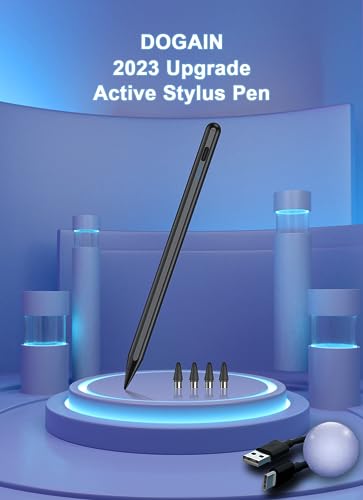
As an Amazon Associate we earn from qualifying purchases. Product prices and availability are accurate as of the date/time indicated.

Active Stylus Pen for iPhone/iPad/Android, Kenkor Pencil with Dual Touch Function, Rechargeable Digital Fine Point Pen for Apple iPad Pro/Air/Mini/iPhone/Switch/Phone/Samsung/Tablet Drawing & Writing
As an Amazon Associate we earn from qualifying purchases. Product prices and availability are accurate as of the date/time indicated.
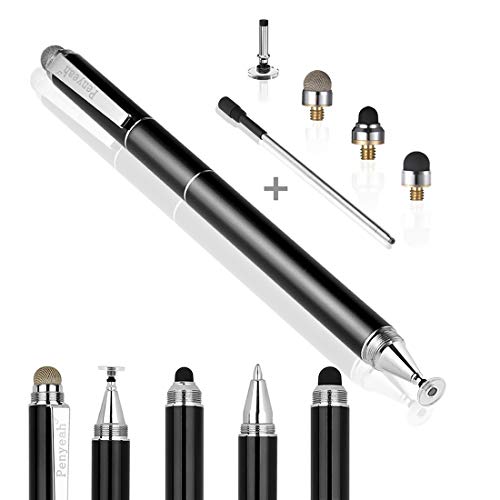
Penyeah Stylus Pen, 4 in 1 Stylus Pen for Touch Screens Everyday Use -Black | High Precision & Sensitivity, Universal Capacitive Stylus, Stylist for Tablets,iPhone,iPad,Laptops,Switch, 4 Replacement Tips
As an Amazon Associate we earn from qualifying purchases. Product prices and availability are accurate as of the date/time indicated.
Compatibility lists, pressure levels, tilt support, weight, charging method, and included nibs are each maker’s specification for the current exact pen and device combination and must be confirmed in that maker’s current documents for your exact tablet model before purchase. A stylus from one family will not provide pressure-sensitive drawing on another family’s device. Prices are typical street ranges for the pen alone as described; a tablet, drawing application, spare nibs, and any charger or dock a pen’s system requires are separate parts of an art setup.
Detailed Reviews: How to Choose Stylus for Digital Art Picks
1. Apple Pencil Pro – Best for iPad
Apple Pencil Pro is the fullest expression of the iPad pen: pressure and tilt, magnetic pairing and charging on supported iPads, and added interactions — a squeeze gesture, barrel roll for shaped brushes, and haptic feedback in Apple’s stated design — that drawing and painting applications can build on. In the hand it is balanced, its nib feel on iPad glass is consistent, and its behaviour across Apple’s own ecosystem is the most predictable in this table.
None of that travels. It works only with the iPad models Apple lists for it, so confirm your exact iPad before anything else, and if your iPad is not listed, the USB-C Pencil below is not a downgrade to resent but the correct pen for your device. Buy spare nibs with it; a dropped Apple Pencil lands on its tip with a consistency that feels personal.
2. Wacom Pro Pen 3 Class – Best Professional
Wacom’s professional pen class is built around customisation and a battery-free EMR design: grips, weights, buttons, and nibs that can be configured in Wacom’s system to suit a hand and a medium, from a hard, precise line nib to a softer, more frictional feel. For an illustrator or concept artist spending a working day on a Wacom pen display or tablet, that adjustability is the product.
It belongs to listed Wacom devices, and its settings live in Wacom’s driver, which should be kept current from Wacom’s official support pages and configured per application. Keep the nib supply stocked; a worn EMR nib changes line quality gradually enough that artists blame their hands for a month before they blame a two-dollar piece of plastic.
3. Samsung S Pen – Best Included
The S Pen’s quiet triumph is that many Galaxy Tab buyers already own it, in the box, battery-free for drawing, with a fine nib that produces a precise, slightly grippy line many illustrators prefer for inking and detail. As a first digital art pen it is genuinely excellent, and its replacement cost, when sold separately, is modest by this table’s standards.
Its limits are size and ecosystem: it is a slim, light pen that some artists find small for long sessions, which is a grip and accessory question to solve within Samsung’s and licensed makers’ options for your exact tablet, and it belongs to listed Samsung devices. Confirm, for a tablet that does not include one, that your exact model supports an S Pen at all — not every tablet in a maker’s range does.
4. Apple Pencil (USB-C) – Best Value iPad
The USB-C Apple Pencil keeps the essentials — pressure, tilt, low-latency drawing on the iPads Apple lists for it — at a lower price, trading the Pro’s gestures, haptics, and magnetic charging for a USB-C charging arrangement and a simpler feature set. For a student, a beginner, or a sketcher whose work is line and colour rather than shaped-brush painting, that trade is rational and the savings belong in applications, storage, or a case.
Check your iPad against Apple’s current compatibility list with the same care as for the Pro, because the two Pencils support different, overlapping sets of models. Whichever Pencil your iPad takes, set aside a small budget for nibs and a case or sleeve that protects the tip in a bag.
5. Microsoft Surface Slim Pen 2 – Best for Surface
Surface Slim Pen 2 is a flat-profile, rechargeable MPP pen with pressure, tilt, and a haptic feature in Microsoft’s stated design intended to make inking feel more tactile on supported devices. Its shape divides opinion in exactly the way a test drawing settles: some artists love the flat profile’s stability, others prefer a round barrel, and neither group is wrong.
Charging arrangements and full feature support depend on the device and accessories in Microsoft’s current documents, so confirm both for your exact Surface or other MPP device before buying, including whether the pen charges in a keyboard, dock, or separate charger you actually own. On a supported device, set its buttons and pressure curve in the maker’s and application’s settings rather than accepting every default.
6. USI 2.0 Pen Classes – Best for Chromebook
USI pens from a Chromebook’s own maker — Lenovo, HP, and others sell pens for their listed devices — are the correct first choice for USI artists: pressure-sensitive, rechargeable in their stated classes, and, most importantly, named for your device by the people who built it. For school, hobby, and a growing body of serious work on capable Chromebooks, they are entirely usable instruments.
USI is also the family where version and device checking matters most, because USI 1.0 and 2.0 devices and pens are not a universal guarantee of full function in every combination. Buy the pen your device maker lists, keep its charging cable or method with your art kit, and treat an unbranded USI pen that does not name your device as a gamble, not a saving.
Buying Guide: How to Choose Stylus for Digital Art Step by Step
Step one: name your device’s protocol, in its maker’s documents
Find your tablet’s exact model name, then read its maker’s current product and support documents for its pen specification: Apple Pencil support and which Pencil, Wacom pen compatibility, S Pen support, Microsoft Pen Protocol, or USI and its version. Write the answer down before you look at a single pen listing, and treat any pen whose maker does not name your device, or its protocol and version, as incompatible until the pen’s maker says otherwise in writing. This one step prevents nearly every bad stylus purchase, including the most common one in digital art: a highly rated pen bought for a tablet that cannot hear it. If you are buying a tablet and a pen together, reverse the process — choose the pen experience you want, in the hand if you can, and buy the tablet family that pen belongs to, because you are choosing an ecosystem, not two gadgets.
Step two: judge the drawing feel with four strokes, not a specification sheet
Pressure levels are the most advertised and least felt number in this category; beyond a competent modern standard, what your hand notices is the pen’s activation force — how light a touch starts a line — the smoothness of its pressure curve at the low end, and its nib’s friction on your screen. Test, in your main application, a slow pressure ramp from nothing to full and back, looking for a line that grows and tapers evenly without steps or sudden blobs; a page of long, fast tapered strokes, checking the ends; tilt shading with the pen held like a pencil, checking that shading engages smoothly rather than switching on; and your smallest habitual detail work, at your usual zoom. Then draw for an hour. Weight, balance, grip diameter, button placement under your fingers, and nib noise on glass are all specifications at the hour mark, and a pen that wins the first four strokes and loses the hour is the wrong pen. Adjust the pressure curve in your tablet driver or application before rejecting a pen for feel, because the default curve is a starting suggestion, not the pen’s character.
Step three: budget nibs, charging, buttons, and a spare like a working artist
Price the pen’s life, not its box. Nibs wear — faster on textured screen protectors, which many artists add for a paper-like feel and which should be chosen, if at all, with their nib wear and screen clarity trade-offs understood — so confirm spare nib prices and availability for your pen and keep them in your kit. Note the charging system and what happens when the pen is flat mid-session: battery-free EMR pens remove the question entirely, which is a real professional advantage, while rechargeable pens need a cable, dock, or device-side charging routine that lives where you draw. Decide what you need buttons and gestures to do in your actual applications — undo, erase, right-click, brush size — and confirm the pen and application support those assignments, because a button your software ignores is decoration. Finally, if drawing is your income or your coursework, own a plan B: a second pen, or at minimum spare nibs, a charged battery where relevant, and your files backed up, because a stylus is a single point of failure with a deadline attached. The answer to how to choose stylus for digital art is finally a sequence, not a product: protocol first, feel second, running costs third — and any pen in this table, bought in that order for the device it was made for, will let your hand say what it has been trying to say on glass all along.
Frequently Asked Questions About How to Choose Stylus for Digital Art
How do I know which stylus works with my tablet?
From your tablet maker’s documents, not from a pen’s marketing. Find your exact tablet model in its maker’s current product or support pages and read its pen specification: which Apple Pencil, Wacom pen, S Pen, Microsoft Pen Protocol version, or USI version it supports. Then buy a pen whose maker names that device or that exact protocol and version for it. A pen from another family may rest on the screen, and a basic capacitive tip may even draw a fat, pressure-free line, but it will not give you the pressure, tilt, and palm rejection your tablet was built for. If the documents for your tablet do not mention pen support at all, assume it has none and treat any claim otherwise as a question to put to the tablet maker before spending money.
Do more pressure levels make a stylus better for drawing?
Not in the way listings imply. Modern pens in every family in this table offer pressure sensitivity well beyond what a hand can deliberately control as separate steps, and two pens with different headline numbers can feel identical while two with the same number feel quite different. What you actually feel is the activation force at the lightest touch, the smoothness of the pressure curve — which you can usually adjust in your driver or application — the nib’s friction, and the pen’s weight and balance across a long session. Judge those with the four tests in this guide’s buying section, in your own application, and let a pen with a modest specification and the right feel beat a pen with a larger number and the wrong one. Spend any remaining budget on spare nibs and the application you draw in, where it will show in the work.
Can I use an Apple Pencil on a Samsung, Wacom, Surface, or Chromebook tablet, or the other way round?
No, not as a drawing pen. Each family in this table speaks a different pen protocol built into its screens: Apple Pencil works with listed iPads, Wacom and Samsung pens work with their listed EMR devices, Surface pens work with listed Microsoft Pen Protocol devices, and USI pens work with listed USI devices. A pen from the wrong family will not deliver pressure, tilt, or palm rejection on your tablet, whatever a marketplace listing’s keyword stuffing suggests, and in most cases it will do nothing at all. The exception that causes the confusion is a simple capacitive stylus — a passive finger substitute — which can make a basic mark on almost any touchscreen but has no pressure or tilt and is not a digital art instrument in the sense this guide means. Buy inside your family, and if you change tablet families, budget for the new family’s pen as part of the change.
What else should a digital artist buy with a stylus?
Spare nibs first, because they are a wear part that quietly governs line quality, and the correct ones for your exact pen should be in your kit before the first nib wears. After that, in order of usefulness for most artists: the drawing application you will actually learn deeply, chosen for your device and your kind of work; a stand or setup that puts your tablet at a sustainable angle for your neck and wrist, with breaks and posture treated as part of the craft rather than an afterthought; a protective case or sleeve that shields the pen’s tip in a bag; and, if you like a paper-like screen feel, a textured protector bought with open eyes about its faster nib wear and slight softening of the display. Keep your pen driver and application updated from their makers’ official sources, back up your artwork files as a routine, and keep your purchase documents together. A stylus is the smallest part of a digital art setup by size and the largest by contact — everything else on this list exists to let it do its work for years.
Related guides
- Best USB C Cable for Gaming in 2026: 7 Best USB C Cables for Gaming That Charge Fast and Stay Connected
- Best Earbuds for Airplane Travel in 2026: Earbuds for Airplane Travel, Travel Earbuds, and Best Airplane Earbuds
- Best Wall Charger with Multiple Ports in 2026: Wall Charger with Multiple Ports, Multi-Port Wall Chargers, and Best Multi-Port Chargers
- Best Lighting Kit for YouTube in 2026: 7 Best Lighting Kits for YouTube That Make Your Videos Look Professional
More from Amazon
Programs that pair well with the guide above. Offers and eligibility are set by Amazon and may change.
Free shipping on eligible items, Prime Video and more. Eligible new members can start with a free trial.
Start a Prime free trialAd-free music streaming. Eligible new subscribers can start with a free trial.
Try Music Unlimited freeA Prime membership for ages 18-24 with a trial period. Eligibility is set by Amazon.
See Prime for Young AdultsAudiobooks and podcasts to listen to on the go. Eligible new members can start with a free trial.
Try Audible freeAs an Amazon Associate we earn from qualifying purchases.

Write Your Review
No reviews yet. Be the first to share your experience!