
What's inside
- Why You Need an External Hard Drive for Backup
- Best External Hard Drive for Backup: Capacity, Speed and Reliability
- Best External Hard Drive for Backup Comparison Table
- Top External Hard Drives for Backup Reviewed
- Buying Guide: How to Choose the Best External Hard Drive for Backup
- How to Back Up Your Files With an External Hard Drive
- Frequently Asked Questions
As an Amazon Associate I earn from qualifying purchases. This post may contain affiliate links at no extra cost to you.
Finding the best external hard drive for backup is about choosing a drive that is large enough for your photos, videos, and documents, fast enough to back up quickly, and reliable enough to trust with your important files, with a design that is durable, and with a drive that is easy to use, with a design that is ideal for a home backup, for a work backup, and for a portable backup. A good external hard drive for backup should have a capacity of at least 2TB, with a design that is roomy, and with a drive that is compatible with Windows and Mac, with a design that is versatile.
This guide explains what to look for in an external hard drive for backup, how to compare capacity, speed, durability, and software, and which models work well in 2026. We focus on practical use for people who back up photos, videos, and work files, with a drive that is used every week, and with a design that is suitable for a beginner and for an experienced user. Whether you back up a laptop, a desktop, or a phone, the same principles apply: choose a drive that is large, with a design that is reliable, and with a drive that is easy to use.
Our Top Picks
Why You Need an External Hard Drive for Backup
You need an external hard drive for backup because your laptop or desktop can fail, with a design that is unpredictable, and with a drive that can lose your photos, your documents, and your work, with a design that is devastating. An external hard drive, such as the WD My Passport 2TB, is a good choice, because it lets you copy your files to a separate drive, with a design that is safe, and with a drive that you can store away from your computer, with a design that is protected. A cloud backup, with a design that is online, is also useful, although it is slower, with a design that depends on your internet, and with a drive that is local, with a design that is faster, and with a backup that is ideal for a large photo library.
An external hard drive for backup also lets you follow the 3-2-1 rule, with a design that is a best practice: keep 3 copies of your data, on 2 different types of media, with 1 copy offsite, with a design that is safe. A drive such as the Seagate Backup Plus Slim, with a capacity of 2TB, is a good choice for one copy, with a design that is portable, while a second drive, such as the WD My Book 8TB, is a good choice for a desktop backup, with a design that is large. A drive that is used regularly, with a design that is scheduled, will help you avoid losing data, with a design that is reliable.
Best External Hard Drive for Backup: Capacity, Speed and Reliability
Capacity matters most for an external hard drive for backup, because it determines how much you can back up, with a design that is important for a photo library. A drive with a capacity of 2TB, such as the WD My Passport 2TB, is a good choice for a laptop with 512GB of storage, with a design that is roomy, and with a drive that can hold several backups, while a drive with a capacity of 8TB, such as the WD My Book 8TB, is a good choice for a desktop with a large photo library, with a design that is large, and with a drive that is ideal for a professional photographer. A drive with a capacity that is at least twice your computer’s storage, with a design that is safe, is a good rule, because it lets you keep multiple versions, with a design that is useful.
Speed also matters, because a drive with USB 3.2, with a speed of up to 5 Gbps, is faster than a drive with USB 2.0, with a design that is slow, and with a drive that will take hours to back up, with a design that is frustrating. A portable HDD, with a speed of about 120 MB/s, is good for a backup, with a design that is adequate, while a portable SSD, with a speed of up to 1000 MB/s, is much faster, with a design that is ideal for a large video backup, although it is more expensive, with a design that is premium. A desktop HDD, with a speed of about 180 MB/s, is also good, with a design that is faster than a portable HDD, and with a drive that is ideal for a large backup.
Best External Hard Drive for Backup Comparison Table
| Model | Capacity | Interface | Speed | Size / Weight | Typical Price Range | Rating |
|---|---|---|---|---|---|---|
| WD My Passport 2TB | 2TB | USB 3.2 Gen 1 | About 120 MB/s | Portable, about 4.2 oz | $70-$85 | 4.8/5 |
| Seagate Backup Plus Slim 2TB | 2TB | USB 3.0 | About 120 MB/s | Portable, about 4.4 oz | $65-$80 | 4.7/5 |
| WD My Book 8TB | 8TB | USB 3.0 | About 180 MB/s | Desktop, about 2 lbs | $180-$200 | 4.8/5 |
| Seagate Expansion Desktop 8TB | 8TB | USB 3.0 | About 180 MB/s | Desktop, about 2 lbs | $160-$180 | 4.7/5 |
| Toshiba Canvio Advance 2TB | 2TB | USB 3.2 Gen 1 | About 120 MB/s | Portable, about 5.3 oz | $60-$75 | 4.6/5 |
| LaCie Rugged USB-C 2TB | 2TB | USB-C 3.2 | About 130 MB/s | Portable, rugged, about 9 oz | $90-$110 | 4.7/5 |

Seagate 2TB Portable Hard Drive | USB 3.0 (STGX2000400) | Everyday HDD storage. Plug-and-play backup. Windows & macOS. Adobe CC trial included. 1-Year Warranty
As an Amazon Associate we earn from qualifying purchases. Product prices and availability are accurate as of the date/time indicated.
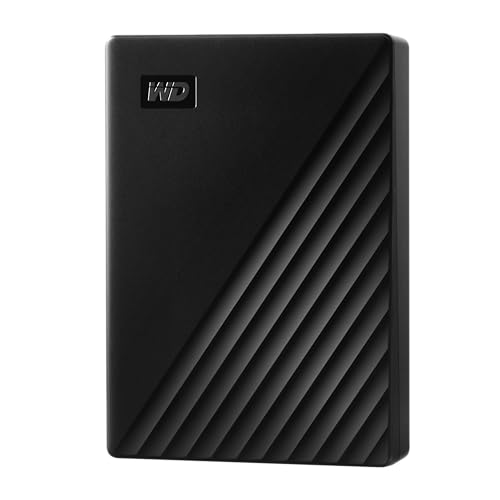
WD 6TB My Passport, Portable External Hard Drive, Black, Backup Software with Defense Against ransomware, and Password Protection, USB 3.1/USB 3.0 Compatible - WDBR9S0060BBK-WESN
As an Amazon Associate we earn from qualifying purchases. Product prices and availability are accurate as of the date/time indicated.

WD 20TB Elements Desktop External Hard Drive, USB 3.0 drive for plug-and-play storage - WDBWLG0200HBK-NESN
As an Amazon Associate we earn from qualifying purchases. Product prices and availability are accurate as of the date/time indicated.
Top External Hard Drives for Backup Reviewed
WD My Passport 2TB
The WD My Passport 2TB is a drive with a capacity of 2TB, an interface of USB 3.2 Gen 1, a speed of about 120 MB/s, a portable size, a weight of about 4.2 ounces, and a price of $70 to $85. It has a design that is known for WD quality, with a drive that is popular, and with a drive that includes backup software. It is a good choice if you want the best external hard drive for backup, with a design that is a good balance, and with a drive that is ideal for a laptop backup.
Seagate Backup Plus Slim 2TB
The Seagate Backup Plus Slim 2TB is a drive with a capacity of 2TB, an interface of USB 3.0, a speed of about 120 MB/s, a portable size, a weight of about 4.4 ounces, and a price of $65 to $80. It has a design that is known for Seagate quality, with a drive that is slim, and with a drive that is easy to carry. It is a good choice if you want an external hard drive for backup that is affordable, with a design that is good and with a drive that is ideal for a portable backup.
WD My Book 8TB
The WD My Book 8TB is a drive with a capacity of 8TB, an interface of USB 3.0, a speed of about 180 MB/s, a desktop size, a weight of about 2 pounds, and a price of $180 to $200. It has a design that is known for WD quality, with a drive that is large, and with a drive that includes backup software. It is a good choice if you want an external hard drive for backup that is large, with a design that is ideal for a desktop, and with a drive that is good for a photo library.
Seagate Expansion Desktop 8TB
The Seagate Expansion Desktop 8TB is a drive with a capacity of 8TB, an interface of USB 3.0, a speed of about 180 MB/s, a desktop size, a weight of about 2 pounds, and a price of $160 to $180. It has a design that is known for Seagate quality, with a drive that is simple, and with a drive that is affordable for its size. It is a good choice if you want an external hard drive for backup that is large and cheap, with a design that is good and with a drive that is ideal for a home backup.
Toshiba Canvio Advance 2TB
The Toshiba Canvio Advance 2TB is a drive with a capacity of 2TB, an interface of USB 3.2 Gen 1, a speed of about 120 MB/s, a portable size, a weight of about 5.3 ounces, and a price of $60 to $75. It has a design that is known for Toshiba quality, with a drive that is affordable, and with a drive that is easy to use. It is a good choice if you want a budget external hard drive for backup, with a design that is cheap and with a drive that is good for a first backup drive.
LaCie Rugged USB-C 2TB
The LaCie Rugged USB-C 2TB is a drive with a capacity of 2TB, an interface of USB-C 3.2, a speed of about 130 MB/s, a portable rugged size, a weight of about 9 ounces, and a price of $90 to $110. It has a design that is known for LaCie quality, with a drive that is drop-resistant, rain-resistant, and crush-resistant, and with a drive that is ideal for travel. It is a good choice if you want an external hard drive for backup that is durable, with a design that is rugged, and with a drive that is good for a photographer who travels.
Buying Guide: How to Choose the Best External Hard Drive for Backup
Start with capacity, your data size, and your future. Look for a drive with a capacity that is at least twice your computer’s storage, because it lets you keep multiple backups, with a design that is safe, and with a drive that is roomy. A drive with a capacity of 2TB is a good choice for a laptop with 512GB, with a design that is enough, while a drive with a capacity of 8TB is a good choice for a desktop with 2TB, with a design that is large. A drive with a capacity of 4TB, with a design that is middle, is also a good choice, because it gives you room to grow, with a design that is future-proof, and with a drive that is ideal for a photo library that grows every year.
Next, check portability, desktop vs portable, and your use. Look for a portable drive, such as the WD My Passport, if you back up a laptop, with a design that is small, and with a drive that you can carry in your bag, while a desktop drive, such as the WD My Book, is a good choice if you back up a desktop, with a design that is large, and with a drive that stays on your desk. A portable drive is powered by USB, with a design that is convenient, while a desktop drive needs a power adapter, with a design that is less portable, although it is faster and larger. A rugged drive, such as the LaCie Rugged, is a good choice if you travel, with a design that is durable, and with a drive that can survive a drop.
Check speed, interface, and your computer. Look for a drive with USB 3.2, with a speed of up to 5 Gbps, because it is faster than USB 2.0, with a design that is slow, and with a drive that will back up quickly. A drive with USB-C, with a design that is modern, is a good choice for a MacBook, with a design that is compatible, while a drive with USB-A, with a design that is older, is a good choice for a Windows PC, with a design that is standard. A drive with a speed of about 120 MB/s, with a design that is typical for an HDD, is good for a backup, with a design that is adequate, while a drive with a speed of up to 1000 MB/s, with a design that is an SSD, is much faster, with a design that is ideal for a large video backup, although it is more expensive.
Consider software, encryption, and your security. Look for a drive with backup software, such as WD Backup or Seagate Toolkit, because it lets you schedule automatic backups, with a design that is convenient, and with a drive that is easy to use. A drive with hardware encryption, with a design that is secure, is also important, because it protects your files if your drive is lost or stolen, with a design that is safe. A drive that is compatible with Time Machine on Mac, with a design that is built-in, is also a good choice, because it lets you back up your Mac automatically, with a design that is seamless. A drive that is formatted for Windows, with a design that is NTFS, may need to be reformatted for Mac, with a design that is APFS, so check compatibility before you buy.
Finally, set a realistic budget. External hard drives for backup typically cost $60 to $200, depending on capacity and type. A drive from $60 to $85, such as the Toshiba Canvio Advance, Seagate Backup Plus Slim, or WD My Passport 2TB, offers a good way to back up a laptop, with a design that is affordable. A drive from $90 to $110, such as the LaCie Rugged USB-C 2TB, offers a durable drive, with a design that is rugged, and with a drive that is worth it if you travel. A drive from $160 to $200, such as the Seagate Expansion Desktop 8TB or WD My Book 8TB, offers a large drive, with a design that is ideal for a desktop, and with a drive that is worth it if you have a large photo library. Do not buy a drive based only on price. Choose one that is large enough, with a design that is reliable, and with a drive that is easy to use, so you back up regularly.
How to Back Up Your Files With an External Hard Drive
To back up your files with an external hard drive, first connect your drive to your computer, with a design that is secure, and format it if needed, with a design that is correct for your system. Use backup software, such as Time Machine on Mac or File History on Windows, with a design that is built-in, to schedule automatic backups, with a design that is weekly, and let it run, with a design that is complete. Store your drive in a safe place, with a design that is away from your computer, and with a drive that is in a different room, so it is safe if your computer is damaged. Test your backup, with a design that is important, by restoring a file, with a design that is checked, to make sure your backup works. A drive that is used regularly, with a backup that is tested, will keep your files safe, with a design that is reliable.
Frequently Asked Questions
How much storage do I need for backup?
How much storage you need for backup depends on your data size, with a drive that is at least twice your computer’s storage being a good rule, with a design that is safe, and with a drive that lets you keep multiple backups. A laptop with 512GB of storage needs a 2TB drive, with a design that is roomy, while a desktop with 2TB of storage needs an 8TB drive, with a design that is large. A photo library that grows every year, with a design that is expanding, needs a larger drive, with a design that is future-proof, so choose a drive with room to grow, with a design that is practical.
Is an HDD or SSD better for backup?
An HDD is better for backup if you need a large capacity at a low price, with a design that is affordable, and with a drive that is good for archiving photos and videos, while an SSD is better if you need speed, with a design that is fast, and with a drive that is ideal for a large video backup that needs to be done quickly. An HDD, such as the WD My Passport, costs about $70 for 2TB, with a design that is cheap, while an SSD, such as the SanDisk Extreme, costs about $100 for 1TB, with a design that is more expensive. For most backups, an HDD is enough, with a design that is good, while an SSD is better for a professional who needs speed.
How often should I back up my files?
How often you should back up your files depends on how often you change them, with a backup once a week being a good minimum, with a design that is regular, and with a drive that is scheduled, and a backup once a day being better if you work on important files daily, with a design that is frequent. A backup that is automatic, with a design that is scheduled, is better than a backup that is manual, with a design that is forgotten, because it happens regularly, with a design that is reliable. Use backup software, with a design that is built-in, to schedule your backups, with a design that is easy, and test your backup regularly, with a design that is checked.
Can I use an external hard drive for both Windows and Mac?
Yes, you can use an external hard drive for both Windows and Mac, if you format it as exFAT, with a design that is compatible with both, and with a drive that can be read and written on both systems, with a design that is versatile. A drive formatted as NTFS, with a design that is Windows-only, can be read on Mac, with a design that is limited, but not written to, without extra software, with a design that is inconvenient. A drive formatted as APFS, with a design that is Mac-only, cannot be read on Windows, with a design that is incompatible. For a drive that you use on both, format it as exFAT, with a design that is universal, and with a drive that is easy to use on both.
Related guides
- Best Premium IPS Monitor for Color Accuracy in 2026: EIZO ColorEdge, ASUS ProArt, and BenQ SW Graded on Hardware Calibration, Uniformity Compensation, and Delta E From the Panel’s Own Sensor
- Best Smartwatch for Kids Safety Tracking in 2026: 7 Best Smartwatches for Kids Safety Tracking With Clear Tracking, Simple Use, and Easy Use for Kids Safety Tracking
- Best WiFi Router for Smart Homes: 6 WiFi Routers for Smart Homes in 2026
- Best Travel Phone Accessories Kit for Flights: 6 Travel Phone Accessories Kits for Flights in 2026
More from Amazon
Programs that pair well with the guide above. Offers and eligibility are set by Amazon and may change.
Free shipping on eligible items, Prime Video and more. Eligible new members can start with a free trial.
Start a Prime free trialAd-free music streaming. Eligible new subscribers can start with a free trial.
Try Music Unlimited freeA Prime membership for ages 18-24 with a trial period. Eligibility is set by Amazon.
See Prime for Young AdultsAudiobooks and podcasts to listen to on the go. Eligible new members can start with a free trial.
Try Audible freeAs an Amazon Associate we earn from qualifying purchases.

Write Your Review
No reviews yet. Be the first to share your experience!