
What's inside
- Why Learning How to Choose External Hard Drive for Backups Matters
- How to Choose External Hard Drive for Backups: Comparison Table
- Seagate Basic 1TB External Hard Drive
- WD Elements 1TB External Hard Drive
- Seagate One Touch 2TB External Hard Drive
- WD My Passport 2TB External Hard Drive
- SanDisk Extreme Portable 1TB SSD
- Samsung T7 Shield 1TB SSD
- WD My Passport 4TB External Hard Drive
- Buying Guide: How to Choose External Hard Drive for Backups
- Frequently Asked Questions
As an Amazon Associate I earn from qualifying purchases. This post may contain affiliate links at no extra cost to you.
Learning how to choose external hard drive for backups is about finding a drive that can store your photos, documents, and videos safely, without being too slow, too small, or too expensive, and without losing data if your computer fails. An external hard drive for backups should have enough capacity for your files, a fast USB connection, and a durable design, so you can back up your computer regularly, and restore files quickly, if you need them.
This guide explains how to choose an external hard drive for backups, compares seven real, currently sold external hard drives, and helps you choose the right drive for your computer, your files, and your budget. Prices below are typical retail ranges from $39 to $139 and can vary by retailer and sale. Always check capacity, connection type, and compatibility before you buy.
Data safety comes first. Use the 3-2-1 backup rule: 3 copies of important files, on 2 different types of storage, with 1 copy offsite, such as a cloud backup or a drive stored elsewhere. An external hard drive is not a complete backup by itself, if it is your only copy. Use strong passwords, encrypt your backup drive where possible, and update your computer software regularly. Do not store a backup drive in the same place as your computer, if possible, because a fire or theft could destroy both.
Our Top Picks
Why Learning How to Choose External Hard Drive for Backups Matters
Learning how to choose an external hard drive for backups matters because a hard drive in your computer can fail, a laptop can be stolen, and a phone can be lost, and without a backup, you can lose photos, documents, and work in minutes. An external hard drive can back up your files, with a simple, low-cost device that you plug in, copy files to, and store safely, without a monthly subscription, unlike a cloud backup, which needs internet and a monthly fee.
Capacity matters for an external hard drive, because a drive that is too small will fill up quickly, while a drive that is too large may cost more than you need. A 1TB drive is good for photos and documents, while a 2TB drive is better for videos and large files, and a 4TB drive is good for a large photo library or a video editing project. Check how much storage you use now, on your computer, add at least 50 percent for future growth, and choose a drive with at least twice the capacity of your current files, if possible, for backups and version history.
Finally, speed and durability matter for an external hard drive. A drive with a USB-C connection, and a USB 3.2 Gen 2 speed, can transfer files faster than a drive with a USB 3.0 connection, especially for large video files. A solid state drive, or SSD, is faster and more durable than a hard disk drive, or HDD, because it has no moving parts, but it is more expensive per terabyte. A rugged SSD, such as a Samsung T7 Shield, can survive drops and water, while a standard HDD, such as a Seagate Basic, is cheaper, but more fragile. Choose a drive by your speed, durability, and budget needs.
How to Choose External Hard Drive for Backups: Comparison Table
The table below compares seven real, currently sold external hard drives for backups. Rows are sorted by the low end of the typical price range. Ratings reflect overall owner feedback for speed, reliability, portability, and value, not a laboratory test.
| External Hard Drive Model | Capacity and Type | Connection and Speed | Best For | Typical Price Range | Rating |
|---|---|---|---|---|---|
| Seagate Basic 1TB External Hard Drive | 1TB, HDD, portable | USB 3.0, up to 120 MB/s | Best budget, for choosing external hard drive | $39 – $49 | 4.6 / 5 |
| WD Elements 1TB External Hard Drive | 1TB, HDD, portable | USB 3.0, up to 120 MB/s | Best WD Elements, for backups | $44 – $54 | 4.6 / 5 |
| Seagate One Touch 2TB External Hard Drive | 2TB, HDD, portable | USB 3.0, up to 120 MB/s | Best Seagate One Touch, for backups | $69 – $79 | 4.7 / 5 |
| WD My Passport 2TB External Hard Drive | 2TB, HDD, portable | USB 3.0, up to 120 MB/s, password protection | Best WD My Passport, for backups | $74 – $89 | 4.7 / 5 |
| SanDisk Extreme Portable 1TB SSD | 1TB, SSD, portable, rugged | USB-C, up to 1,050 MB/s | Best SanDisk, for choosing external hard drive | $89 – $109 | 4.8 / 5 |
| Samsung T7 Shield 1TB SSD | 1TB, SSD, portable, rugged | USB-C, up to 1,050 MB/s, IP65 | Best Samsung, for choosing external hard drive | $99 – $119 | 4.8 / 5 |
| WD My Passport 4TB External Hard Drive | 4TB, HDD, portable | USB 3.0, up to 120 MB/s, password protection | Best premium, for choosing external hard drive | $119 – $139 | 4.7 / 5 |

Seagate 2TB Portable Hard Drive | USB 3.0 (STGX2000400) | Everyday HDD storage. Plug-and-play backup. Windows & macOS. Adobe CC trial included. 1-Year Warranty
As an Amazon Associate we earn from qualifying purchases. Product prices and availability are accurate as of the date/time indicated.
WD 6TB My Passport, Portable External Hard Drive, Black, Backup Software with Defense Against ransomware, and Password Protection, USB 3.1/USB 3.0 Compatible - WDBR9S0060BBK-WESN
As an Amazon Associate we earn from qualifying purchases. Product prices and availability are accurate as of the date/time indicated.

WD 20TB Elements Desktop External Hard Drive, USB 3.0 drive for plug-and-play storage - WDBWLG0200HBK-NESN
As an Amazon Associate we earn from qualifying purchases. Product prices and availability are accurate as of the date/time indicated.
Seagate Basic 1TB External Hard Drive
The Seagate Basic 1TB External Hard Drive is a drive with a typical price range of $39 to $49. It is the cheapest drive in this comparison and a practical starting point if you want a low-cost external hard drive for backups. It has 1TB capacity, is an HDD, is portable, has a USB 3.0 connection, and a speed of up to 120 MB/s, according to the maker.
Choose this drive if you want a Seagate Basic 1TB drive for backups, with a low price and a simple, portable design. The Basic drive has a 1TB capacity that is good for photos and documents, a USB 3.0 connection, and a slim design. It is a good fit for a beginner, with a first backup drive for a laptop. Its HDD design is slower and more fragile than an SSD, so do not drop it, and do not use it as your only backup, because a single HDD can fail. Use it as one copy in a 3-2-1 backup system, with a cloud backup as well.
WD Elements 1TB External Hard Drive
The WD Elements 1TB External Hard Drive is a drive with a typical price range of $44 to $54. It has 1TB capacity, is an HDD, is portable, has a USB 3.0 connection, and a speed of up to 120 MB/s, according to the maker. It is a good choice if you want a WD drive for backups, with a trusted brand and a simple design.
This drive is best for a user who wants a WD Elements 1TB drive for backups, with a 1TB capacity, a portable design, and a USB 3.0 connection. The Elements drive has a simple setup, with no software to install, just plug it in and copy files. It is a good fit for a home user, with a need for a simple, low-cost backup drive. It is more expensive than a Seagate Basic drive, but it offers a WD brand and a similar quality.
Seagate One Touch 2TB External Hard Drive
The Seagate One Touch 2TB External Hard Drive is a drive with a typical price range of $69 to $79. It has 2TB capacity, is an HDD, is portable, has a USB 3.0 connection, and a speed of up to 120 MB/s, according to the maker. It is a good choice if you want a Seagate One Touch drive for backups, with a larger, 2TB capacity.
Choose this drive if you want a Seagate One Touch 2TB drive for backups, with a 2TB capacity that can store photos, videos, and documents, for a family or a creator. The One Touch drive has a slim design, a USB 3.0 connection, and a simple setup. It is a good fit for a user who needs more storage than a 1TB drive, without paying for an SSD. It is more expensive than a WD Elements drive, but it offers twice the capacity, for a small price increase.
WD My Passport 2TB External Hard Drive
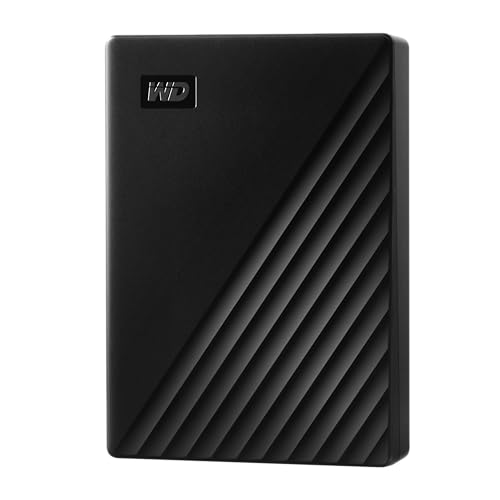
The WD My Passport 2TB External Hard Drive is a drive with a typical price range of $74 to $89. It has 2TB capacity, is an HDD, is portable, has a USB 3.0 connection, a speed of up to 120 MB/s, and password protection, according to the maker. It is a good choice if you want a WD My Passport drive for backups, with password protection for security.
This drive is best for a user who wants a WD My Passport 2TB drive for backups, with a 2TB capacity, password protection, and a portable design. The My Passport drive has a simple setup, a slim design, and a software tool for backups, according to the maker. It is a good fit for a user who wants a secure backup drive, with a password, for sensitive files. It is more expensive than a Seagate One Touch drive, but it offers password protection and a WD brand.
SanDisk Extreme Portable 1TB SSD
The SanDisk Extreme Portable 1TB SSD is a drive with a typical price range of $89 to $109. It has 1TB capacity, is an SSD, is portable and rugged, has a USB-C connection, and a speed of up to 1,050 MB/s, according to the maker. It is a good choice if you want a SanDisk SSD for backups, with a fast, durable design.
Choose this drive if you want a SanDisk Extreme Portable 1TB SSD for backups, with a 1TB capacity, a fast USB-C connection, and a rugged design that can survive drops. The Extreme Portable SSD has a speed of up to 1,050 MB/s, which is much faster than an HDD, at 120 MB/s, and it has no moving parts, so it is more durable. It is a good fit for a creator, with a need for a fast backup drive for large video files. It is more expensive than a WD My Passport drive, but it offers a much faster speed and a more durable SSD design.
Samsung T7 Shield 1TB SSD
The Samsung T7 Shield 1TB SSD is a drive with a typical price range of $99 to $119. It has 1TB capacity, is an SSD, is portable and rugged, has a USB-C connection, a speed of up to 1,050 MB/s, and an IP65 rating, according to the maker. It is a good choice if you want a Samsung SSD for backups, with a rugged, water-resistant design.
This drive is best for a user who wants a Samsung T7 Shield 1TB SSD for backups, with a 1TB capacity, a fast USB-C connection, and an IP65 rating for dust and water resistance, according to the maker. The T7 Shield has a rugged rubber exterior, a simple setup, and a fast speed. It is a good fit for a traveller or creator, with a need for a durable, fast backup drive for outdoor use. It is more expensive than a SanDisk Extreme SSD, but it offers an IP65 rating and a Samsung brand.
WD My Passport 4TB External Hard Drive
The WD My Passport 4TB External Hard Drive is a drive with a typical price range of $119 to $139. It has 4TB capacity, is an HDD, is portable, has a USB 3.0 connection, a speed of up to 120 MB/s, and password protection, according to the maker. It is the most expensive drive in this comparison, but it is a premium WD drive with a large, 4TB capacity for a large photo or video library.
Choose this drive if you want a premium WD My Passport 4TB drive for backups and you are willing to pay more for it. The My Passport 4TB drive has a 4TB capacity that can store a large library, password protection, and a portable design. It is a good fit for a family or creator, with a need for a large backup drive for many photos and videos. It is not the best choice if you have a small budget, because a Seagate Basic 1TB drive offers similar basic backup at a lower price, with a smaller capacity.
Buying Guide: How to Choose External Hard Drive for Backups
1. Choose capacity by files: 1TB for photos, 2TB for videos, 4TB for large libraries
Start with capacity when you learn how to choose an external hard drive for backups. Check how much storage you use now, on your computer, in Settings or About This Mac, and add at least 50 percent for future growth. A 1TB drive is good for photos and documents, with a small library, while a 2TB drive is better for videos and large files, and a 4TB drive is good for a large photo library or a video editing project. Choose a drive with at least twice the capacity of your current files, if possible, for backups and version history, because a backup drive that is full cannot back up new files. Do not buy a drive that is too small, because you will need to buy another one soon.
2. Choose HDD vs SSD by speed and durability: HDD for low cost, SSD for speed
Choose an HDD, such as a Seagate Basic or WD Elements, if you want a low-cost drive, with a large capacity per dollar, for basic backups, and you do not need a fast speed. An HDD is slower, at up to 120 MB/s, and more fragile, because it has moving parts, so do not drop it. Choose an SSD, such as a SanDisk Extreme or Samsung T7 Shield, if you want a fast drive, with a speed of up to 1,050 MB/s, and a durable design, with no moving parts, for large video files and for travel. An SSD is more expensive per terabyte, but it is faster and more durable. For most home backups, an HDD is enough, while for video editing, an SSD is better.
3. Check connection, compatibility, and encryption
Check connection: a drive with a USB-C connection, and a USB 3.2 Gen 2 speed, can transfer files faster than a drive with a USB 3.0 connection, especially for large files. Check compatibility: a drive formatted for Windows, with NTFS, may not work on a Mac, without reformatting, while a drive formatted for Mac, with APFS, may not work on Windows. Check the product details for your computer, Windows or Mac, before you buy, and reformat the drive if needed, after you back up any files on it. Check encryption: a drive with password protection, such as a WD My Passport, can protect your files if the drive is lost or stolen, while a drive without encryption may be less secure. Use encryption where possible, for sensitive files.
4. Check 3-2-1 backup, testing, and care
Use the 3-2-1 backup rule: 3 copies of important files, on 2 different types of storage, with 1 copy offsite, such as a cloud backup or a drive stored elsewhere. An external hard drive is not a complete backup by itself, if it is your only copy. Test your backup regularly, by restoring a file, to make sure it works, before you rely on it. Store your backup drive in a cool, dry place, away from your computer, if possible, and do not leave it plugged in all the time, because it can be damaged by a power surge or a virus. Eject your drive safely, before you unplug it, to prevent data corruption.
Frequently Asked Questions
What is the best external hard drive for backups?
For most home users, the Seagate One Touch 2TB External Hard Drive, typically $69 to $79, is a strong overall choice because it has a 2TB capacity, a portable design, and a USB 3.0 connection, at a low price. If you want a fast SSD, the SanDisk Extreme Portable 1TB SSD, typically $89 to $109, is a good choice. If you want a large capacity, the WD My Passport 4TB, typically $119 to $139, is a good choice. Choose by capacity, speed, and budget.
What is the best budget external hard drive for backups?
The best budget external hard drive is the Seagate Basic 1TB External Hard Drive, typically $39 to $49, because it is the cheapest row in the table and the only model in that lowest price range. It has 1TB capacity, is an HDD, is portable, and has a USB 3.0 connection. It is a good choice for a low-cost backup drive, but it is an HDD, so it is slower and more fragile than an SSD, and it has no password protection, so use it as one copy in a 3-2-1 backup system, with a cloud backup as well.
How much storage do I need for backups?
How much storage you need for backups depends on how many photos, videos, and documents you have. A user with photos and documents, but few videos, may need 1TB of storage, while a user with many videos, or a creator with large video files, may need 2TB or 4TB. Check how much storage you use now, on your computer, add at least 50 percent for future growth, and choose a drive with at least twice the capacity of your current files, if possible, for backups and version history. A 2TB drive is a good starting point for most families, with photos and videos.
Should I use an HDD or SSD for backups?
You should use an HDD for backups if you want a low-cost drive, with a large capacity per dollar, for basic backups, and you do not need a fast speed. An HDD, such as a Seagate Basic, is good for storing photos and documents, with a simple, low-cost design. You should use an SSD for backups if you want a fast drive, with a speed of up to 1,050 MB/s, and a durable design, with no moving parts, for large video files and for travel. An SSD, such as a SanDisk Extreme, is good for video editing and for a backup drive that you carry with you. For most home backups, an HDD is enough, while for video work, an SSD is better.
How to choose an external hard drive for backups is simple, once you know your capacity, speed, and durability needs. Start with a Seagate One Touch 2TB for a reliable, low-cost drive, choose a Seagate Basic 1TB for the lowest price, or choose a SanDisk Extreme Portable SSD for a fast, durable drive. Check capacity, use the 3-2-1 backup rule, test a restore, and store your backup drive safely, away from your computer. With the right drive, you can protect your photos and documents, without worrying about losing them.
Related guides
- Best Stool for Standing Desks in 2026: 7 Best Stools for Standing Desks That Let You Sit, Lean, and Stand Without Hurting Your Back
- Mechanical Keyboard vs Membrane Keyboard Feel in 2026: 6 Top Keyboards Compared, Mechanical vs Membrane Keyboards, and Easy Use
- Best Budget Travel Keyboard Case for Travelers in 2026: 7 Cases That Offer Safe Storage, Easy Carrying, and Reliable Use for Travelers
- Best RGB Keyboard for Gaming Setup in 2026: RGB Keyboards for Gaming Setup, PC Gaming, and Desk Setups
More from Amazon
Programs that pair well with the guide above. Offers and eligibility are set by Amazon and may change.
Free shipping on eligible items, Prime Video and more. Eligible new members can start with a free trial.
Start a Prime free trialAd-free music streaming. Eligible new subscribers can start with a free trial.
Try Music Unlimited freeA Prime membership for ages 18-24 with a trial period. Eligibility is set by Amazon.
See Prime for Young AdultsAudiobooks and podcasts to listen to on the go. Eligible new members can start with a free trial.
Try Audible freeAs an Amazon Associate we earn from qualifying purchases.

Write Your Review
No reviews yet. Be the first to share your experience!